Cirkus has replaced the previous upcoming Due Date reminder with a fully customizable Due Date Reminder engine. You now have total control over when task assignees are alerted about upcoming deadlines.
What has changed?
Custom Intervals: You can now set reminders for specific times (minutes, hours, days, or weeks) before or after a task is due.
Multiple Alerts: You are no longer limited to one reminder. Add as many as you need to a single task, even after its’ due to ensure over due tasks are followed up.
The New Default: All Workspaces now have a default reminder of 24 hours before the due date.
Migration: Any upcoming tasks have been automatically updated to a "1 day before" custom reminder.
Reminders are sent by Inbox, Push and email, depending on how your Notification Preferences are configured.
How to Set up and Edit Reminders
Task Reminders are managed from the Due Date on any task.
Open a Task and locate the Due Date field and confirm it’s set.
Check the Bell: Look for the bell icon next to the date
Filled Bell: A reminder is active.
Empty Bell: No reminder is set
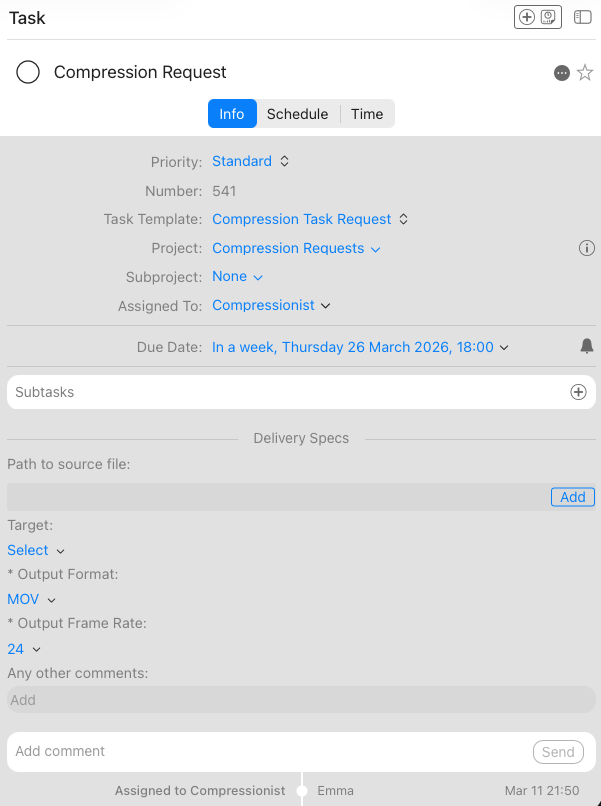
3. Add/Edit: Click the bell to open the Due Date Reminders section.
4. Set Interval: Choose your time (e.g., 2 hours) and the trigger (Before or After), or a Custom Interval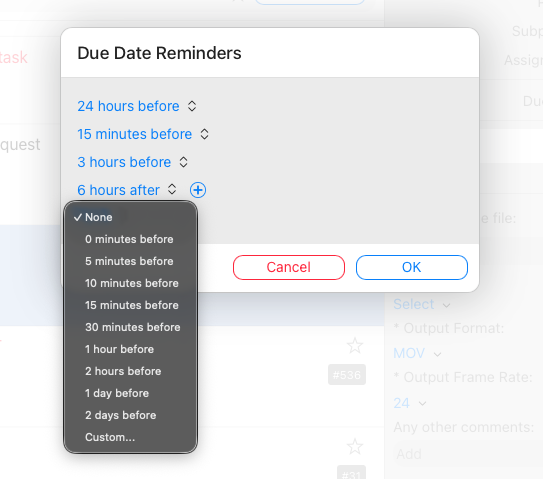
5. Save: Click OK to apply.
Note on Permissions: Reminders are sent to all task assignees. You must have "Edit" permissions on a task to change the reminder. If a task is locked or uneditable, the alarm cannot be changed.
Workspace & Template Defaults
Admins can automate these reminders so the team doesn't have to set them manually every time.
When a Task is created it will use the Due Date Reminder values set on its template if a template is applied and they are set, if not it will fallback to use those defined on the Workspace.
Workspace Level: Set a global default in Workspace Settings > Default Reminders > Due Date Reminders.
Every workspace already has a “Default” which is 24h, but this can be updated.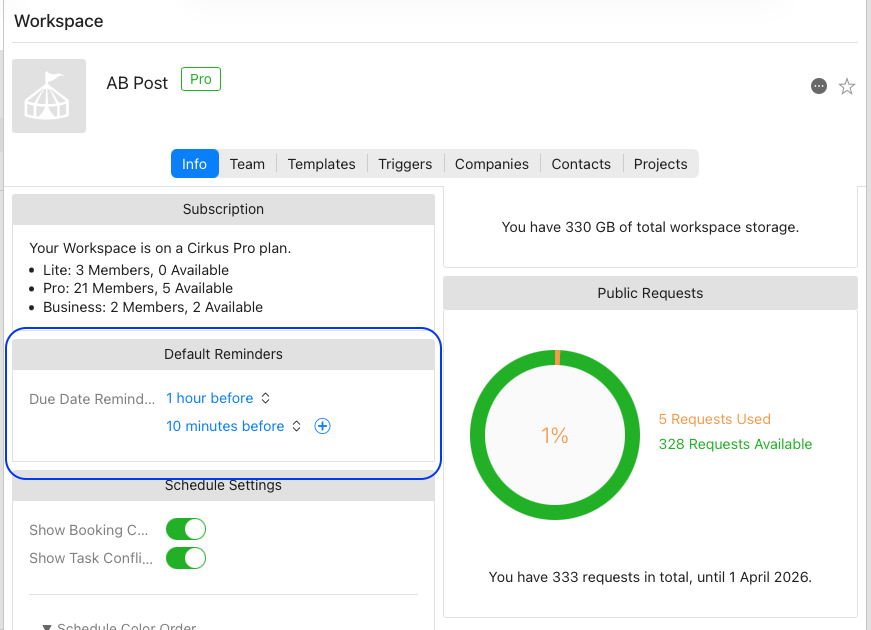
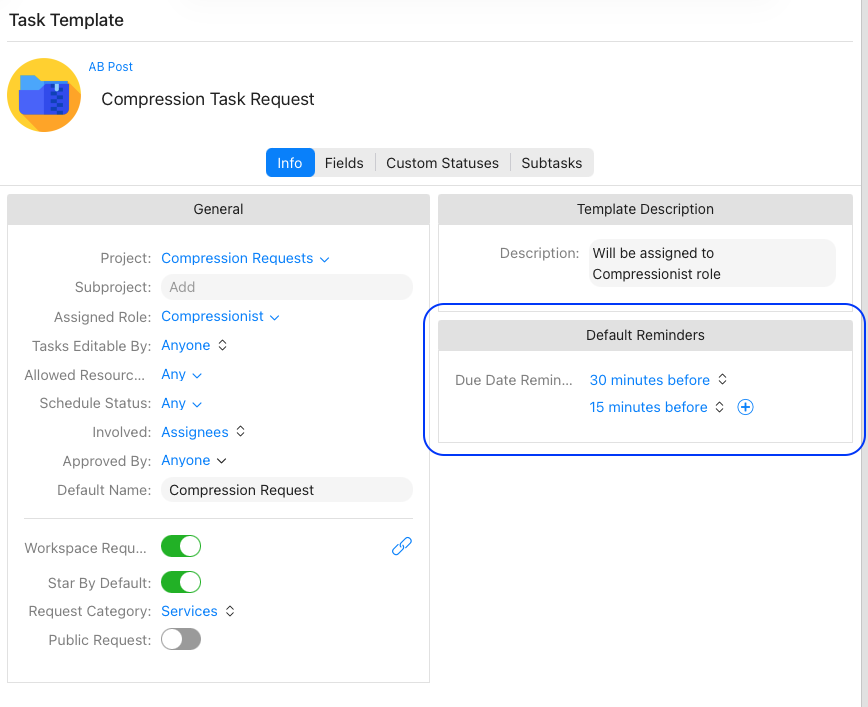
Template Level: Set specific reminders within a Task Template. These will override the Workspace default when that template is used.
When are Reminders Suppressed?
To keep your notifications relevant, Cirkus will not send a reminder if:
The task is Done, Canceled, Invoiced, or Deleted.
The task is Not Approved.
The task has no Due Date.
The Project or Subproject is Closed.
These are configurable if using Cirkus private cloud
You can also use Filters and other graphical reminders of due date reminders, see related articles on Task list filtering and Cirkus clouded deployments
Was this article helpful?
That’s Great!
Thank you for your feedback
Sorry! We couldn't be helpful
Thank you for your feedback
Feedback sent
We appreciate your effort and will try to fix the article