Multi-Factor Authentication (MFA) adds an extra layer of security to your Cirkus account by requiring an additional verification step when signing in.
With MFA enabled, your password alone is not enough to access your account. You must also verify your identity using one of your registered authentication methods.
Cirkus supports the following MFA methods:
Passkey
Passkeys use the security features built into your device, such as:
- Face ID
- Touch ID
- Windows Hello
- Device PIN
Passkeys provide a secure and convenient sign-in experience and are resistant to phishing attacks.
Authenticator App
Authenticator apps generate a temporary verification code that must be entered during sign-in.
Examples of compatible authenticator apps include:
- Google Authenticator
- Microsoft Authenticator
- Authy
- 1Password
- Other TOTP-compatible applications
Enable MFA
MFA can be enabled at any time from your User Preferences.
- Open User Preferences.
- In the Multi-factor Authentication section, click + to Add a new method
- Choose one of the available authentication methods:
Add Passkey
Add Authenticator App - You can register more than one authentication method.
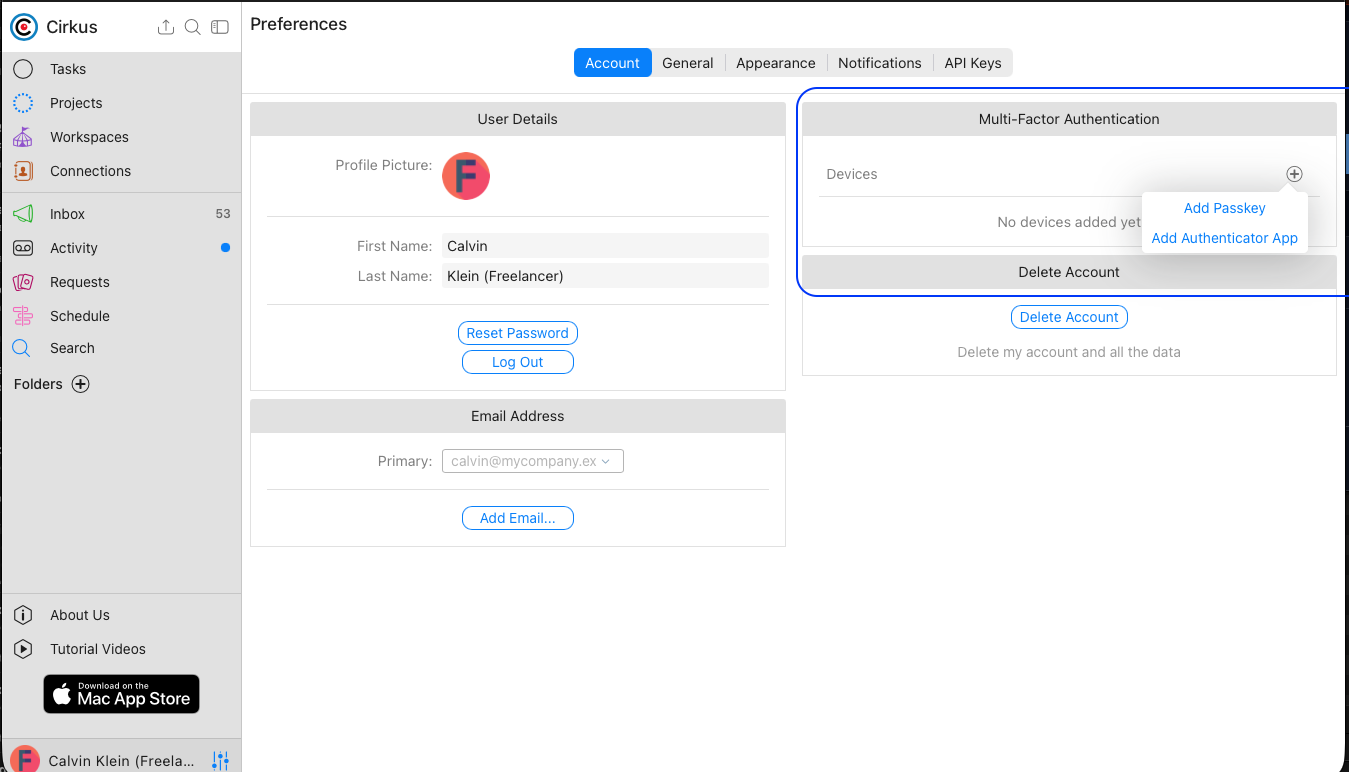
Add a Passkey
- Open User Preferences > Security.Click Add Passkey.
- Enter a name for the password e.g Calvin’s Mac, and follow the prompts provided by your browser or operating system.
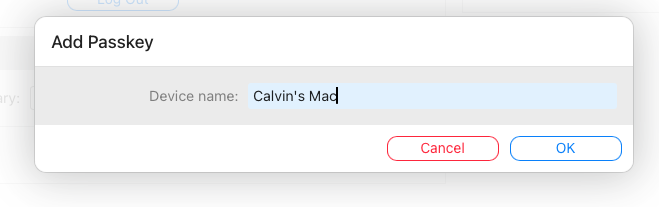
- Confirm the registration when prompted.
The screenshot below is an example for apple passkeys, your device might have a different prompt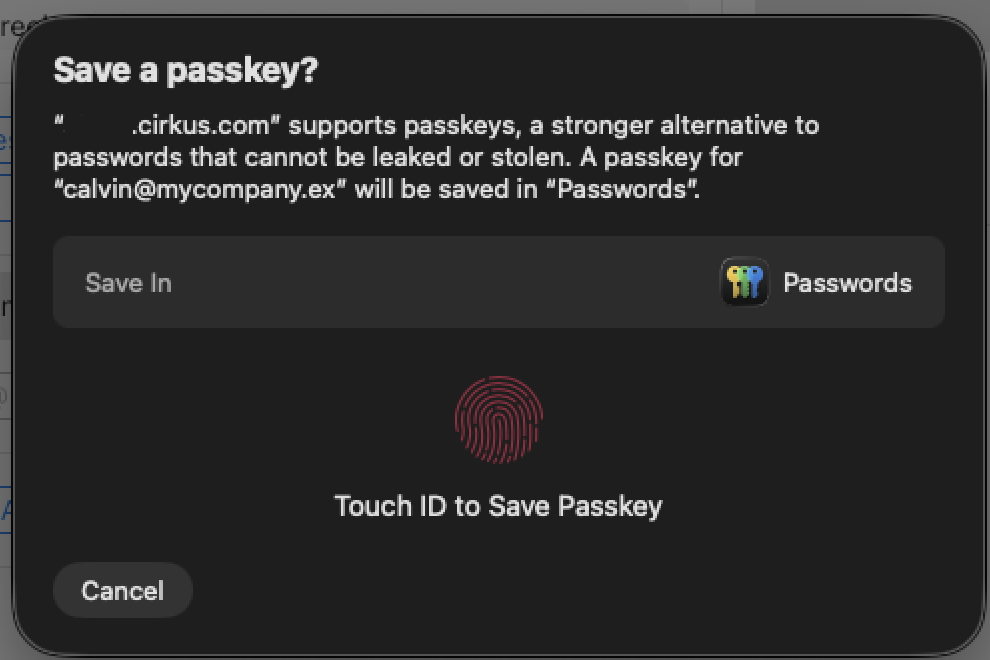
- Once completed, the passkey will show in the list , and be available for future sign-ins.
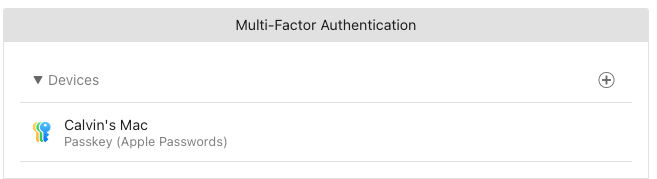
Add an Authenticator App
- Open User Preferences > Security.
- Click Add Authenticator App.
- Enter a name for the Device
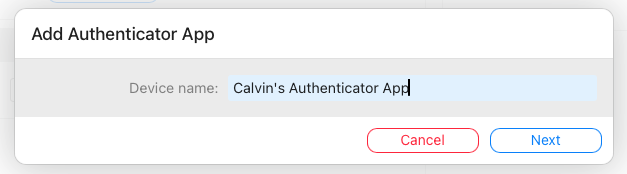
- Open your preferred authenticator application , and scan the QR code displayed by Cirkus.
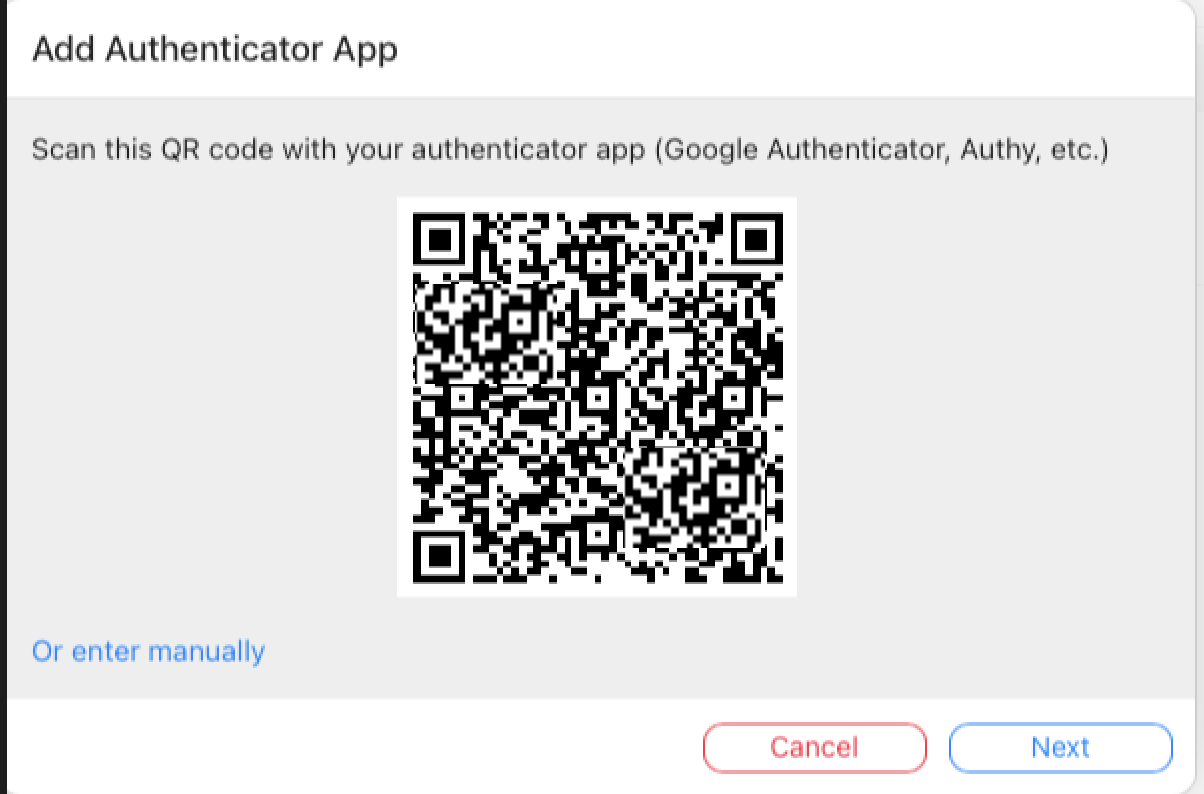
- Click Next and enter the verification code generated by the app.
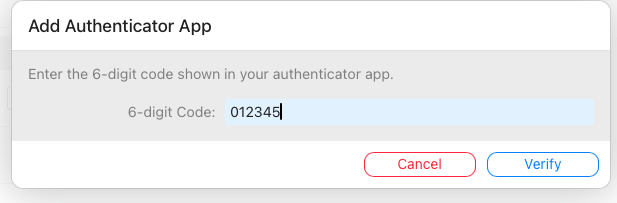
- Clicky Verify
If the code is correct the app is now registered and can be used during sign-in.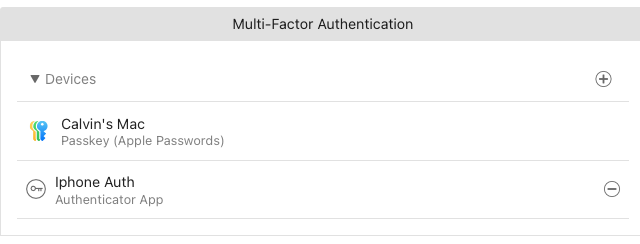
Manage Authentication Methods
You can manage your authentication methods from User Preferences .
Available actions include:
View registered authentication methods
Add additional Passkeys or Authenticator Apps
Remove authentication methods with the -
We recommend registering more than one authentication method to help prevent loss of access.
If you remove your final registered authentication method, MFA will be automatically disabled on your account.
Signing In When MFA is enabled:
Sign in with Passkeys
- Enter your email address and password.
- You will be asked to complete verification using one of your registered authentication methods.
- If a Passkey is chosen, your browser or device will prompt you to verify using:
Face ID
Touch ID
Windows Hello
Device PIN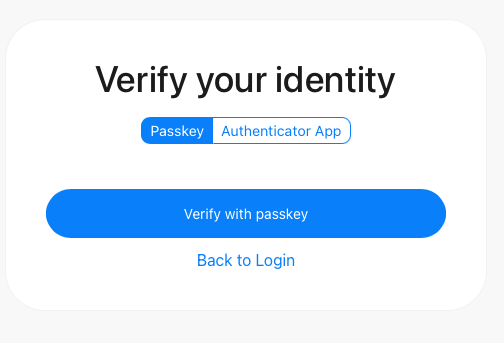 On successful passkey entry you will be logged into Cirkus.
Sign in with an Authenticator App
- Enter your email address and password
- Open your authenticator application and locate cirkus
- Enter the current verification code on the prompt in Cirkus
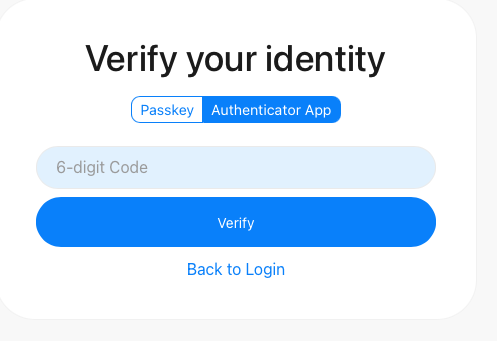
- Complete sign-in.
MFA with Single Sign-On (SSO)
If you sign in using Single Sign-On (SSO), any MFA methods configured on your Cirkus account will still be required.
After successfully authenticating with your identity provider, you will be prompted to complete MFA verification using one of your registered Cirkus authentication methods.
Lost Access to Your Authentication Methods
If you lose access to all registered authentication methods, you will be unable to sign in to your Cirkus account.
To regain access, contact us at support@cirkus.com. You may be asked to verify your identity before MFA can be reset on your account.
Frequently Asked Questions
Can I register more than one authentication method?
Yes. You can register multiple Passkeys, multiple Authenticator Apps, or a combination of both.
We recommend registering at least two authentication methods.
Can I use MFA on multiple devices?
Yes. You can register multiple devices and authentication methods to your account.
What happens if I remove my last authentication method?
If you remove your final registered authentication method, MFA will be automatically disabled for your account.
To continue using MFA, add a new Passkey or Authenticator App before removing your existing authentication method.
What happens if I lose access to all my authentication methods?
Contact Cirkus Support for assistance. You may be asked to verify your identity before MFA can be reset on your account.
Does MFA work with Single Sign-On (SSO)?
Yes. If MFA is enabled on your Cirkus account, you will still be required to complete MFA verification after signing in through your identity provider.
Security Best Practices
- Register more than one authentication method.
- Remove old or unused devices.
- Keep your authenticator application secure.
- Never share verification codes with anyone.
- Use Passkeys where available for the most secure sign-in experience.
Was this article helpful?
That’s Great!
Thank you for your feedback
Sorry! We couldn't be helpful
Thank you for your feedback
Feedback sent
We appreciate your effort and will try to fix the article