Saved Task Views in Cirkus let you save how a Tasks list is set up (its filters, sort and grouping, and Grid columns) and switch back to it in one click.
Instead of re-applying the same filters every time you open a list, you pick a view such as “My tasks due this week” or “Edit suite, grouped by assignee” from the View selector.
You can keep views for yourself, Admin’s can share them with everyone in a Workspace, and you can pin a view to a Project so its Tasks list always opens the same way.
Saved Views are available on Cirkus web, Mac and iOS from version 2.12.
TABLE OF CONTENTS
- What a Saved View stores
- My Views and Workspace views
- The None option: nothing changes until you’re ready
- How to pin a view to a Project
- Frequently asked questions
- Related articles
What a Saved View stores
A Saved View remembers these settings from the Tasks list:
| Setting | Example |
|---|---|
| Assignment filter | Assigned to Me, Assigned to Me (+Roles, Anyone), or specific people |
| Status filter | Not Done, Due within 7 days, In Progress |
| Include Subtasks | Off, Nested or Independent |
| Sort and Group | Group by Assignee, sort by Due Date |
| Grid columns | Which columns are shown, and in what order |
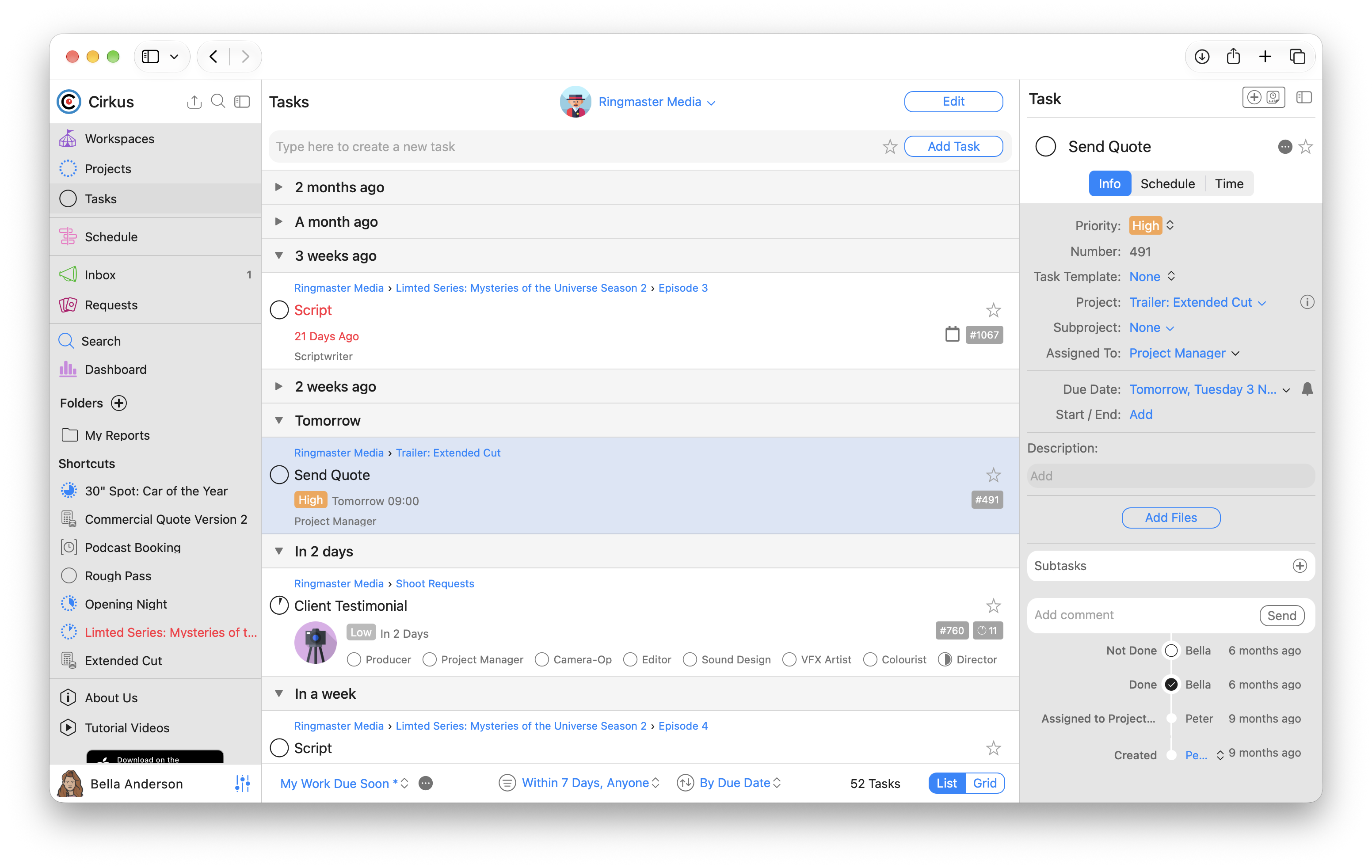
When you change a setting on a selected view, an asterisk appears after its name, for example “Upcoming Tasks*”. This means the view has unsaved changes. The next sections explain how to save or undo them
My Views and Workspace views
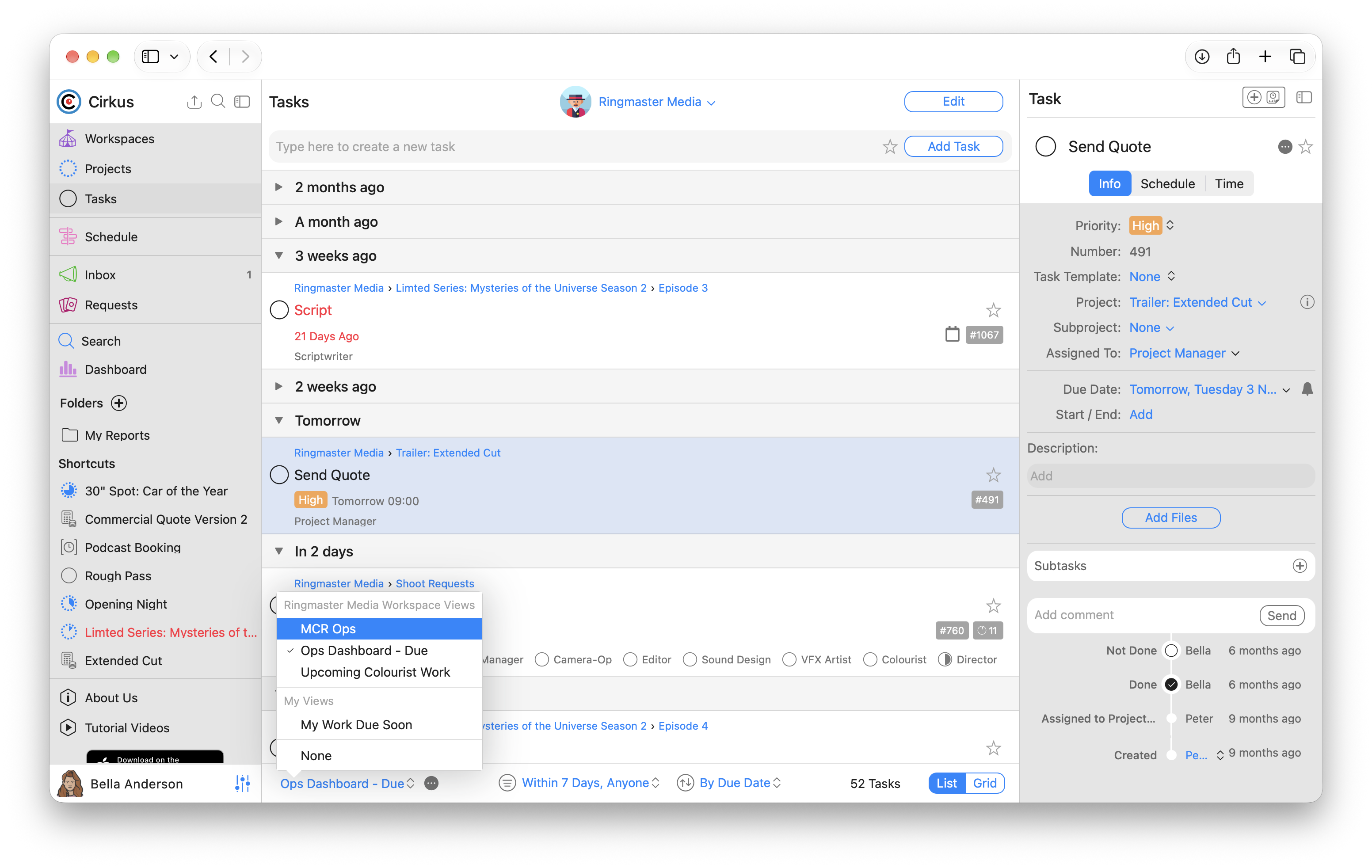
The View selector sits at the bottom left of the Tasks list. Next to it is the options (•••) menu, where you save and manage views.
There are two kinds of view, and the View selector lists both: your Workspaces in sections with their shared views, then My Views, then None.
| My Views | Workspace views | |
|---|---|---|
| Who sees it | Only you | Everyone in that Workspace |
| Where it works | Every Workspace, and All Tasks | Only in its own Workspace |
| What happens when you select it | The Workspace selector stays as it is | The Workspace selector switches to that view’s Workspace |
If you have multiple workspaces, you can use views to move between then in the All Tasks list.
For example if you select an “AB Post” Workspace view while you’re looking at AB Broadcast, the list switches to AB Post. A Workspace view can’t be used in another Workspace.
How to create a Saved View
- Open the Tasks list and set the filters, Include Subtasks, Sort and Group, and Grid columns the way you want them.
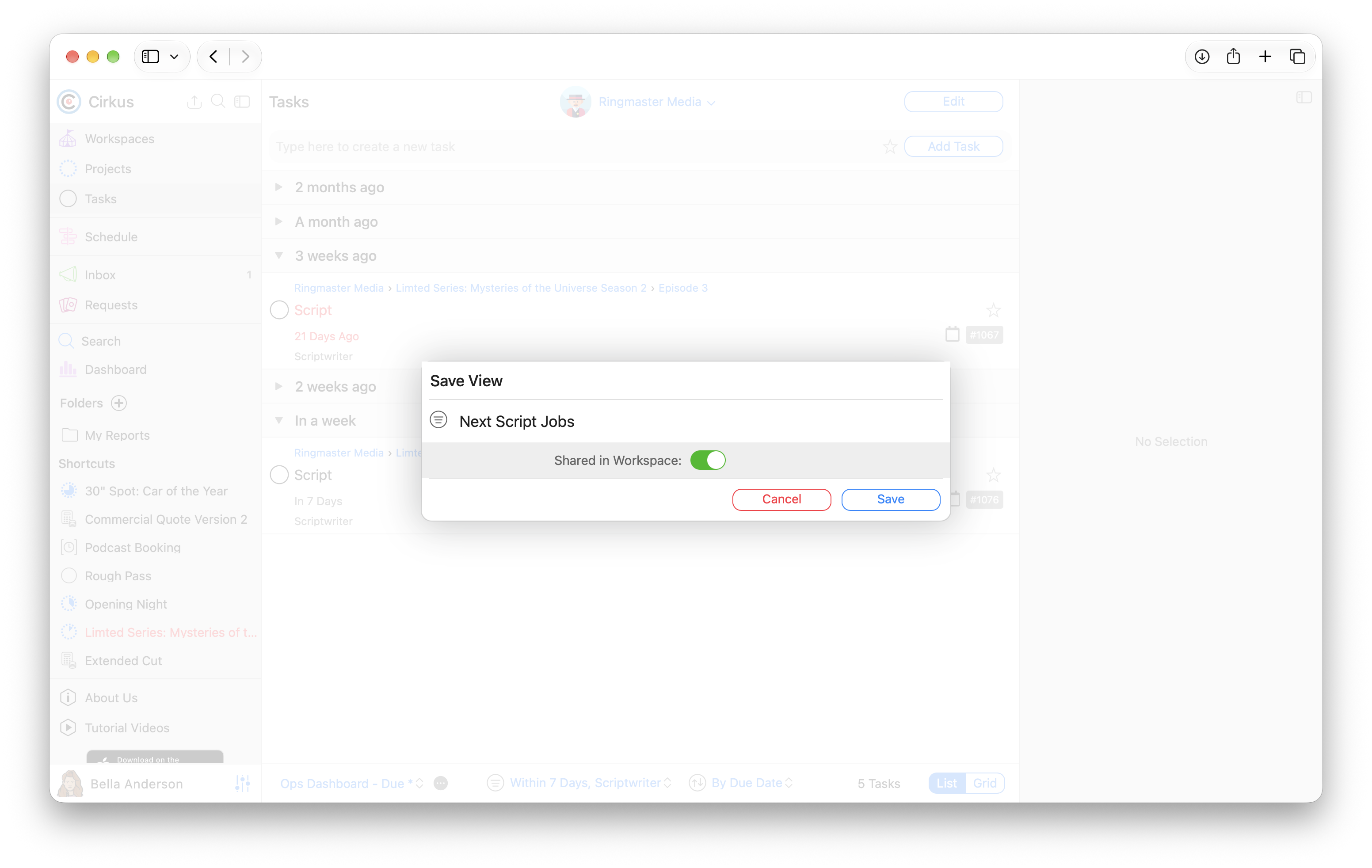
- Click the options (•••) menu next to the View selector and choose Save As….
- Enter a name for the view, and choose whether to keep it in My Views or share it in a Workspace (this option will only show if you are a Workspace Administrator)
- Click Save. The new view is selected in the View selector and the tasks which match the list are shown in the view.
Switch views
Click the View selector and pick a view. The list will refresh and update.
Selecting a Workspace view in All Tasks switches the list to that Workspace.
Update or undo changes to a view
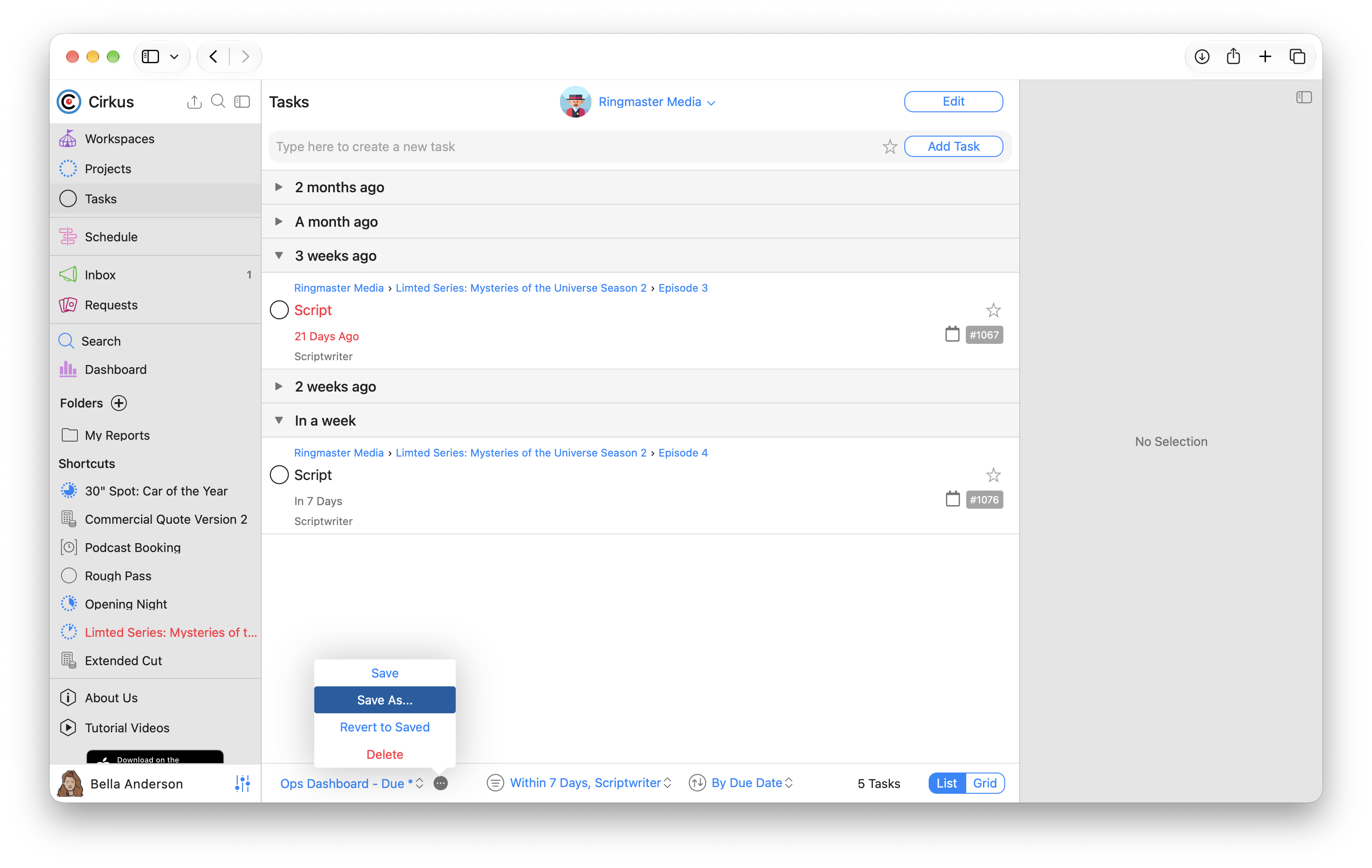
When you change a setting on a selected view, an asterisk appears after its name. In the options (•••) menu you can then:
- choose Save to update the view with your changes,
- choose Save As… to keep the original and save your changes as a new view, or
- choose Revert to Saved to undo your changes and go back to the view as it was saved
How to delete a Saved View
Select the view, open the options (•••) menu and choose Delete. If the view was pinned to a Project, that Project’s Tasks list goes back to its normal behaviour, and Cirkus shows a short message to let you know.
The None option: nothing changes until you’re ready
The first time you open Cirkus after updating to 2.12, the View selector shows None. Your Tasks list looks exactly as you left it: your filters, sort and grouping, and Grid columns are all kept.
While None is selected, you can change the Workspace, filters, sort or columns and the list works as it did before Saved Views. None simply means you aren’t using a view.
When you switch from None to a saved view, Cirkus asks whether you want to save your current settings as a view first. Save them if you’d like to come back to them later. Click Cancel to stay on None with your settings as they are
How to pin a view to a Project
Each Project has its own custom fields and way of working, so you can pin a view to a Project.
If you don’t pin a view , every project you open will carry forward the last selected view in a Project Task list.
When a pinned view exists, that Project’s Tasks tab then always opens with the pinned view, wherever you open it: on web, Mac or iOS.
To pin a view:
- Open the Project and go to its Tasks tab.
- Select the view you want from the View selector. Any of My Views or a view from the Project’s Workspace can be pinned.
- Open the options (•••) menu next to the view name and choose Pin.
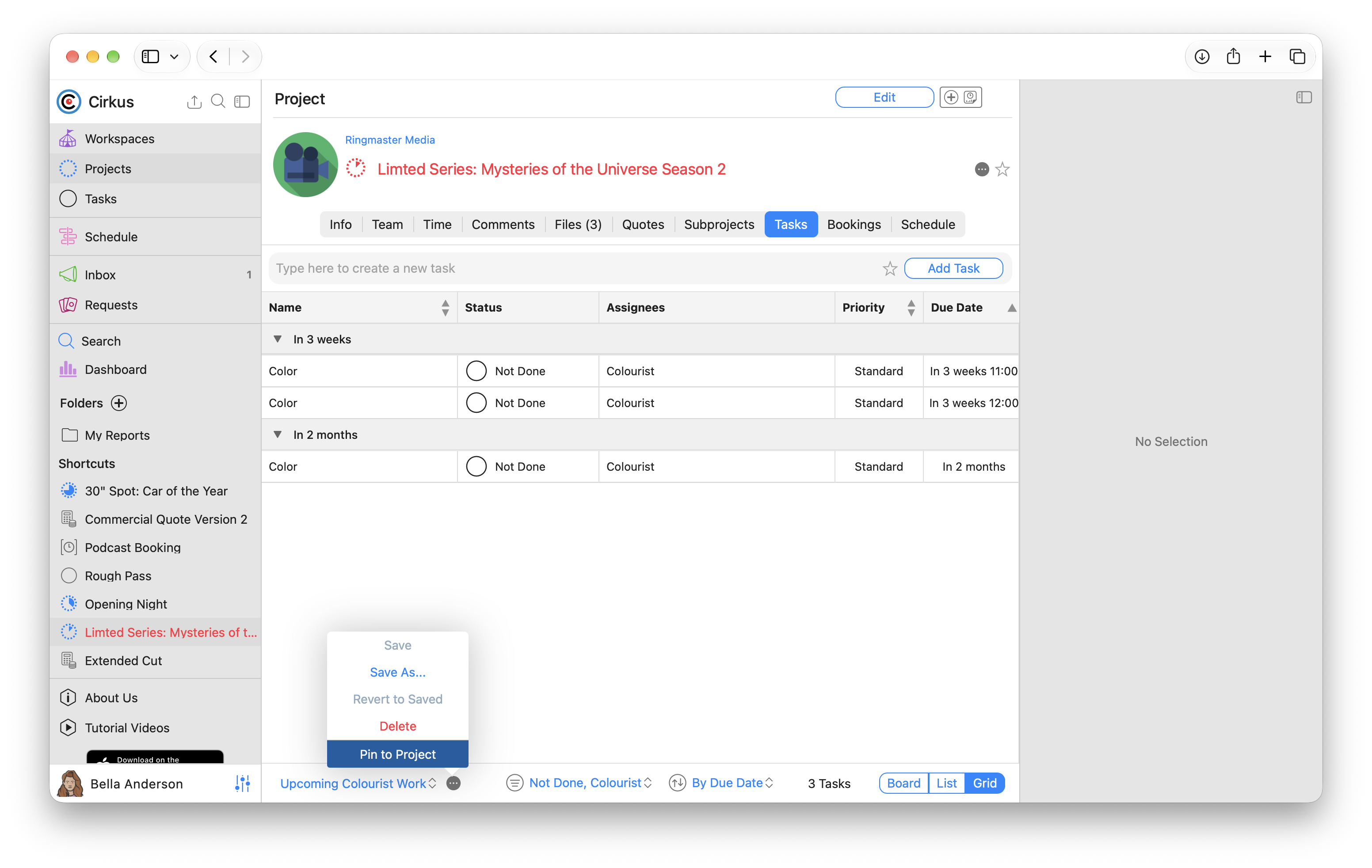
To stop using it, open the same menu and choose Unpin. The Tasks tab then goes back to opening with the view you last used.
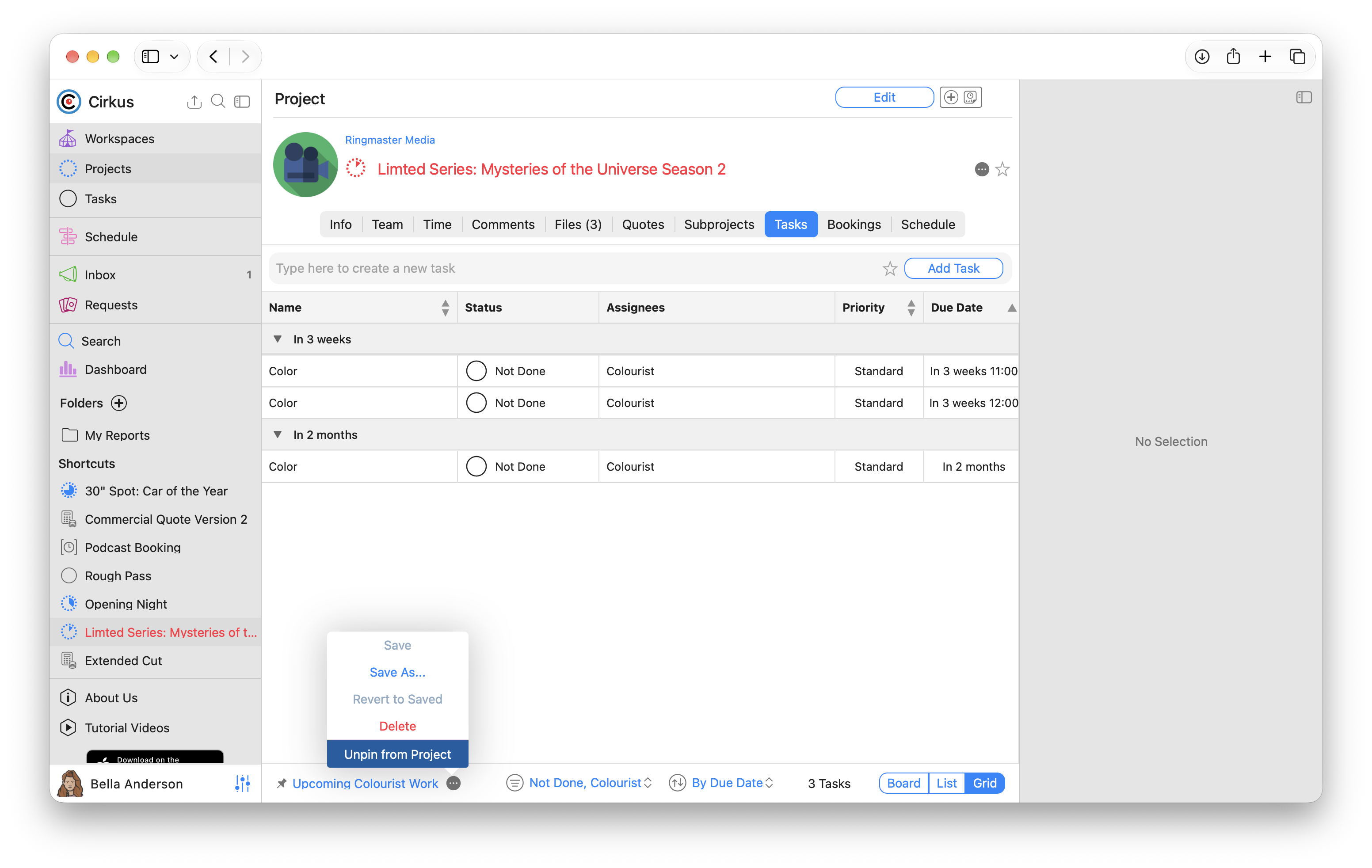
Pins are personal. Pinning a view changes how the Project opens for you, not for other members of the Project.
Pinning is only available on a Project’s Tasks tab. You can’t pin a view to the main Tasks list or to a Subproject’s Tasks tab.
Frequently asked questions
I selected a view on my Mac. Why isn’t it selected when I open Cirkus on the web?
The views themselves are saved to your account and are available on every device, but the view you have selected is remembered separately on each device. To have a Project open with the same view everywhere, pin the view to that Project.
My filters look different after the update. What happened?
They shouldn’t. After the update the View selector shows None and keeps your previous settings. If you’ve switched to a view, choose None or your own view from the View selector.
Why does my view name have an asterisk?
You’ve changed a setting since the view was saved. Choose Save to keep the change or Revert to Saved to undo it.
Related articles
Was this article helpful?
That’s Great!
Thank you for your feedback
Sorry! We couldn't be helpful
Thank you for your feedback
Feedback sent
We appreciate your effort and will try to fix the article