There are various options to get the most from your Cirkus Schedule view.
Custom Schedule Views
You can use Custom Views to create a view of the Schedule which is most suitable for your needs, for a team or for a time period.
Views are built from Rows and Sections, and can be Personal or Shared.
Sections can be based on Workspace definitions - like Roles and Groups, or be completely Custom.
Custom Sections can have Subsections.
Versioning Note: Since Cirkus 1.90 version, Custom Views have replaced Filters in the Schedule. All Filters have been migrated to be Views.
If you are using an earlier version of Cirkus you can load your saved Filters but no longer make changes and save them.
Custom View Selector
In the bottom left of your Schedule view you can access and edit your save Schedule Views.
There are two types of Saved Views - Personal and Workspace.
Your Personal Views are only visible to you, but can be used on all devices - web, iOS and macOS.
Workspace Views can only be created, edited and shared by Workspace Administrators, and are available to all Workspace Members to use.
The default view is the All view, which contains all Members and Resources in your workspace, in their Role sections.
 Editing the Current View with the options menu
You can make changes to the loaded view, by accessing the View Options Menu.
Note: As the All view cannot be edited, any edits to that view automatically creates a copy of the view called “New View”, which can later be saved.
In the Options Menu, the following actions are available:
- Save / Save As - Depending on the View selected and permissions, you can save the current view or a copy of it.
- Clear View - Clears the View to start from an empty Schedule
- Sort by Name - Sorts the Rows in each section alphabetically
- Cell Height - Applies the same height XS, S, M, L, XL to all rows in the schedule
- Add Rows.. - Select New Rows (Members, Resources, Roles) to be added at top level in the Schedule
- Add Custom Section.. Creates a New Section at the end of the Schedule, with the selected Row. Custom Sections are not linked to workspace entities - like Roles or Groups. A custom section is not updated if a member changing roles or groups in the workspace.
- Add Section from Role Creates a New Section for the selected Role, and it’s members in the Rows within the section
- Add Section from Group Creates a New Section for the selected Group , and it’s members and Roles as rows within the section
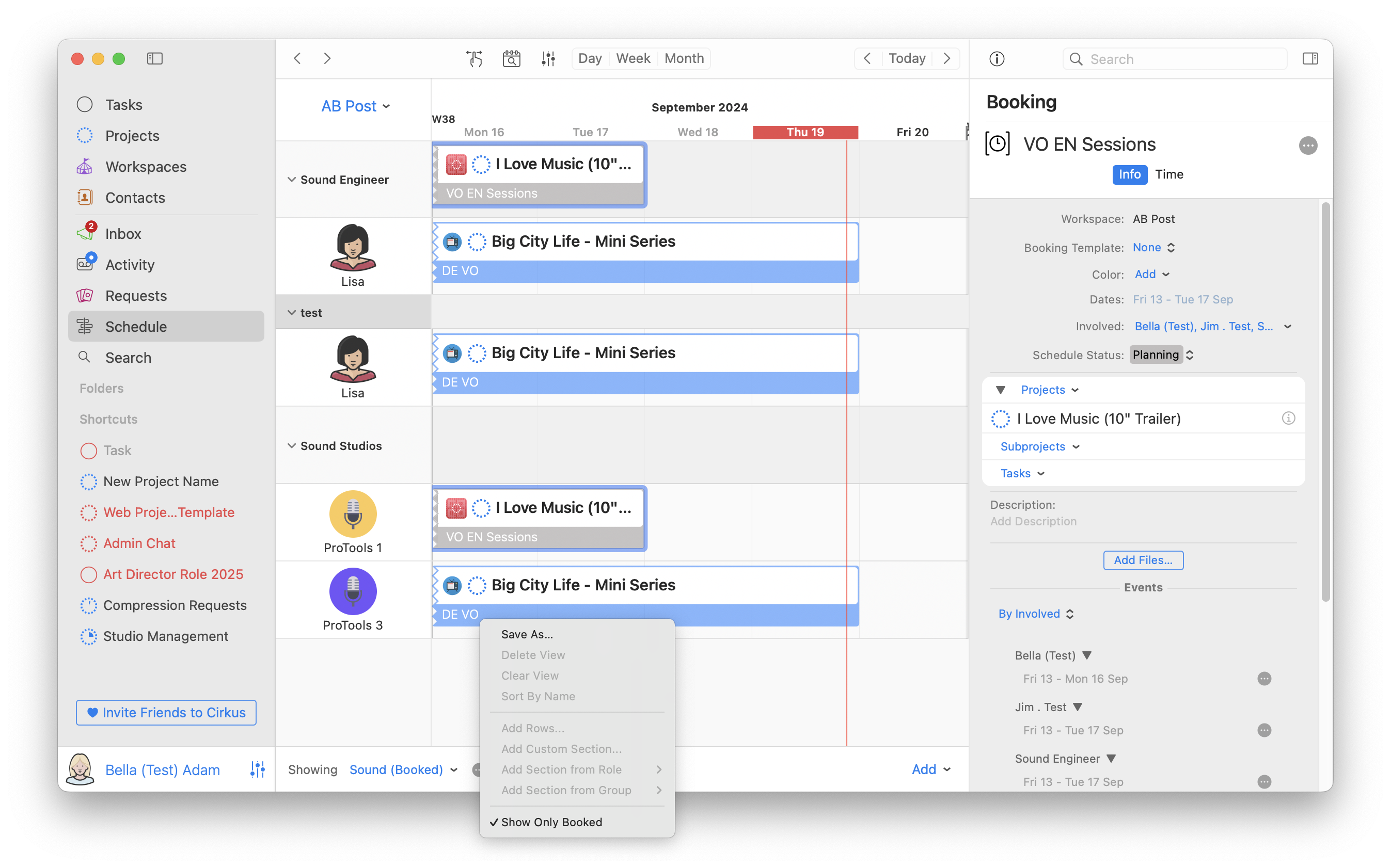
- Show Only Booked Filters the rows to only show those where there are scheduled items in this Project/Workspace in the visible time range
- Show Projects: Selecting this option shows the Projects with Start/End Time in an Overview section at the top of the Schedule (Cirkus web from 2.1, Cirkus Mac from 2.2).
In the Project Schedule this setting controls Showing Subprojects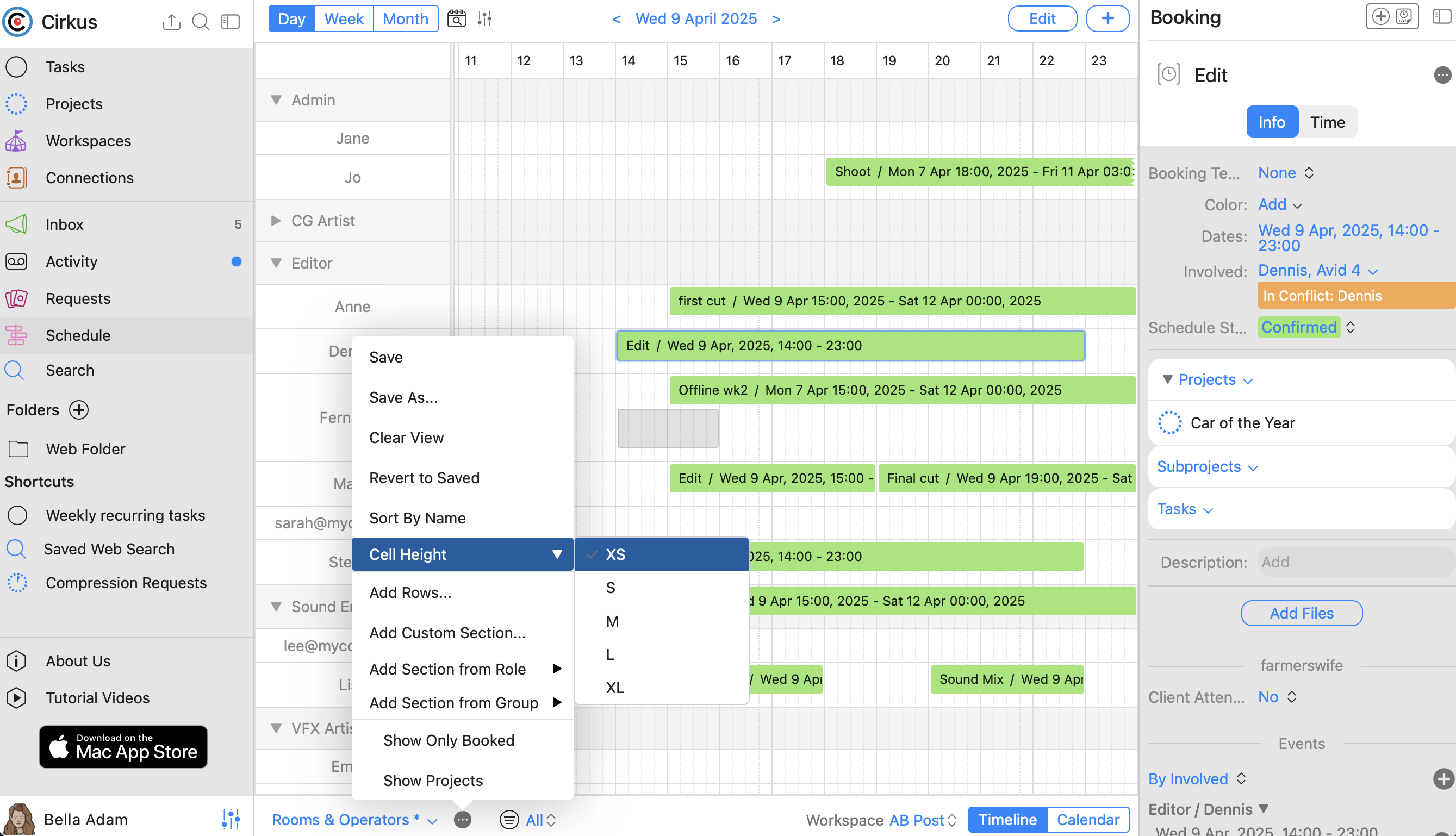
- When Show Only Booked is applied some rows in the view will be hidden, so reordering and other edits of the view are disabled in this mode.
Editing the View in the Schedule on Cirkus Web
On Cirkus web app, click the Pencil button in the bottom menu, to end Edit mode.
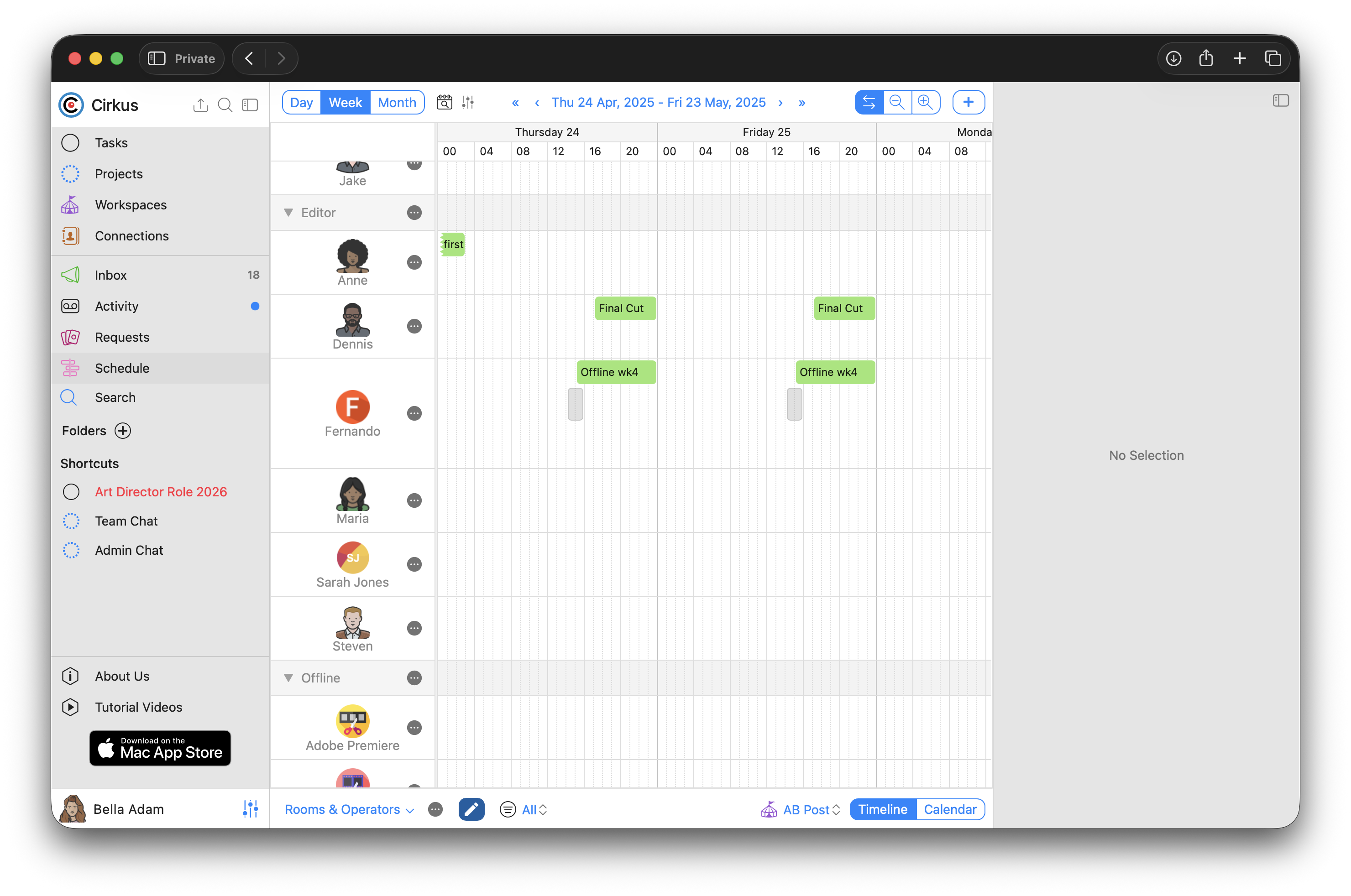
When in the Edit mode, each row and section shows an options menu, and the pencil icon is filled
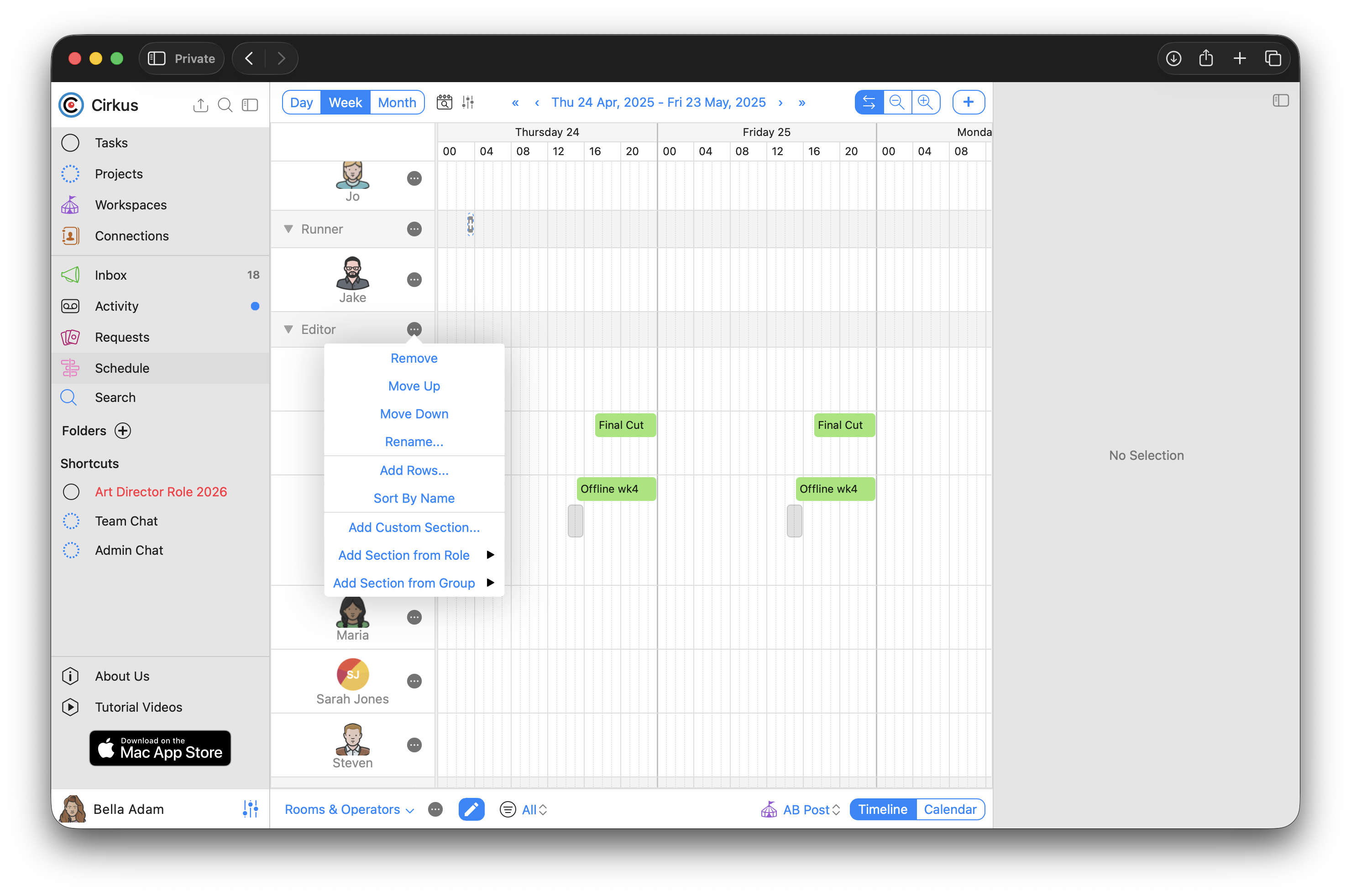
1. Each Row can be reordered within the section, and the size of the cell can be set in the Cell Height.
If the section is a Custom section, the Row can also be removed.
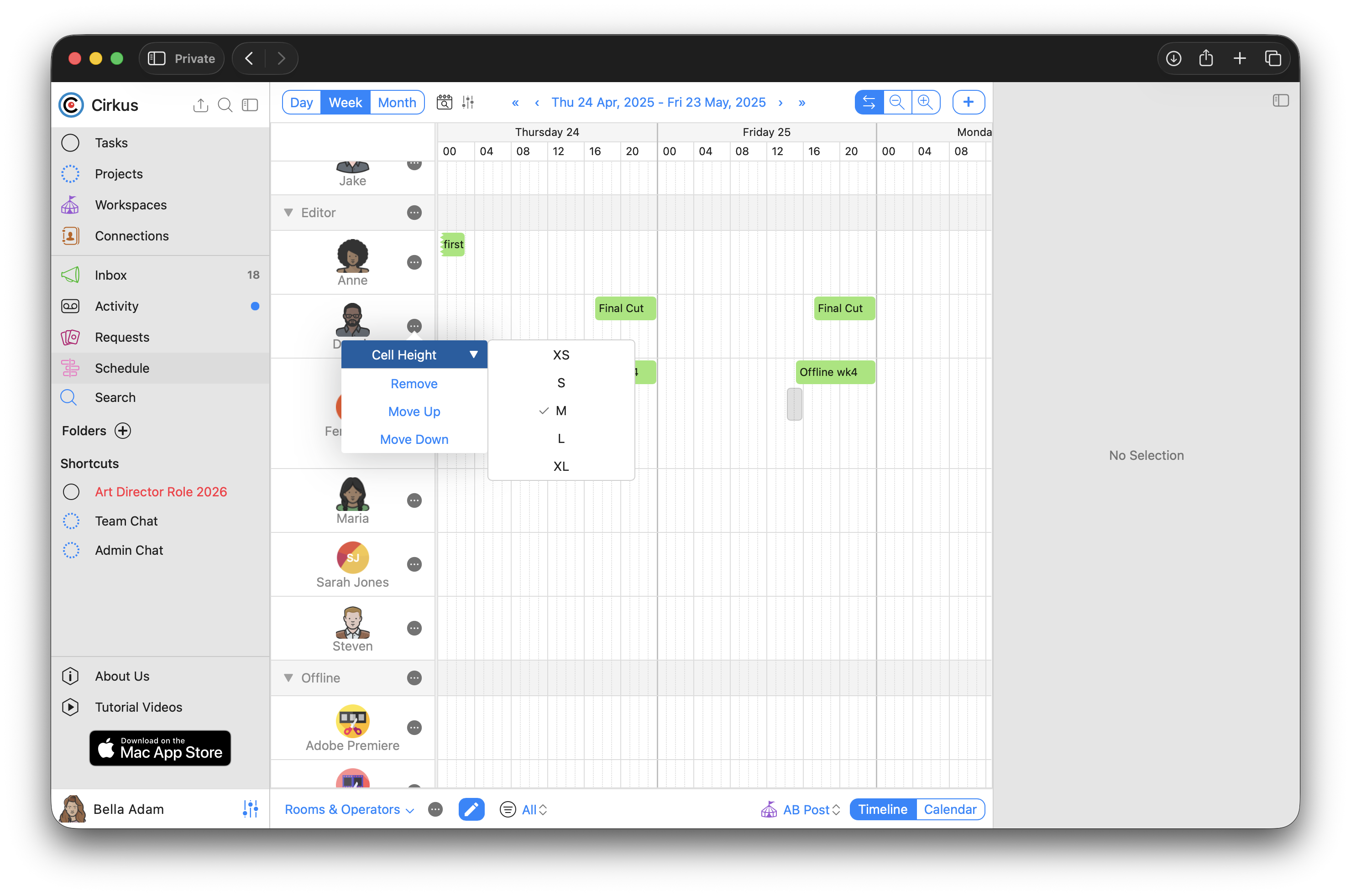 2. Workspace Sections (those based on Workspace Roles or Groups) can removed, reordered within the view, sorted alphabetically, and can be Converted to Custom Sections.Note: If a section is converted from a Workspace one to a Custom Section, it becomes disconnected from the Workspace definition, and any changes i.e Role updates, new Members or Resources, will not be reflected in that section.
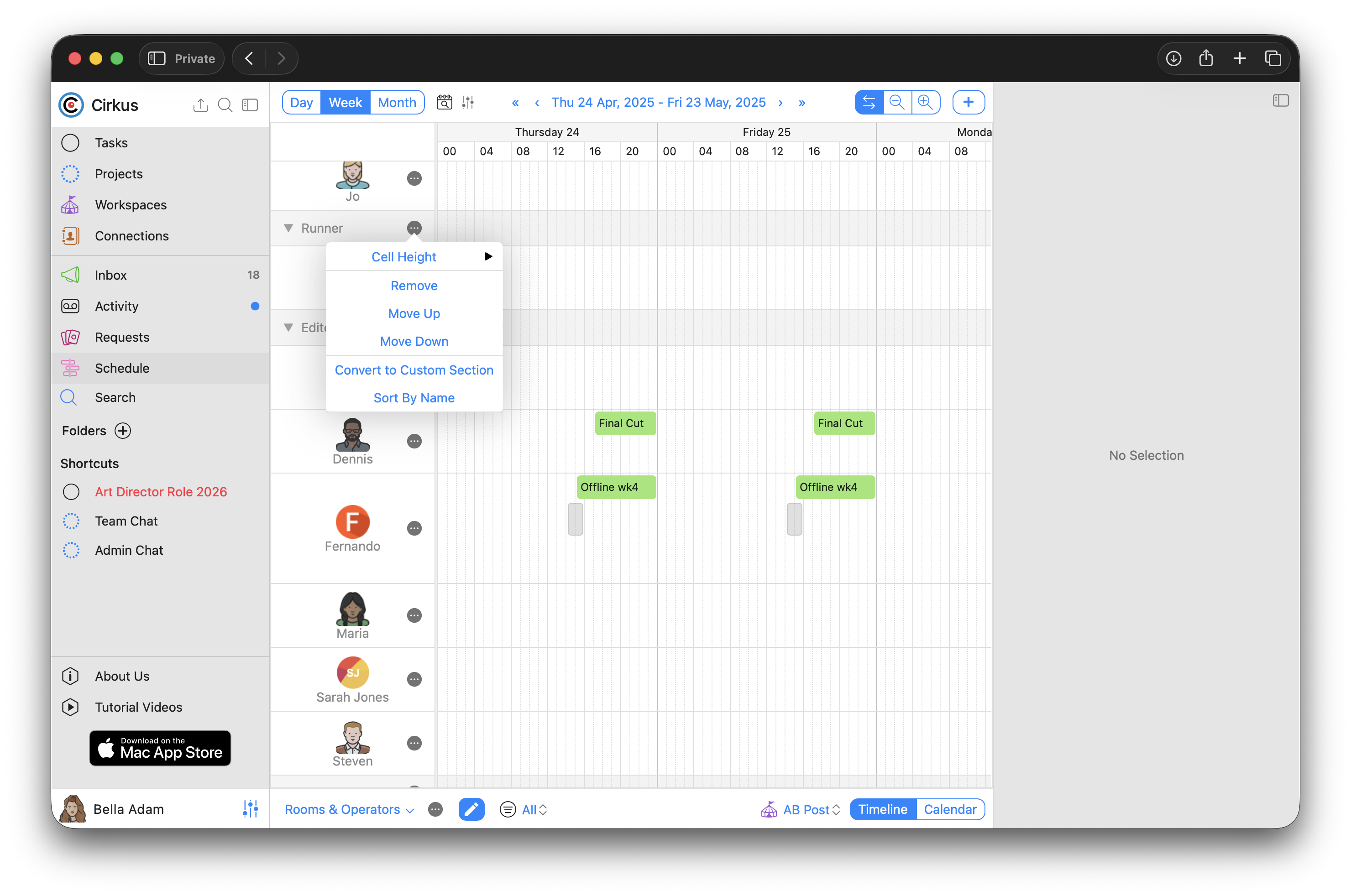
3. Custom Sections are not based on Workspace entities, so they have additional options and can be renamed, and have Rows and Sub Sections added.
Editing the View in the Schedule on Cirkus Mac
On Cirkus mac app, changes can be made in the schedule by right click contextual menu actions on single or multiple rows or sections, or dragging and dropping them in the view.
1. Each Row can be dragged to be reordered within the section, or dragged to another Custom Section, or resized.

If the section is a Custom section, or the Row is not in a section the Row can also be removed by right clicking on the Row(s) - Delete Selection, or with selection and backspace.

2. Workspace Sections (those based on Workspace Roles or Groupos) can removed, sorted alphabetically, and can be Converted to Custom Sections
Note: If a section is converted from a Workspace one to a Custom Section, it becomes disconnected from the Workspace definition. Any changes i.e Role updates, new Members or Resources, will not be reflected in that section. 3. Custom Sections are not based on Workspace entities, so they have additional options and can be renamed, and have Rows and Subsections added.
Custom Sections can also be reordered by drag and drop on Cirkus mac.
4. You can also make global changes to the scene in the options menu, Sort by Name A->Z, Clear the View, or Apply the same Row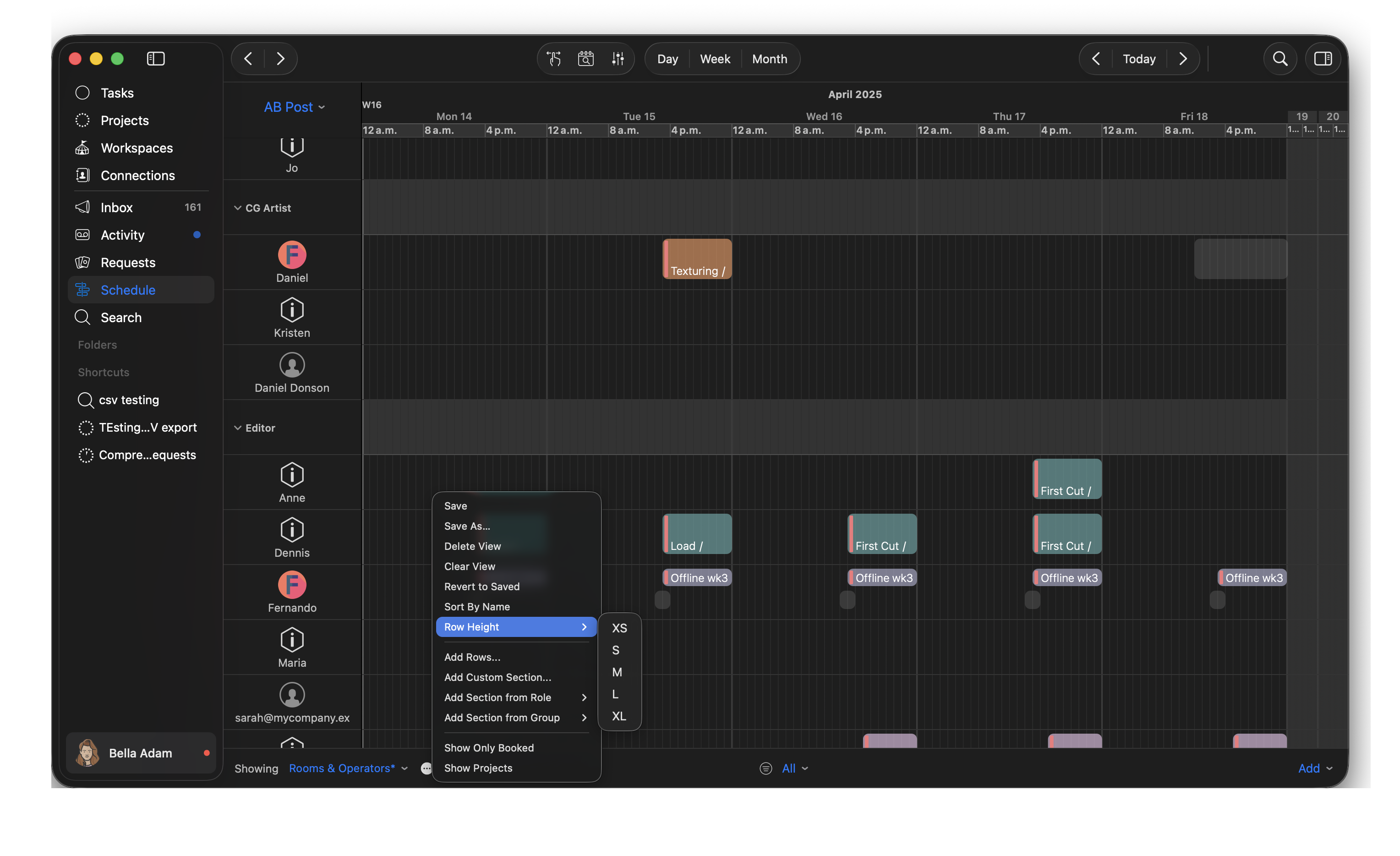
Saving and Sharing Views - Personal and Workspace
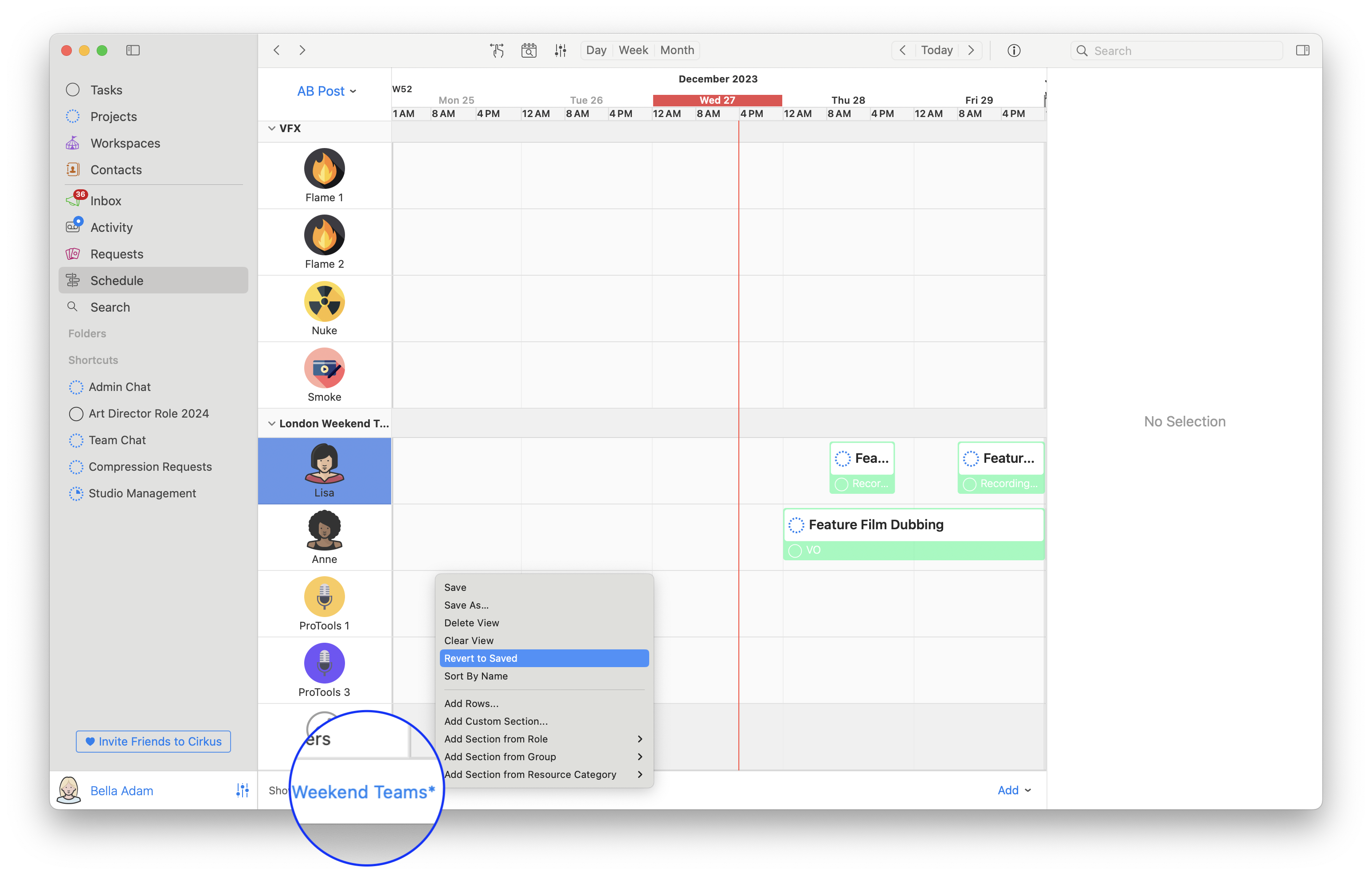
When changes have been made to the currently loaded view, it shows with a * in the View selector.
In the Options menu, the following actions are available:
- Save this will saved the modified view and overwrite the previous one. For Workspace views this option is only available to Workspace Admins
- Save As... this will save the View as a new named view. If permissions allow the option to save as Workspace View will be available
- Revert to Saved View This discards all changes and reverts the view to the saved one.
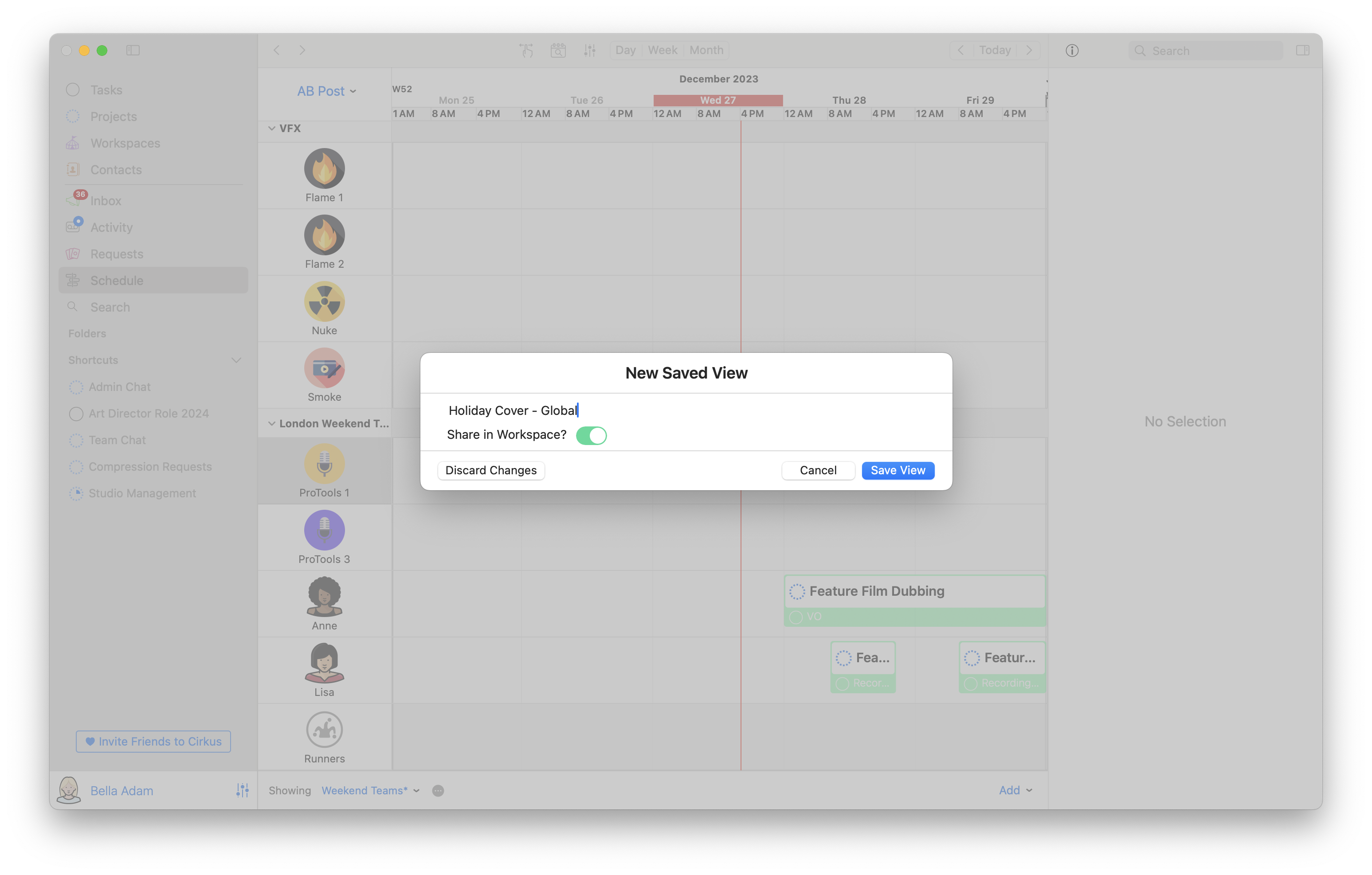
When Selecting Save As.. a dialog is presented where the name of the view can be added.
By default all views are Personal, but Workspace Admins can select the Share in Workspace option to make them available to everyone in the Workspace.
Note: This prompt will also be shown if you have unsaved changes when navigating away from the schedule or changing the view.
Related Articles
Was this article helpful?
That’s Great!
Thank you for your feedback
Sorry! We couldn't be helpful
Thank you for your feedback
Feedback sent
We appreciate your effort and will try to fix the article