Whether you want to emphasize Project workload, see confirmed bookings at a glance, or focus on your working hours, Cirkus has some options to customise your Schedule View.
Let’s see how!
- Step 0: Configure a Workspace Schedule Color Order (Workspace Admin Setting for all users)
- Step 1: Focus on Your Working Hours
- Step 2: Keep Track of Week Numbers (mac only)
- Step 3: Utilize the Indicator Bar to Show Booking Information
- Step 4: Use the Full Day setting to get a Overview
- Step 6: Apply Schedule Views
- Step 7: Use the Personal Schedule view.
Step 0: Configure a Workspace Schedule Color Order (Workspace Admin Setting for all users)
As Workspace Administrator you can decide which colors should be used to fill the cells in the Schedule, and in which order.
This is set on the Workspace>Info > Schedule Settings, and once set applies to anyone viewing the Schedule of this Workspace.
The default settings and order is
1. Status Color (The color of the Schedule Status applied to each booking/task - if any i.e Confirmed, Draft etc)
2. Project Color (The color of the linked Subproject, and then Project of each Booking/Task)
3. Booking Color (The color of the Booking, or Booking Template applied to each Booking).
Items can be added or removed form this list, and the order can be rendered with drag and drop.
If no color is set the order will use the next available color.
Example 1
In this Workspace the Color Order is Booking Status first, so the color applied to the cell is that of the Status, in this case Green for Confirmed.
If a Booking or Task does not have a status it would default to the next color in the list, or show none, if none are set (like the Weekly meeting) Example 2
In this Workspace the Color Order is Project Color first, so the color applied to the cell is that of the linked Project, in this case Green for the Rainbow Man Project, and Pink for the “Big City Life - Mini Series”
Note: individual user preferences can be set to control the indicator bar, so that more than one piece of information is visible on the cell - see later Step 3
Step 1: Focus on Your Working Hours
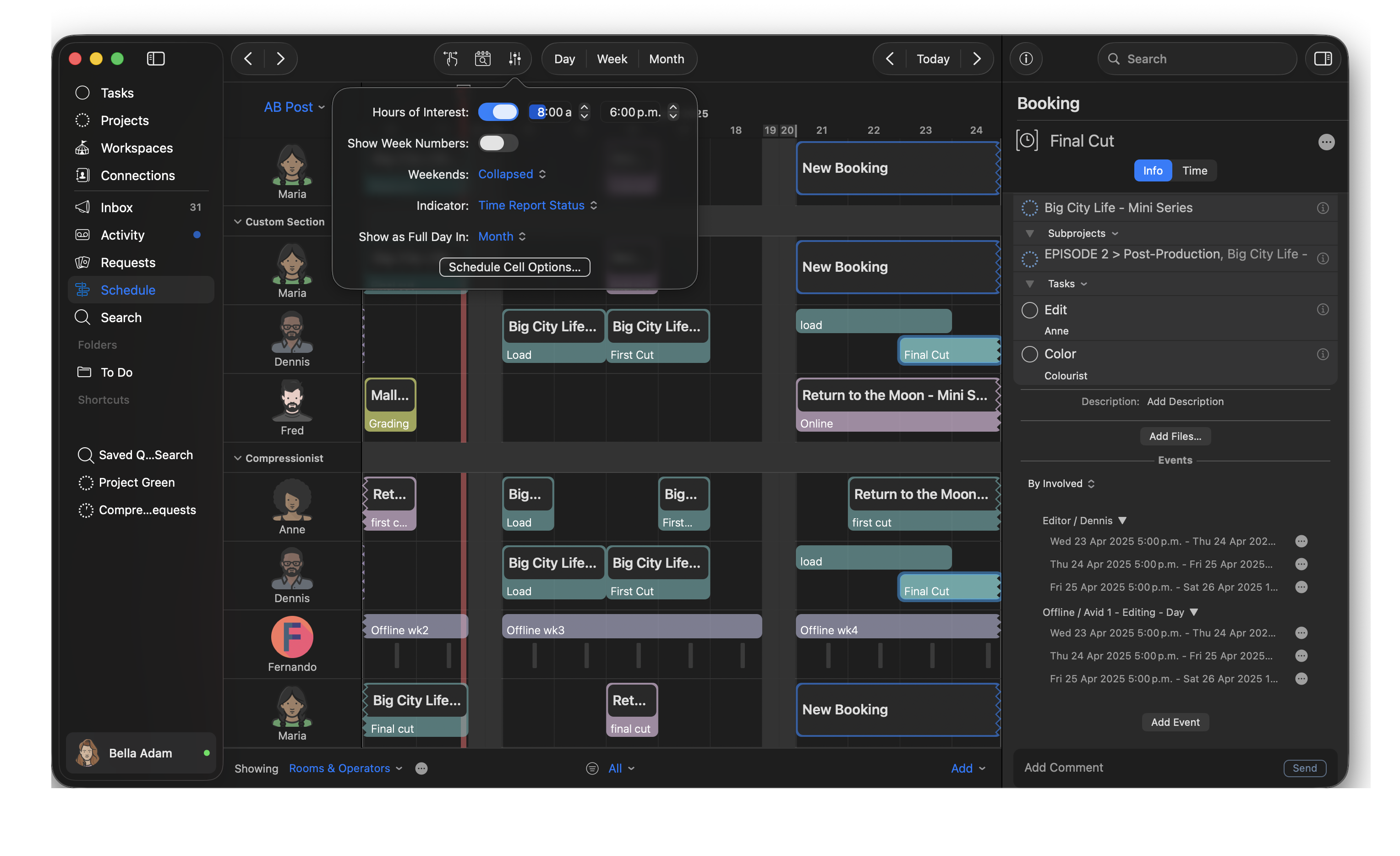
You can streamline your Schedule view to focus solely on your working hours, with our Hours of Interest setting, and Show/Hide Weekends.
- Navigate to the Cirkus Schedule preferences - Toolbar settings on mac, bottom bar gear icon on web.
- Look for the "Hours of Interest" feature and enable it.
- Adjust the parameters to define your preferred working hours. This will make hours outside of this view appear smaller in your schedule, allowing you to concentrate on your core work hours.
- Now adjust the "Weekends" setting, and you'll have three options: "Show," "Collapse," or "Hide."
"Show" will display weekends normally.
"Collapse” will condense weekends into a smaller section.
"Hide" will completely remove weekends from your view.
Choose the option that best suits your scheduling needs.

Step 2: Keep Track of Week Numbers (mac only)
Keeping tabs on the weeks is crucial for project management and planning. To display week numbers in your schedule view:
- Navigate to the Cirkus Schedule preferences - Toolbar settings on mac
- Locate the "Show Week Numbers" option and turn it on.
- You'll now see week numbers (1-52) displayed at the top of your schedule view, making it easier to organize tasks and activities by week.

Step 3: Utilize the Indicator Bar to Show Booking Information
The indicator bar is an essential element that provides visual cues for your schedule. You can customize it in various ways:
- Access the Cirkus Schedule preference again.
- Look for the "Indicator" settings.
- The options available are:
Time Reporting: This option shows a red or orange indicator for past Tasks or Bookings that have not been fully time reported for the user or row in your schedule.
Status Color: Choose this option to display the color of the Schedule Status for each Task or Booking in your schedule.
Booking Color: If you select this option, it will show the color of the Booking or Booking Template (applicable to bookings only).
Project Color: This option displays the color of the linked Subproject, or if no subproject is linked, it will use the color of the Project associated with the task or booking.
None: Choosing this option means that no indicator bar will be displayed in your schedule. It's ideal if you prefer a cleaner, indicator-free view.

Step 4: Use the Full Day setting to get a Overview
To get an overview of the bookings in a schedule while in a longer time range, the schedule can draw the bookings differently in different time ranges.
When the setting is enabled for your zoom level, even short bookings will show as full day, and continuous bookings will show as a single cell over multiple days.
This makes it easier to see general utilisation at a glance, as even shorter bookings show clearly from a high level.
To change this setting, go to the Cirkus Schedule preference in the top menu..
- Look for the “Show as Full Day In" settings.
- The options available are: Day/Week/Month
Month is default
Step 6: Apply Schedule Views
To customize your view of the team schedule, create a new view, or choose from shared Workspace views.
See related article on Custom Schedule Views.
You can also control the Height of each resource row in the View.
Step 7: Use the Personal Schedule view.
You can switch to your own name on the schedule view, to see only your Scheduled Tasks and Bookings.
You can make Bookings in this view which are only visible to you, and will show as “unavailable” grey blocks to other users in the workspace.


Was this article helpful?
That’s Great!
Thank you for your feedback
Sorry! We couldn't be helpful
Thank you for your feedback
Feedback sent
We appreciate your effort and will try to fix the article