Connect your Workspace to Microsoft Outlook and Cirkus adds Bookings and scheduled Tasks to the Outlook calendars of the Members involved. Your production schedule then shows up wherever the rest of your organisation looks for availability, without anyone entering it twice.
The sync runs one way, from Cirkus to Outlook. Cirkus stays the master: you create and change Bookings and Tasks in Cirkus, and Outlook follows.
Outlook integration is available on Private Cirkus Clouds when enabled by Cirkus Support.
Before you begin
- You need to be a Workspace Administrator to connect or disconnect Outlook.
- You need a Microsoft 365 account to act as the integration account, for example a shared account such as integration@yourcompany.com.
Cirkus sends every calendar invitation from this account, so it appears as the organiser of every synced event. We recommend a dedicated account rather than a person's own, so the sync doesn't stop when someone leaves. - During connection, the integration account grants Cirkus permission to read and write calendars (Calendars.ReadWrite).
Your Microsoft administrator may need to approve this. - Cirkus matches Members to Outlook by email address. Each Member's Cirkus email needs to be the same as their Outlook email to receive invitations.
- Outlook integration is available only on Private Cirkus Clouds, and Cirkus Support needs to enable it for your server. Contact support@cirkus.com to find out more.
Connect Outlook to your Workspace
- On Cirkus web, open your Workspace Details and go to the Integrations tab.
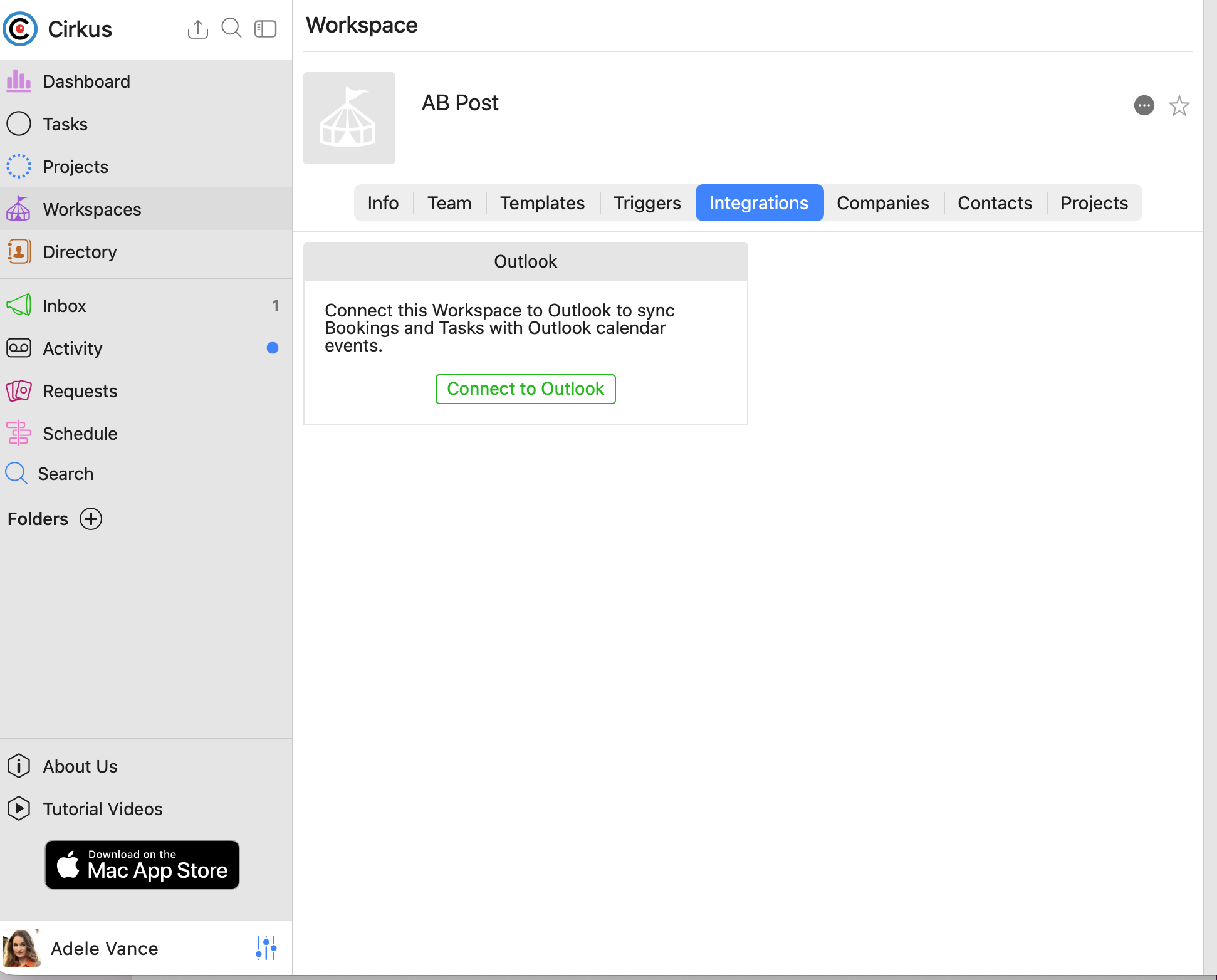
- Click Connect next to Outlook.
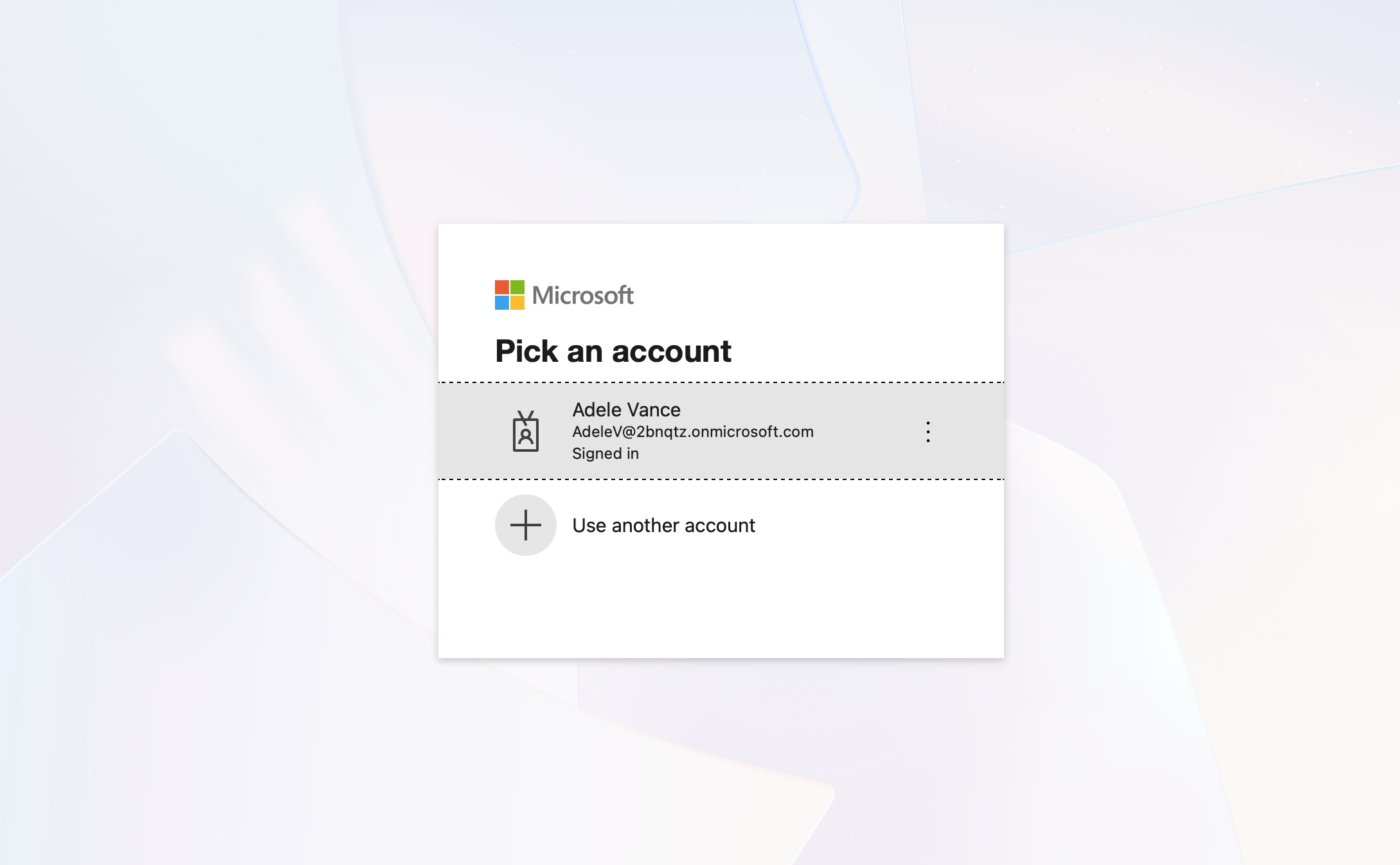
- Sign in to Microsoft with the integration account and approve the requested permissions.
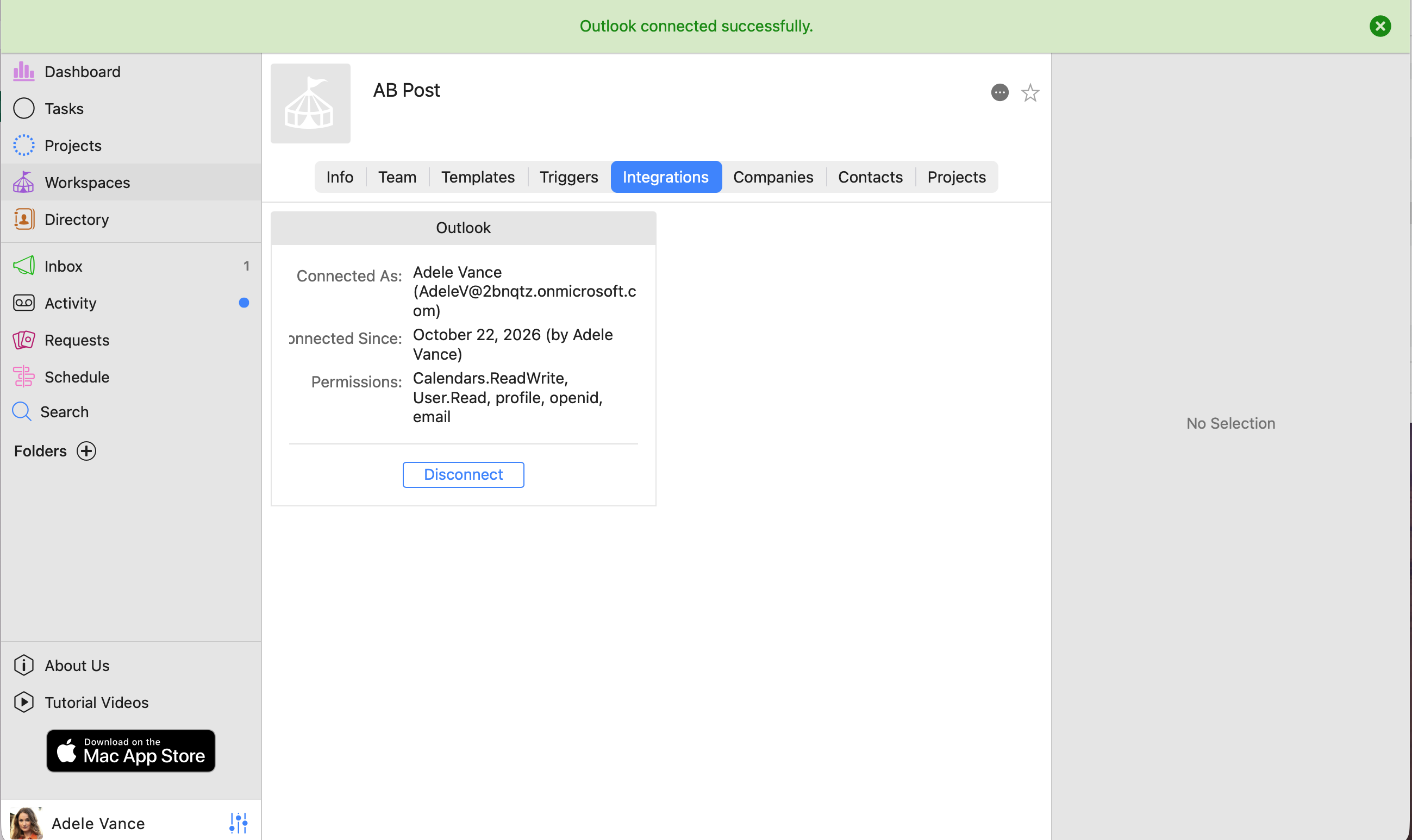
- You return to the Integrations tab, which shows the connected account, who connected it and when.
From now on, new and changed Bookings and Tasks sync to Outlook. Synced Bookings show their sync status in Cirkus.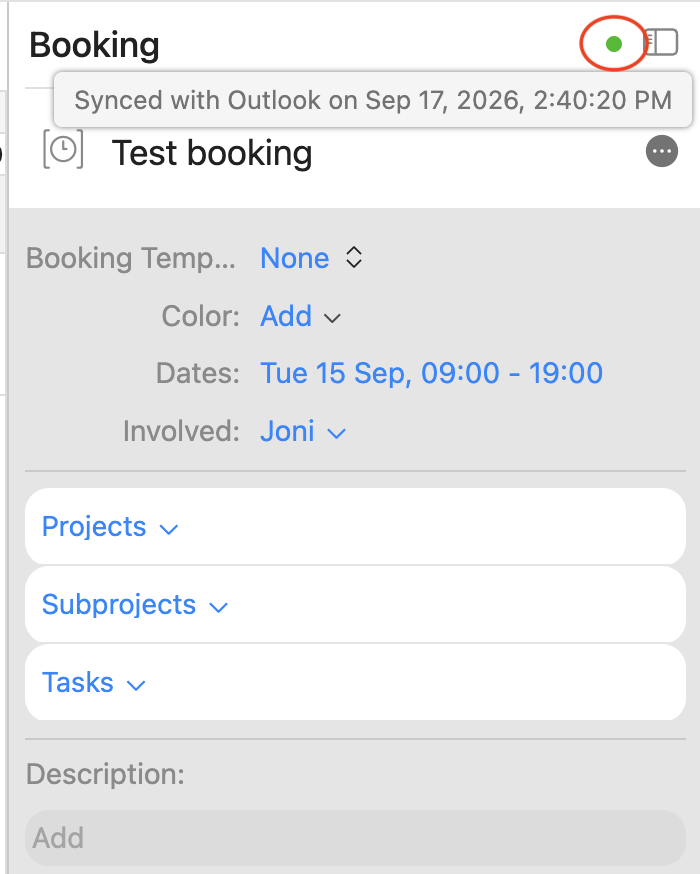
If the connection stops working, for example because the integration account's password changed, the Integrations tab shows the connection as broken. Disconnect and connect again to restore it.
To stop syncing, click Disconnect in the Integrations tab.
What syncs to Outlook
Bookings and scheduled Tasks sync to the Outlook calendars of the Members involved in a Booking or assigned to a Task. The Member who creates a Booking or Task gets an invitation only if they're involved or assigned themselves.
Each Outlook event shows the Booking or Task name, its times and its Description, with a line saying who created it in Cirkus.
| In Cirkus | In Outlook |
|---|---|
| Single-day Booking or Task | One event, with one invitation to each Member involved. |
| Multi-day Booking or Task in one continuous block | One event spanning all the days, with one invitation. |
| Multi-day Booking or Task with gaps between days | One event per block, each with its own invitation to accept or decline. |
| Booking or Task in the past | The event is added to the calendar and an email is sent, but there is no invitation to respond to. |
| Booking or Task Request pending approval | Nothing syncs until the Request is approved. Once approved, it syncs like any other Booking or Task. |
| Deleted Booking or Task | Members receive a cancellation and Outlook offers to remove the event from their calendar. |
| Subtasks with start and end dates | Not synced. |
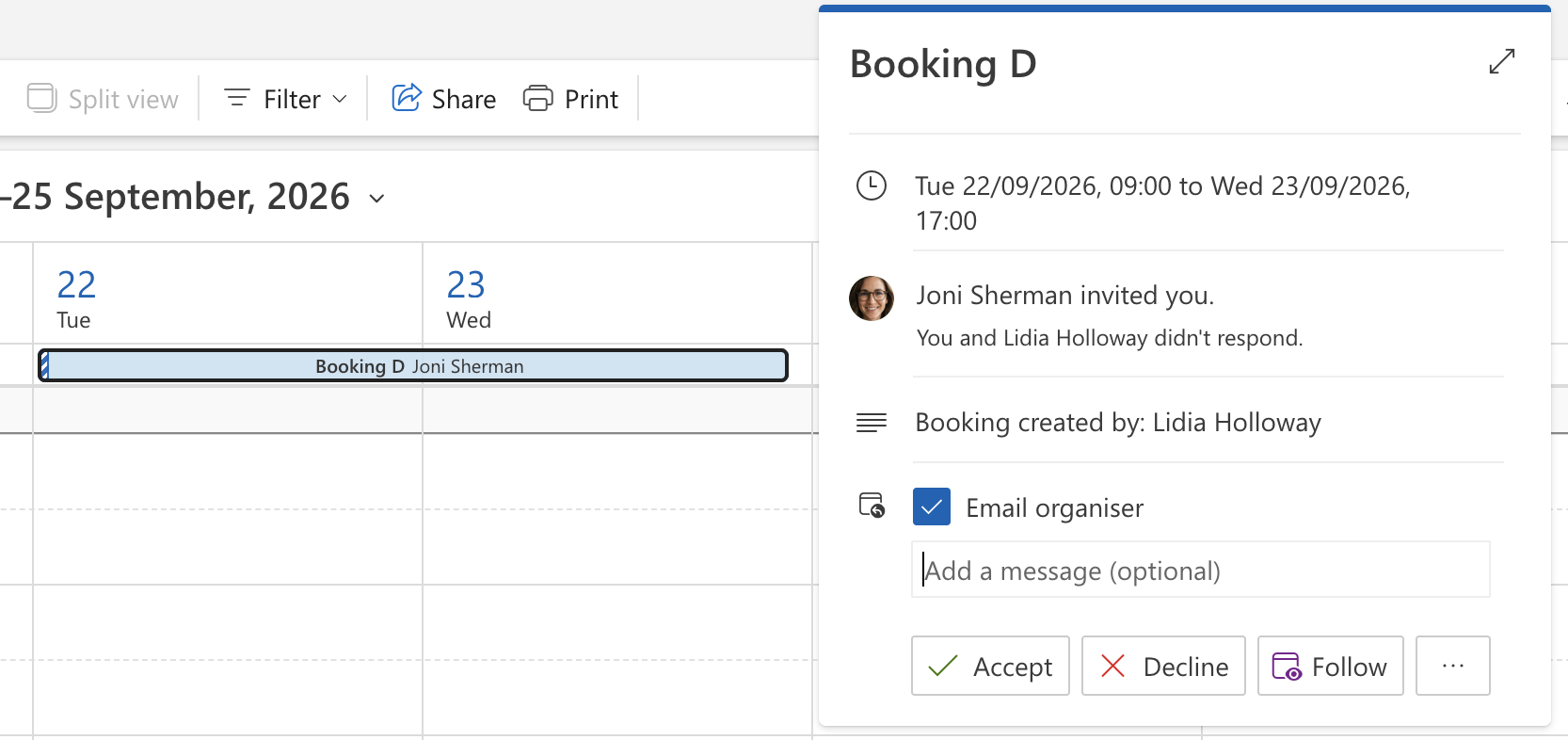
Invitations and responses in Outlook
Synced events arrive as invitations from the integration account and show as Tentative until the Member accepts them. When the Member accepts in Outlook, the event shows as Busy.
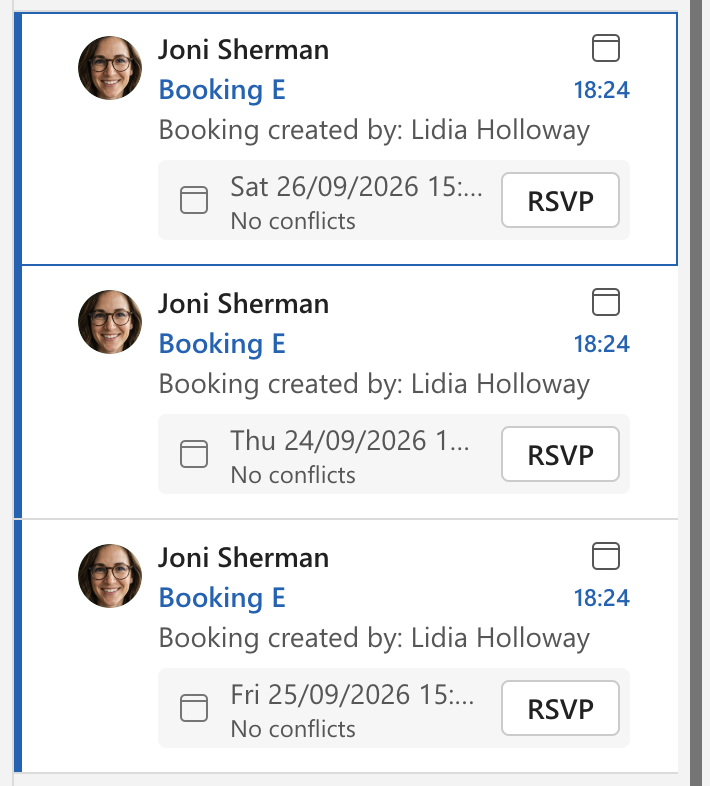
If a Booking or Task is retimed in Cirkus, Members receive an updated meeting time, the event moves on their calendar, and it goes back to Tentative until they accept it again. For Bookings and Tasks with gaps between days, Members receive one update per block.
When you change a Booking or Task
Changes to the name, Description, times and Members update the Outlook event and notify the Members involved. Other changes stay in Cirkus and send no notification.
| Change in Cirkus | What happens in Outlook |
|---|---|
| Retime the whole Booking or Task | Members receive an updated meeting time, and the event goes back to Tentative. |
| Rename | Members receive an updated meeting subject. |
| Add or update the Description | Members receive an updated meeting description. |
| Add a Member | The new Member receives an invitation. |
| Remove a Member | The removed Member receives a cancellation. |
| Retime one Member only | That Member receives a cancellation for the original time and an invitation for the new time. |
| Add, retime or remove a Resource or Role | Resources and Roles aren't added to the Outlook event. |
| Change the Template, colour, Schedule Status, Project, Subproject, Priority, Task Status, Due Date, Custom Fields, files, Comments or Subtasks | No change in Outlook and no notification. |
Good to know
- Edit in Cirkus, not in Outlook. Changes made to a synced event in Outlook don't sync back to Cirkus.
- Outlook events don't come into Cirkus. Meetings created in Outlook don't appear in the Cirkus Schedule.
- Only people get invitations. Resources and Roles aren't synced as attendees.
- Changes to who is involved notify everyone. At the moment, when you add or remove a Member, Resource or Role, or retime one of them, the other Members involved also receive an "updated meeting" email, even though their event hasn't changed.
Related articles
Was this article helpful?
That’s Great!
Thank you for your feedback
Sorry! We couldn't be helpful
Thank you for your feedback
Feedback sent
We appreciate your effort and will try to fix the article