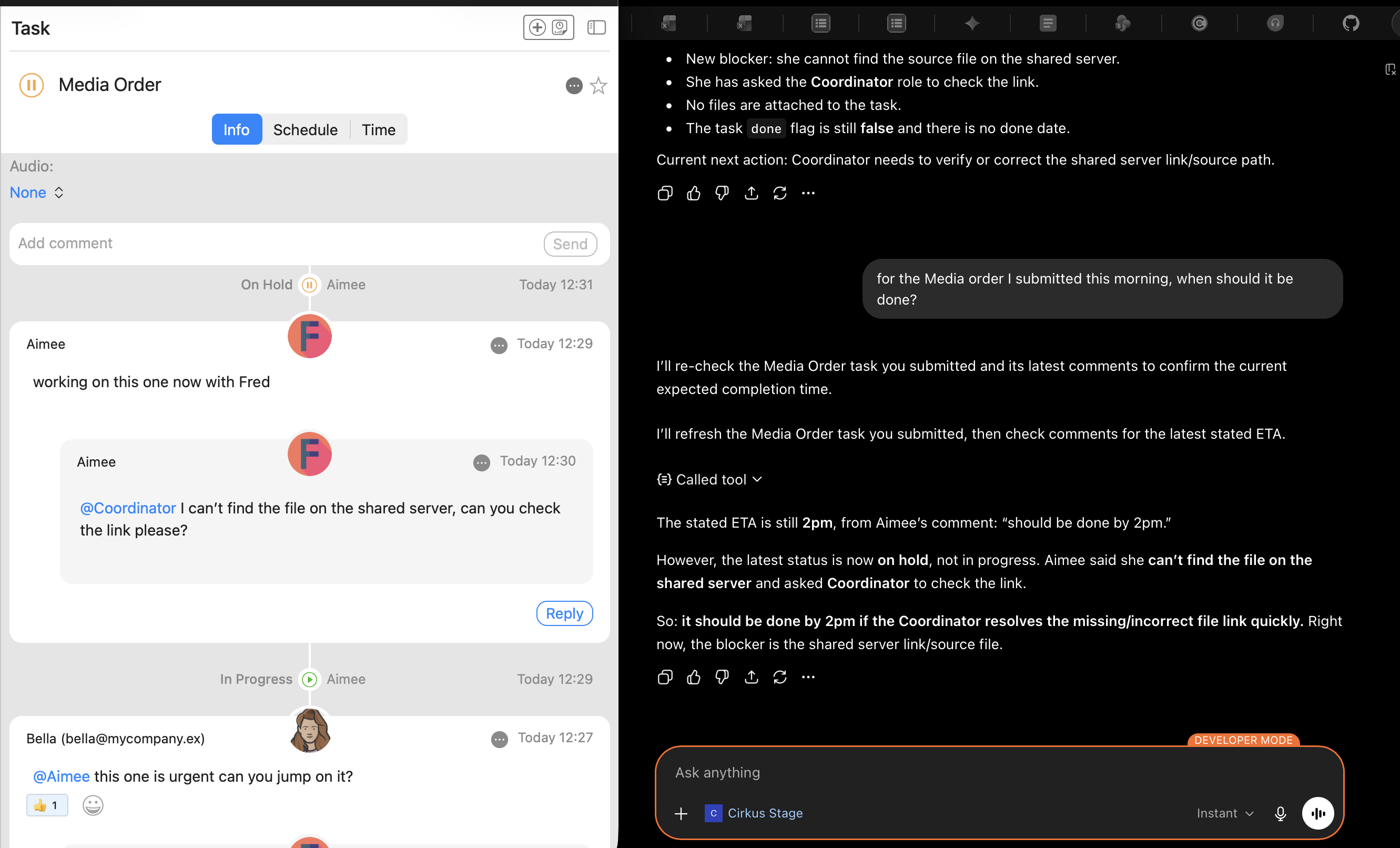
The Model Context Protocol (MCP) is the bridge that allows AI assistants like ChatGPT and Claude to securely "talk" to your Cirkus data. Once connected, your AI can summarise Projects, check Tasks and the Schedule, update Task statuses and add Comments using natural language.
It can also combine this data with that from other sources, to power up your work.
1. What your AI assistant can do
- Can read: Projects (including closed Projects), Tasks, Comments, the Schedule, files, the Activity feed, Workspace Members and Roles, and the Resources and people that can be booked or assigned.
- Can change: Task status, and add Comments.
2. Setup Guides by Client
The Cirkus MCP Server URL is https://cirkus.com/mcp for all clients below.
Using a Private Cirkus Cloud? MCP is not enabled by default on private clouds. Please contact support@cirkus.com to enable it for your service.
ChatGPT (Plus, Business & Enterprise)
ChatGPT interacts with Cirkus through Developer Mode, which allows it to act as a full MCP client.
Enable Developer Mode: In ChatGPT, go to Settings > Apps > Advanced Settings and toggle Developer Mode to ON.
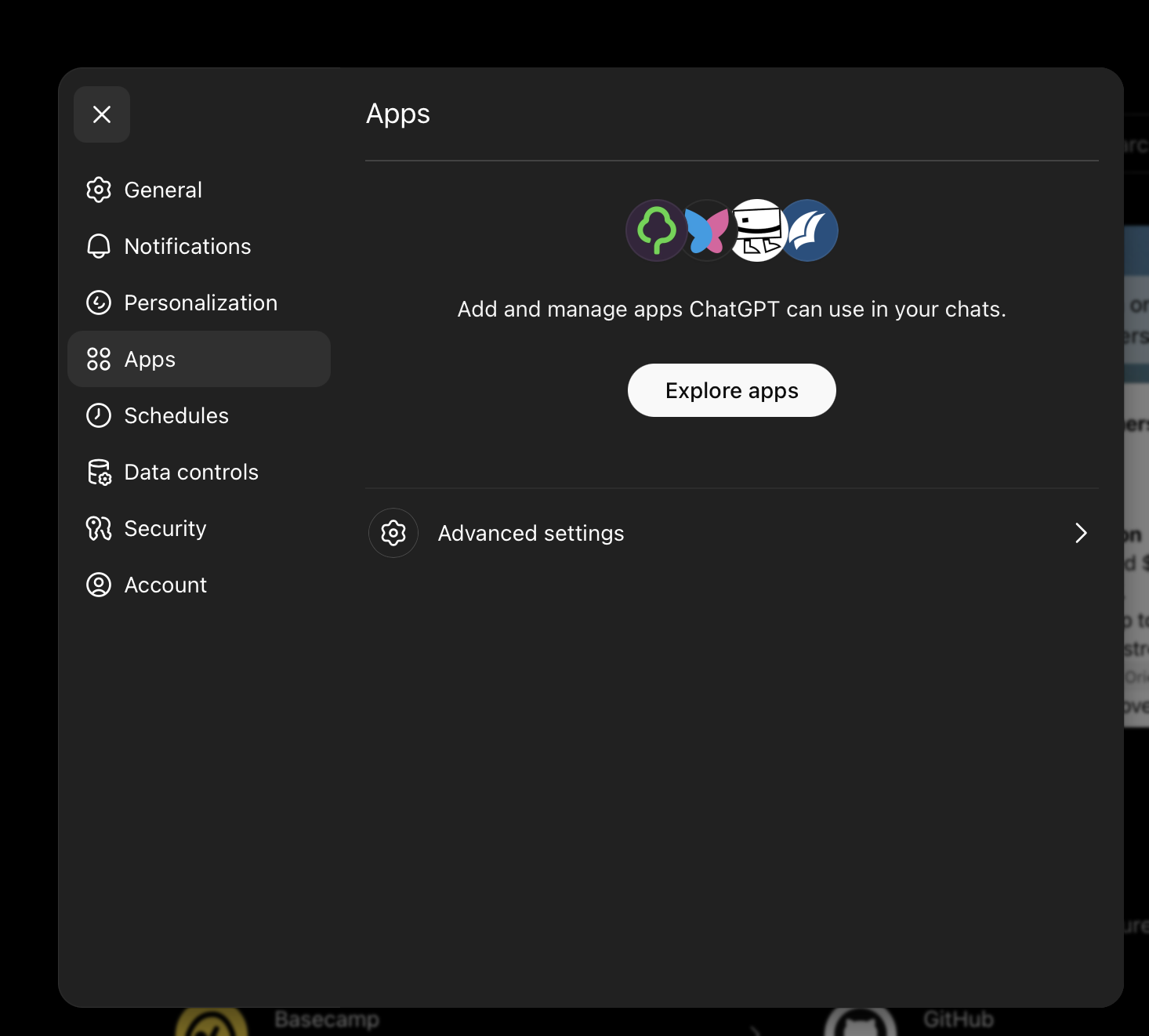
Add Connector: Go to Settings > Connectors and click Create (next to Advanced Settings).
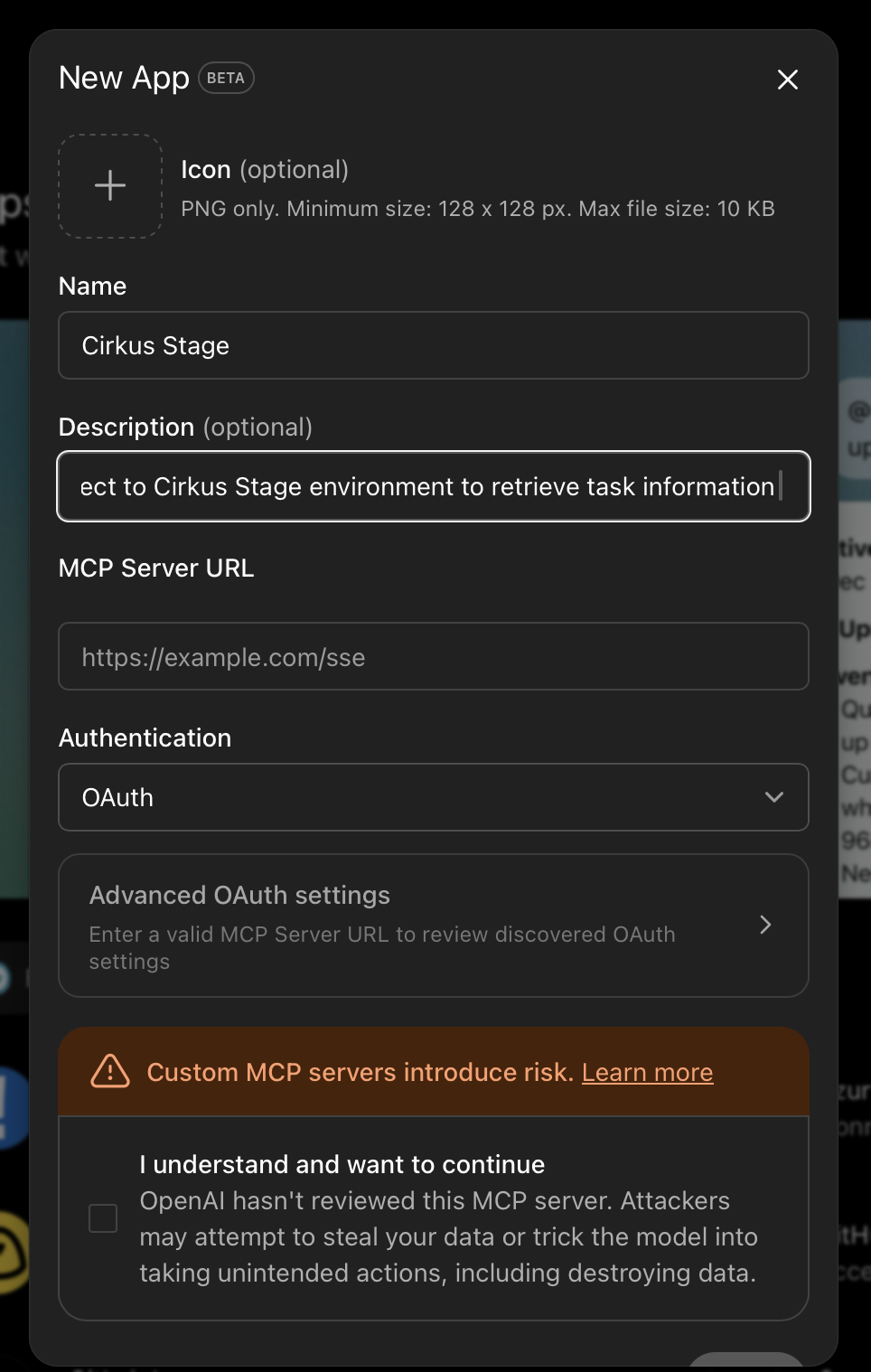
Configure:
Name: Cirkus
MCP Server URL:
https://cirkus.com/mcpAuthentication: Select OAuth.
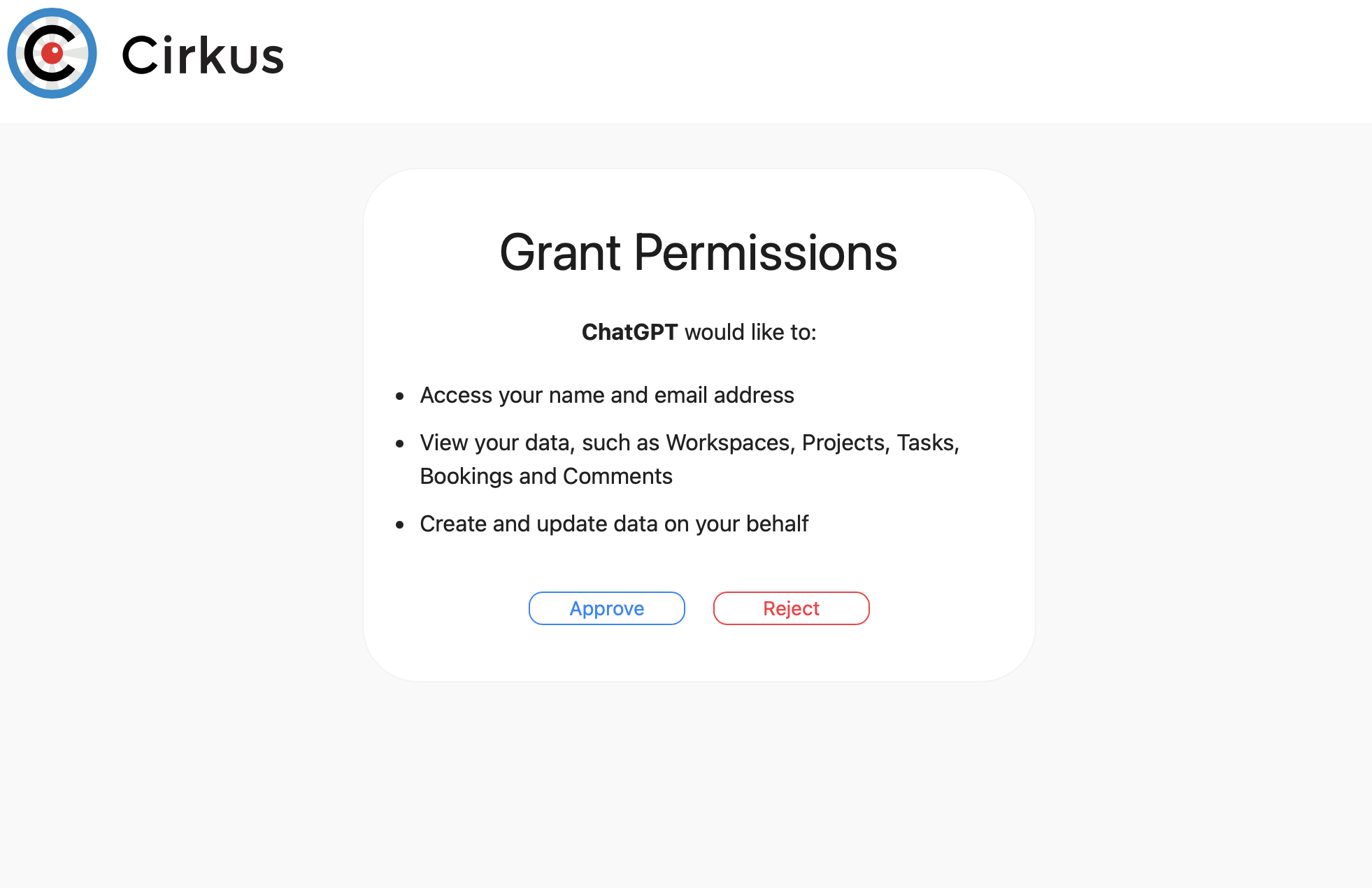
Authorize: Click Connect. You will be redirected to Cirkus to log in, then click Approve to allow the connection.
When you are redirected back to ChatGPT, the connector will be installed.
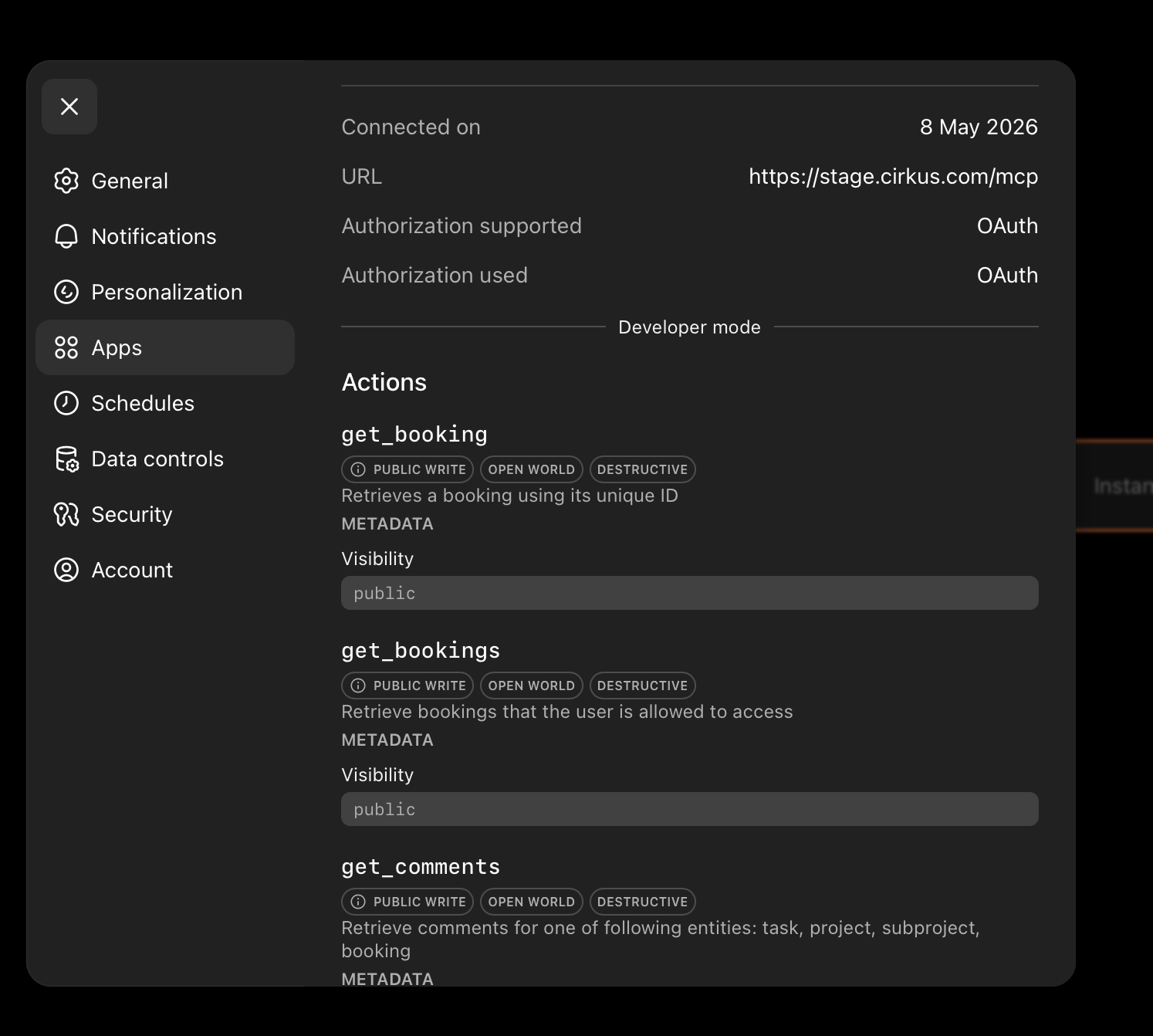
Use in Chat: Start a new chat, select Developer Mode from the model picker, and make sure the Cirkus connector is toggled on.
Claude (web, desktop & mobile)
In Claude (on claude.ai or the Claude desktop app), go to Settings > Connectors.
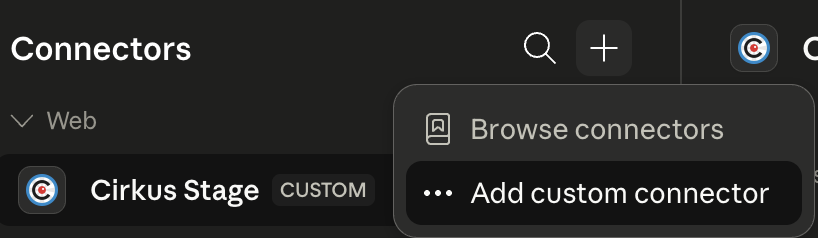
Click Add Custom Connector.
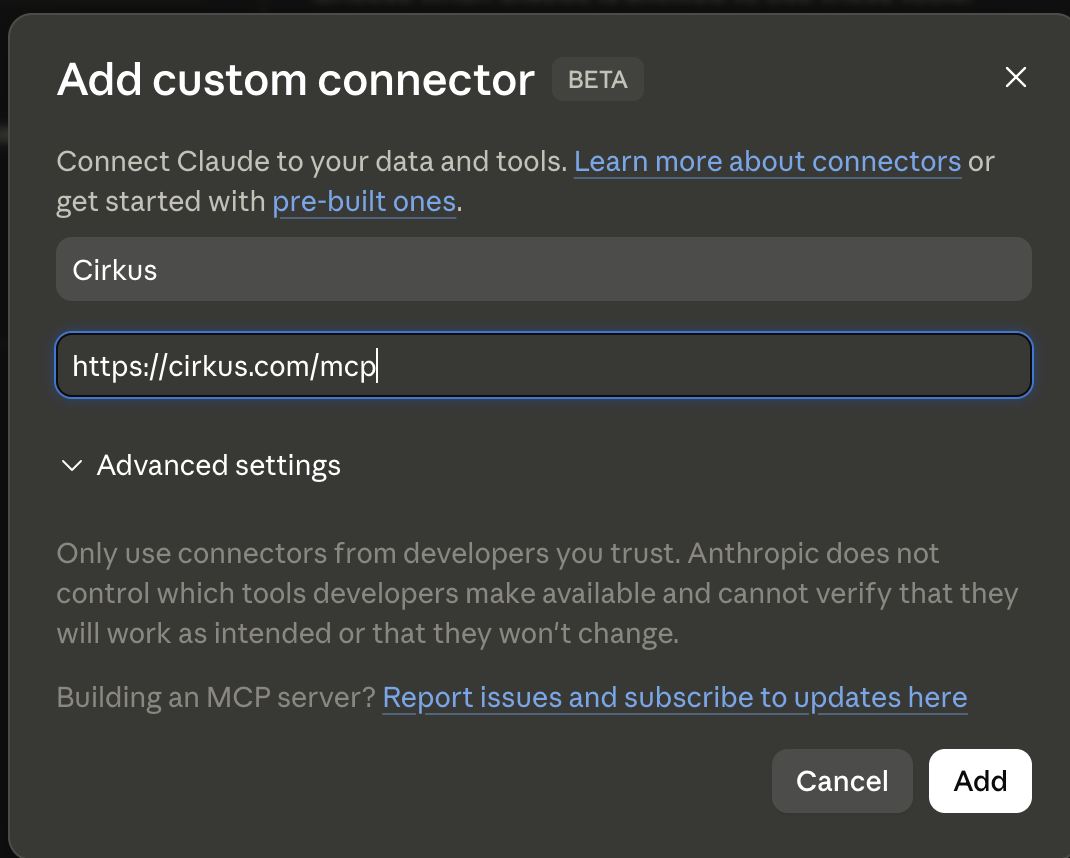
Give it a name (e.g. Cirkus) and add the MCP Server URL:
https://cirkus.com/mcpClick Add. You will be redirected to a web page to authenticate to Cirkus.
Once you have authenticated, the Cirkus connector is available in Claude on web, desktop and mobile.
Claude Team & Enterprise plans: an Owner of your Claude organisation adds the Cirkus connector once for everyone. Each member then connects it with their own Cirkus login, so they only see the Cirkus data they have access to.
Claude Code: run claude mcp add --transport http cirkus https://cirkus.com/mcp, then follow the browser prompt to authorize.
Cursor & VS Code
Cursor: open Settings > MCP and click Add new MCP server. VS Code: open the Command Palette and run MCP: Add Server.
Select HTTP as the transport type.
URL:
https://cirkus.com/mcpLogin: Follow the browser prompt to authorize.
3. Security & Access Control
OAuth Protection: You never share your password with the AI. You are simply granting a secure, revocable token.
Workspace Privacy: The AI can only see data within Workspaces you have joined, at the permission level that you have.
Changes made by AI: AI assistants can make changes, such as updating Task statuses and adding Comments, with the same permissions you have. Changes appear in Cirkus as made by you.
4. Refreshing your Cirkus tools
We add new capabilities to the Cirkus MCP server over time. AI assistants load the list of available tools when they connect, so after a Cirkus update you may need to refresh your connection to see the new ones.
ChatGPT: Go to Settings > Connectors, open the Cirkus connector and click Refresh. If there is no Refresh option, disconnect and reconnect the connector. Then start a new chat.
Claude: Start a new conversation. If the new tools still don't appear, go to Settings > Connectors, disconnect Cirkus and connect it again.
Cursor: In Settings > MCP, toggle the Cirkus server off and on again.
VS Code: Run MCP: List Servers from the Command Palette, select Cirkus and choose Restart.
Tip: If you have multiple Cirkus Workspaces, you can tell the AI: "Only use the 'Creative Team' workspace for this query" to narrow down results.
Was this article helpful?
That’s Great!
Thank you for your feedback
Sorry! We couldn't be helpful
Thank you for your feedback
Feedback sent
We appreciate your effort and will try to fix the article