By default the Cirkus Apps downloaded from the App Store will connect to cirkus.com public cloud.
Automatic Mapping Steps
If you have a private server, and all your Members have the same email domain, we can set up automatic mapping of that domain to your server. Once that's setup, you won't need to follow the steps below to manually connect.
How it works
- A Member opens the Cirkus App downloaded from the App Store and enters their email address on the first screen.
- Cirkus reads that the email ends in the company’s domain.
- The app automatically redirects to the private server.
- The Member signs in or signs up as normal.
Note: Automatic mapping only works for email addresses with the domain we mapped. Anyone signing in with a different email, such as a freelancer, a contractor or someone using a personal address will need to follow the manual steps below.
Reach out to Cirkus Support at support@cirkus.com to have this set up for your Private Server.
Manual Connection Steps
If however, some or all of your Members have different emails, you will need to manually repoint your apps to the server.
Note: this mapping will persist for each logged in session and will only be cleared if you explicitly logout of the application. For this reason we would advise keeping your session active and not logging out of macOS or iOS applications.
MacOS App
- First you will need to know the domain name of the private cirkus server you need to point to. i.e yourcompany.cirkus.com.
- Open the first screen and enter your email address, and click Next button
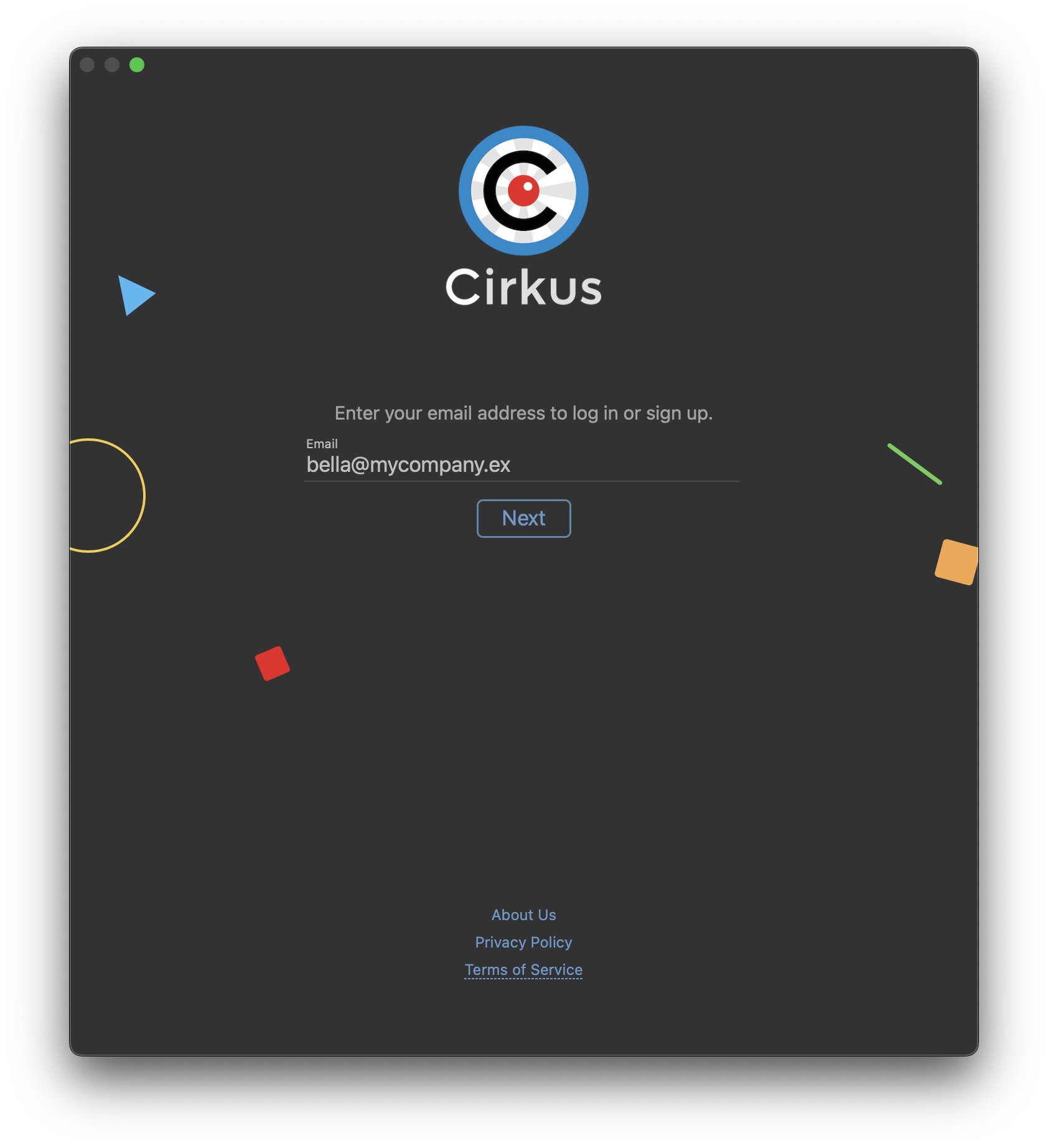
- In the Sign Up or Log In window, click on the Cirkus menu
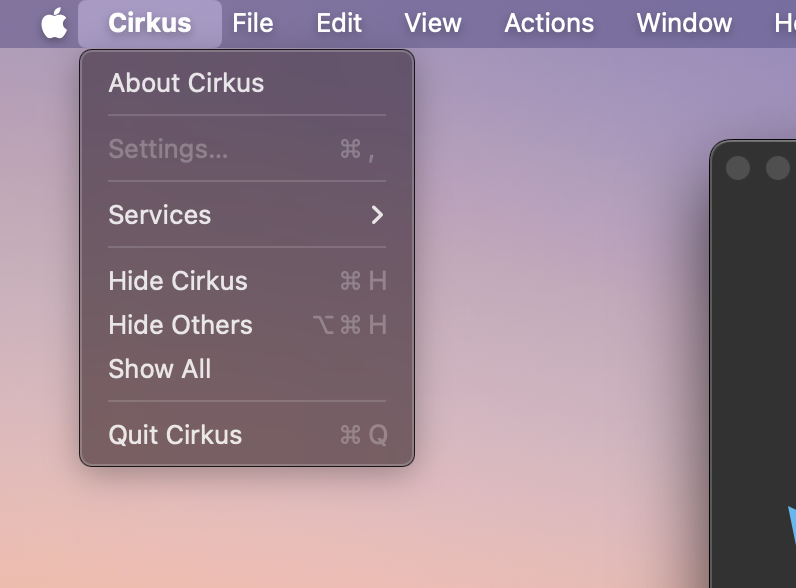
- Hold down the option key and a new option will appear API Endpoint.., click on that option
- In the popup that opens fill out the following details
In the fields that appears type
API endpoint: https://<yourname.cirkus.com>/api/v1
Websockets Endpoint: wss://<yourname.cirkus.com>/ws/
replacing <yourname.cirkus.com> is the domain of your Cirkus private server.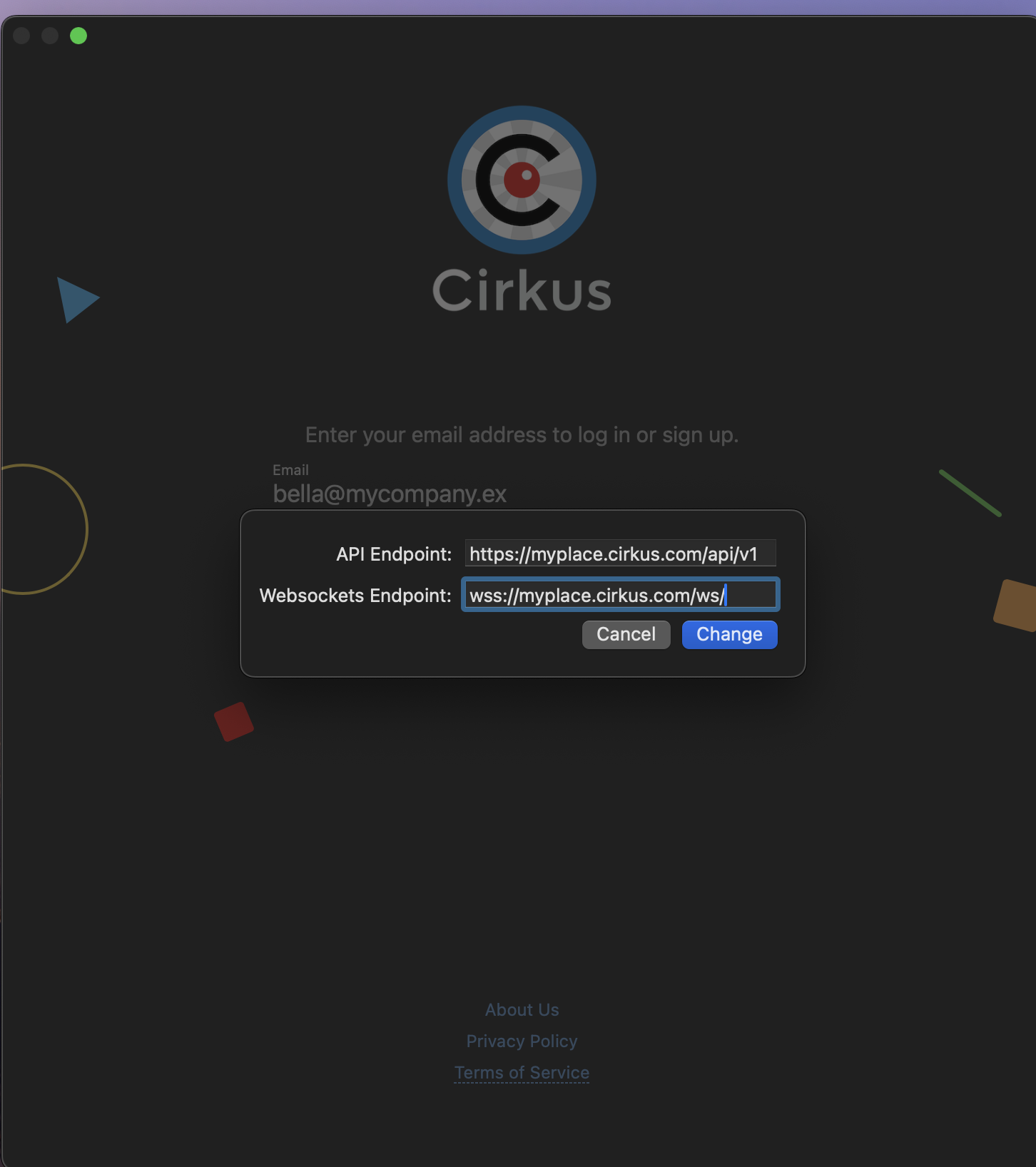
- Click Change and you can Log In or Sign Up as a user in the private server.
This mapping will persist for each logged in session and will only be cleared if you Log Out of the application. For this reason we would advise keeping your session active and not logging out of macOS or iOS applications.
iOS App
- First you will need to know the domain name of the private Cirkus server you need to point to. i.e yourcompany.cirkus.com.
- Open the first screen and enter your email address, and click Next button
- Click through to “I already have an account"
- On the Login screen, hold down `Forgot?` in the password field for 5 seconds and two new fields will show where you enter the API and web sockets URL
In the first field enter https://<yourname.cirkus.com>/api/v1
in the second field: wss://<yourname.cirkus.com>/ws/
replacing <yourname.cirkus.com> with the domain of your Cirkus private server.
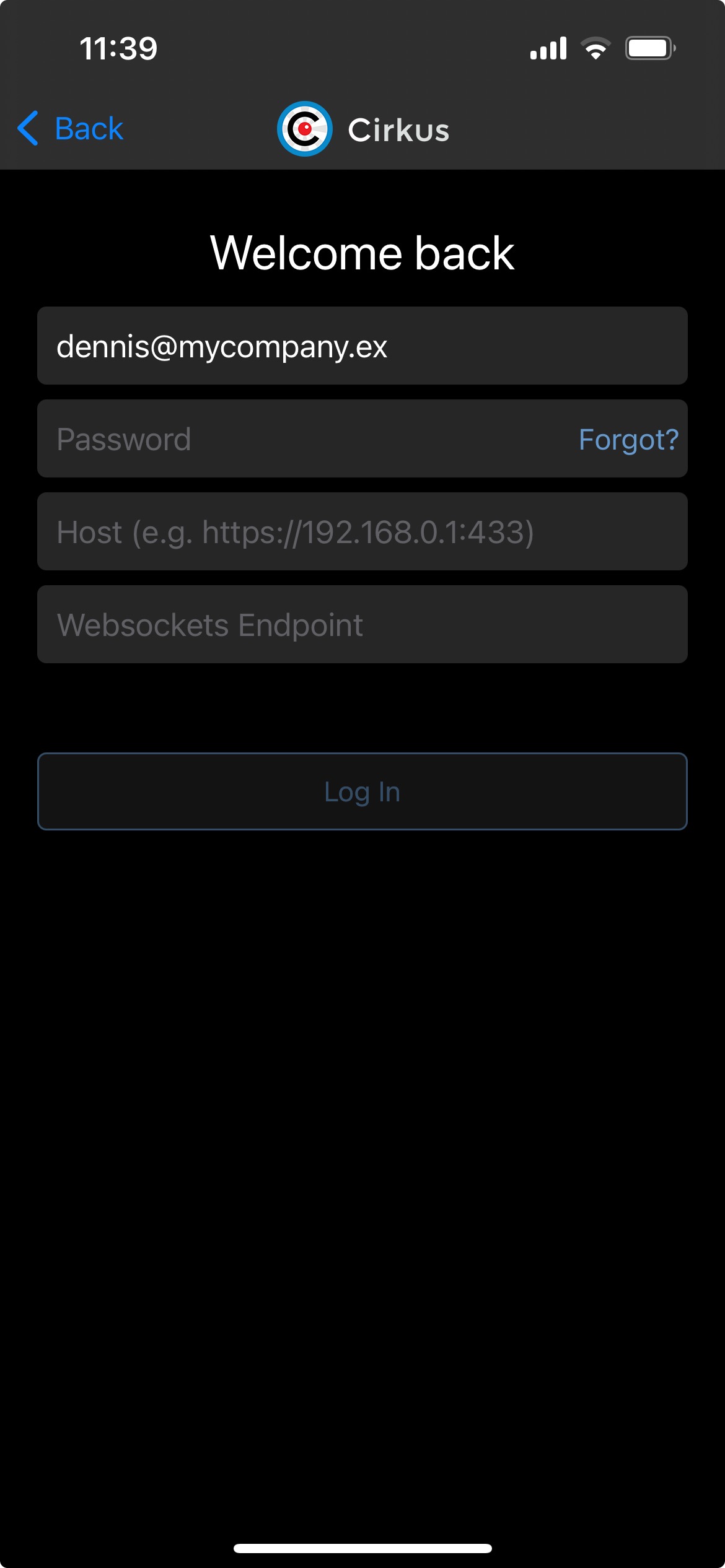
Enter the username and password to Log In as usual
This mapping will persist for each logged in session and will only be cleared if you Log Out of the application, and you will need to enter it again. For this reason we would advise keeping your session active and not logging out of macOS or iOS applications.
Was this article helpful?
That’s Great!
Thank you for your feedback
Sorry! We couldn't be helpful
Thank you for your feedback
Feedback sent
We appreciate your effort and will try to fix the article