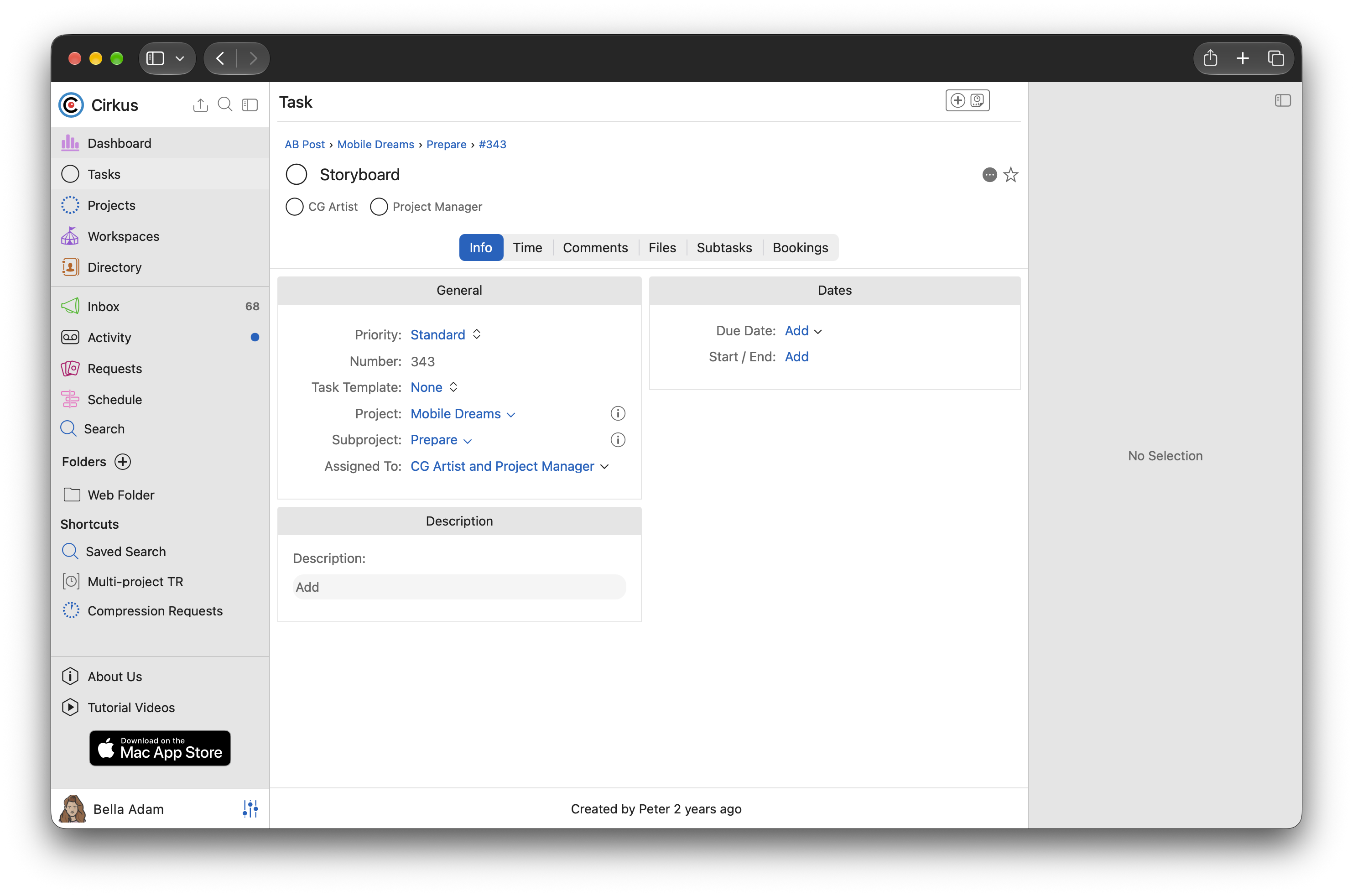
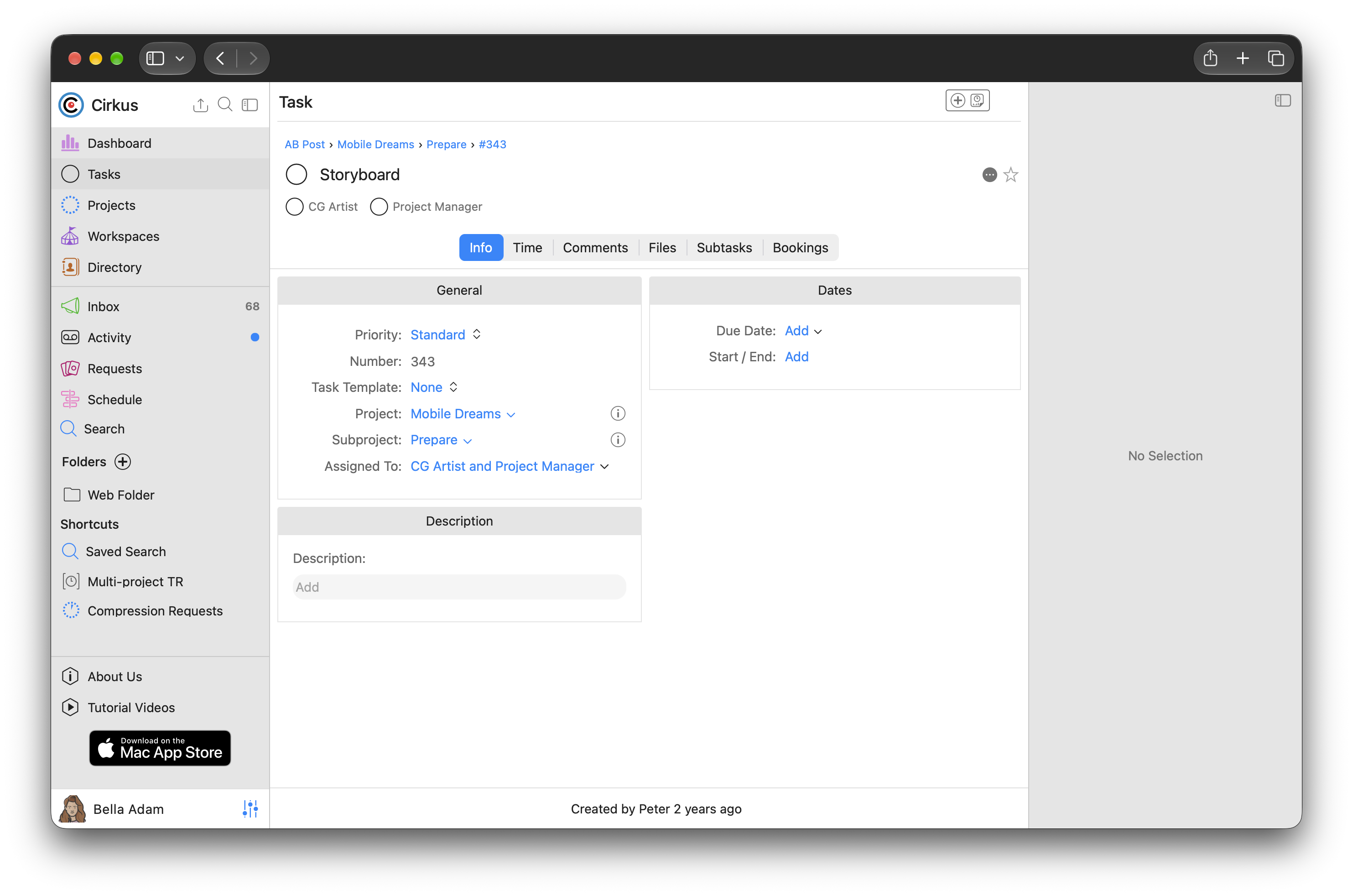
High Contrast mode makes text, icons and controls in Cirkus stand out more clearly from the background, so the app is easier to read. This mode makes the text darker and have more contrast with the background.
It’s a personal setting: turning it on only changes how Cirkus looks for you, not for the rest of your Workspace.
It’s a personal setting: turning it on only changes how Cirkus looks for you, not for the rest of your Workspace.
High Contrast mode is available on Cirkus web from version 2.10.
Turn on High Contrast mode
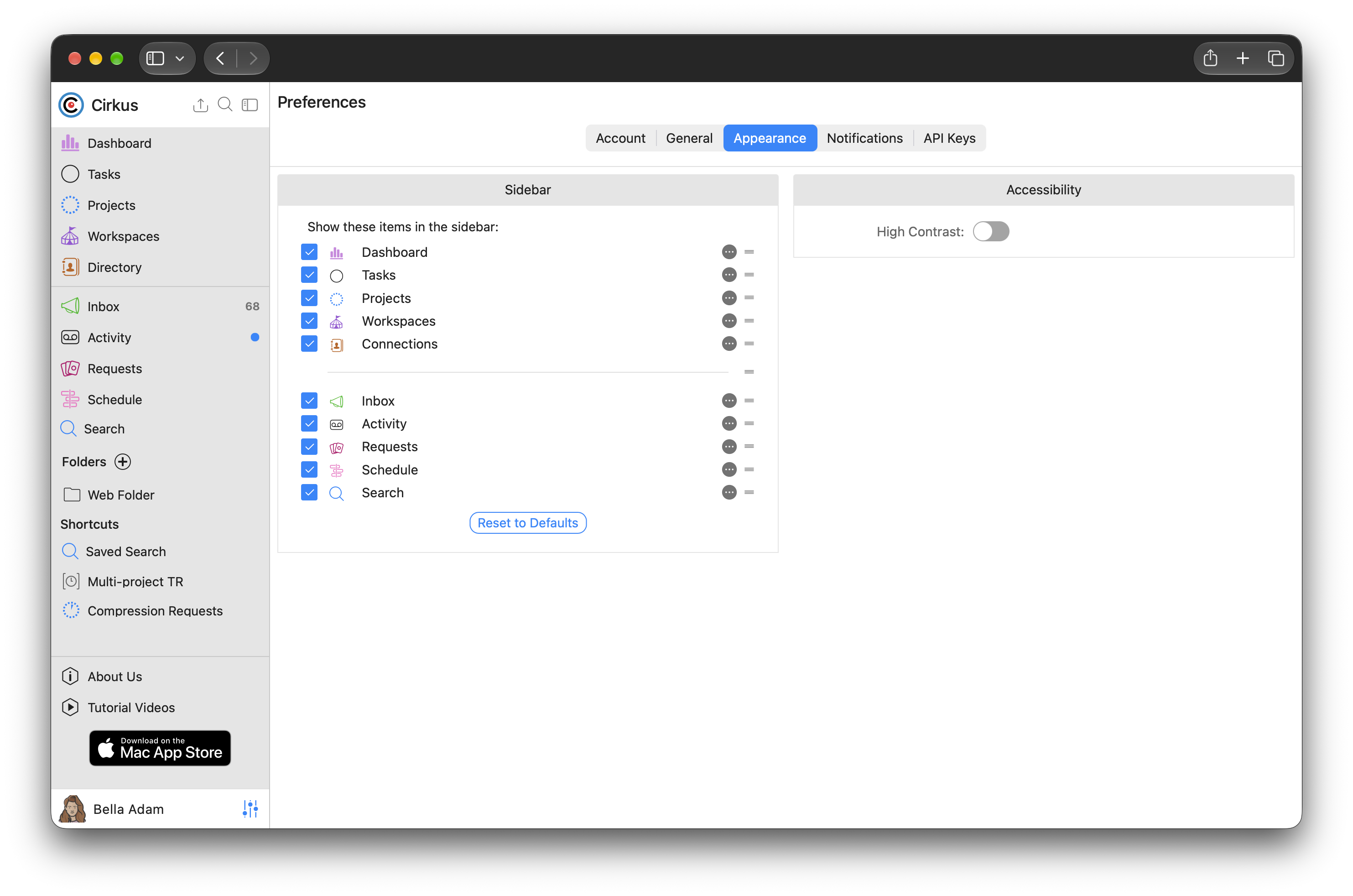
- Click Settings at the bottom of the left menu to open your User Preferences.
- Open the Appearance tab.
- Turn on High Contrast mode. Cirkus updates straight away.
- Task View with High Contrast mode turned ON
- Task View with High Contrast mode turned OFF
Was this article helpful?
That’s Great!
Thank you for your feedback
Sorry! We couldn't be helpful
Thank you for your feedback
Feedback sent
We appreciate your effort and will try to fix the article