You can use filters to highlight bookings in a particular status or type in the Schedule using Filters.
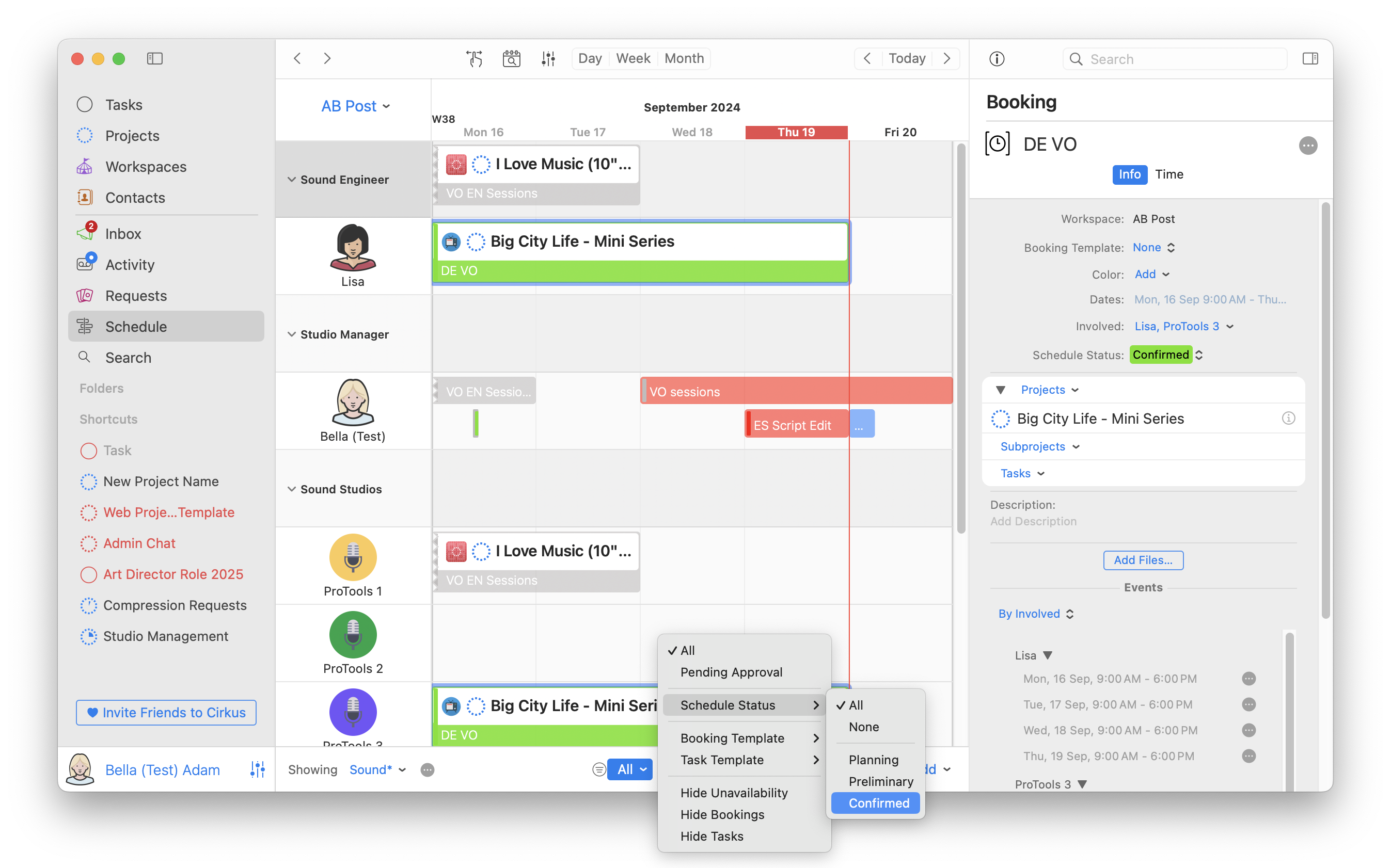
In the Filter menu at the bottom of the Schedule View filter by the following criteria
- All (Default) - Show All Scheduled Tasks and Bookings
- Pending Approval - Only Show Scheduled Tasks or Bookings you have submitted for approval or which are pending your approval
- Schedule Status - All/ (Default) None / Show only Tasks&Bookings with the selected Schedule Statuses
- Booking Template - All (Default) / Show only Bookings with the selected Booking Templates
- Task Template - All (Default) / Show only Tasks with the selected Task Templates
- Hide Unavailability- When resources have Bookings or Tasks which you do not have permissions to see, they show as grey blocks. Selecting this filter will remove them from the View.
- Hide Bookings - Show only Tasks
- Hide Tasks - Show only Bookings
Your filter settings are retained between sessions and between platforms (iOS/Mac/Web)
Related articles
Was this article helpful?
That’s Great!
Thank you for your feedback
Sorry! We couldn't be helpful
Thank you for your feedback
Feedback sent
We appreciate your effort and will try to fix the article