Rate Cards define standard pricing for the items used in your Quotes.
By separating pricing from Quote Templates, you can keep your pricing consistent while reusing the same Quote structure across different customers, projects, or pricing agreements.
- Create a New Rate Card
- Use a Rate Card on a Quote
- Use a Rate Card on a Quote
- Using Rate Cards with Quote Templates
- Edit a Rate Card
- Active and inactive Rate Cards
- Frequently asked questions
- Working with Rate Cards (Bulk Export / Import)
Before you begin
- You need Rates Permissions and a Business License to create and manage Rate Cards.
Create a New Rate Card
- Go to Workspace Settings > Rate Cards.
- Click New Rate Card.
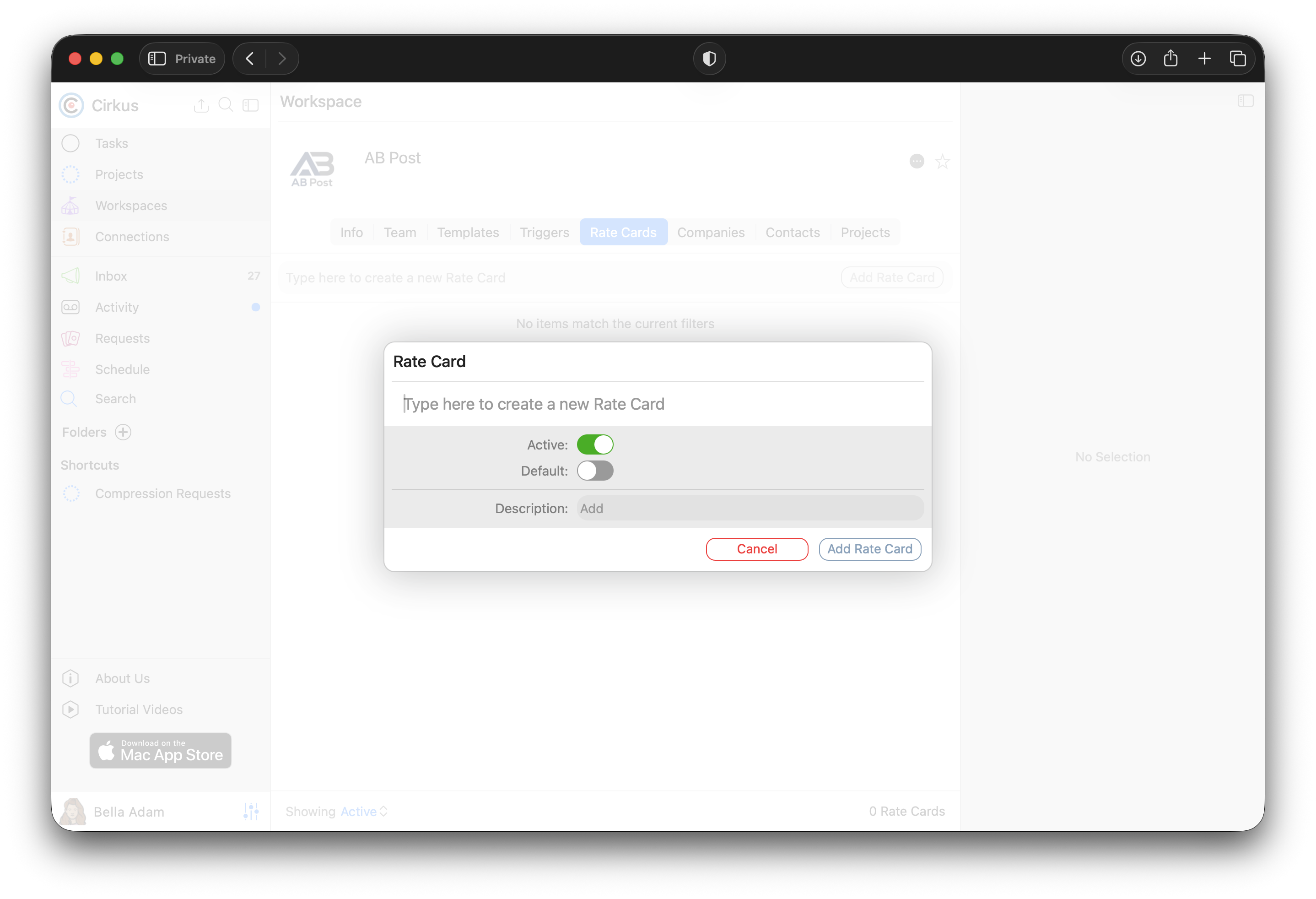
- Enter a name for the Rate Card. and click Add Rate Card
- When the Rate Card is created it will show in the list, and can be loaded in the Inspector
You can mark a Rate card as Default, this means it will be selected by default when any new Quote is created.
You can also toggle the Active checkbox to make a Rate Card inactive, this will mean it’s no longer suggested for use on new Quotes, but remains on Quotes where it’s been selected previously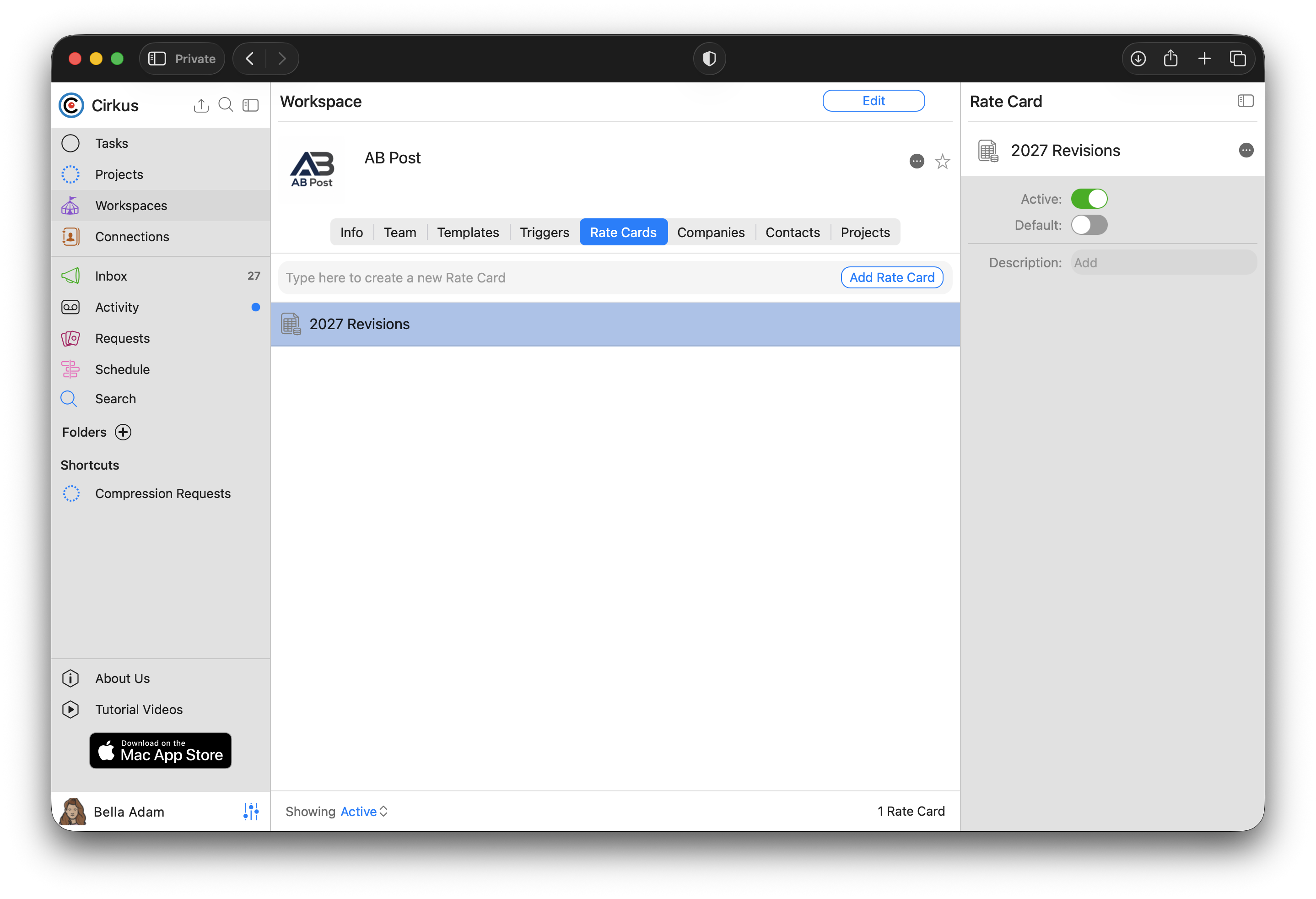
- Click through on the Rate Card name to open the Rate Card details, and in the Objects tab you can add the rates for the services, products, or resources you want to include.
By default the new Rate Card will show all the Resources, Role and Members of the Workspace with their workspace Rates.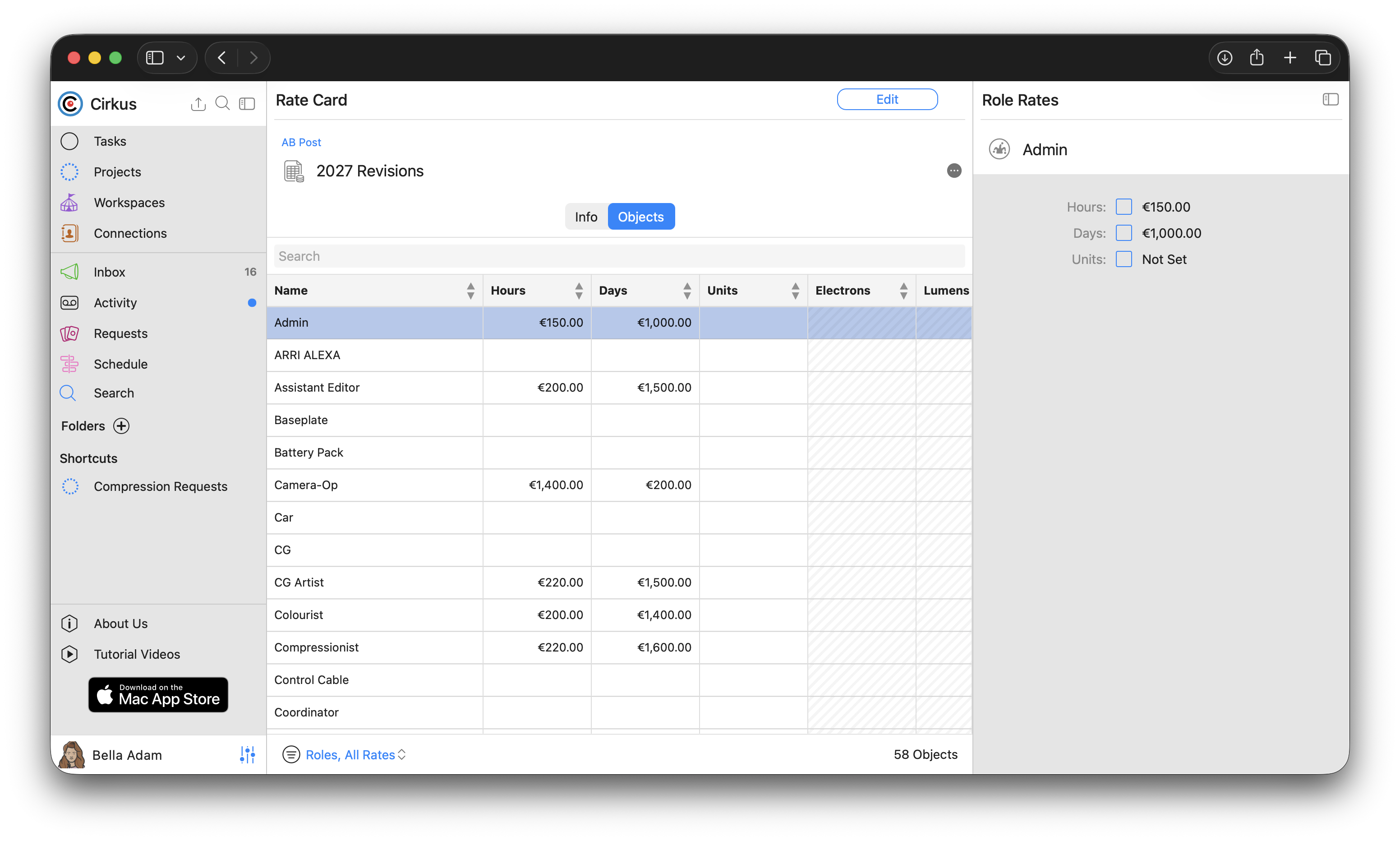
- To set a different (non Workspace ) rate click on the checkbox in the Inspector, and set the Rate which will override the Workspace value
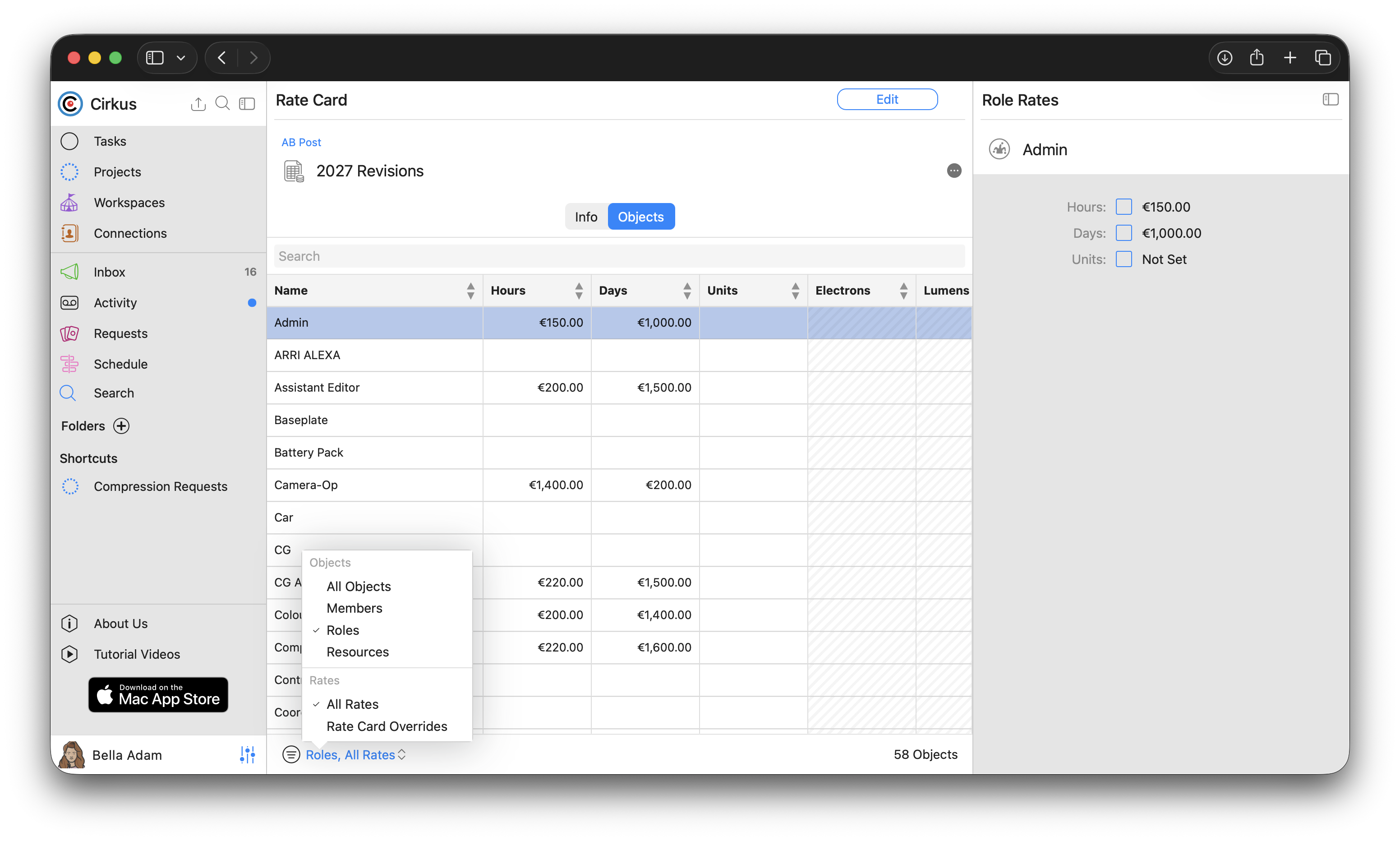
- Use the Filters at the bottom of the view to filter by Member, Role or Resource, and to show only Rate which are over-rides in the Rate Cards.
The new Rate Card is now available for use when creating Quotes
Rate Card Objects can also be edited in bulk offline from Cirkus - see Working with Rate Cards (Import / Export)
Use a Rate Cards on a Quote
When creating a Quote you can optionally select to apply a rate card
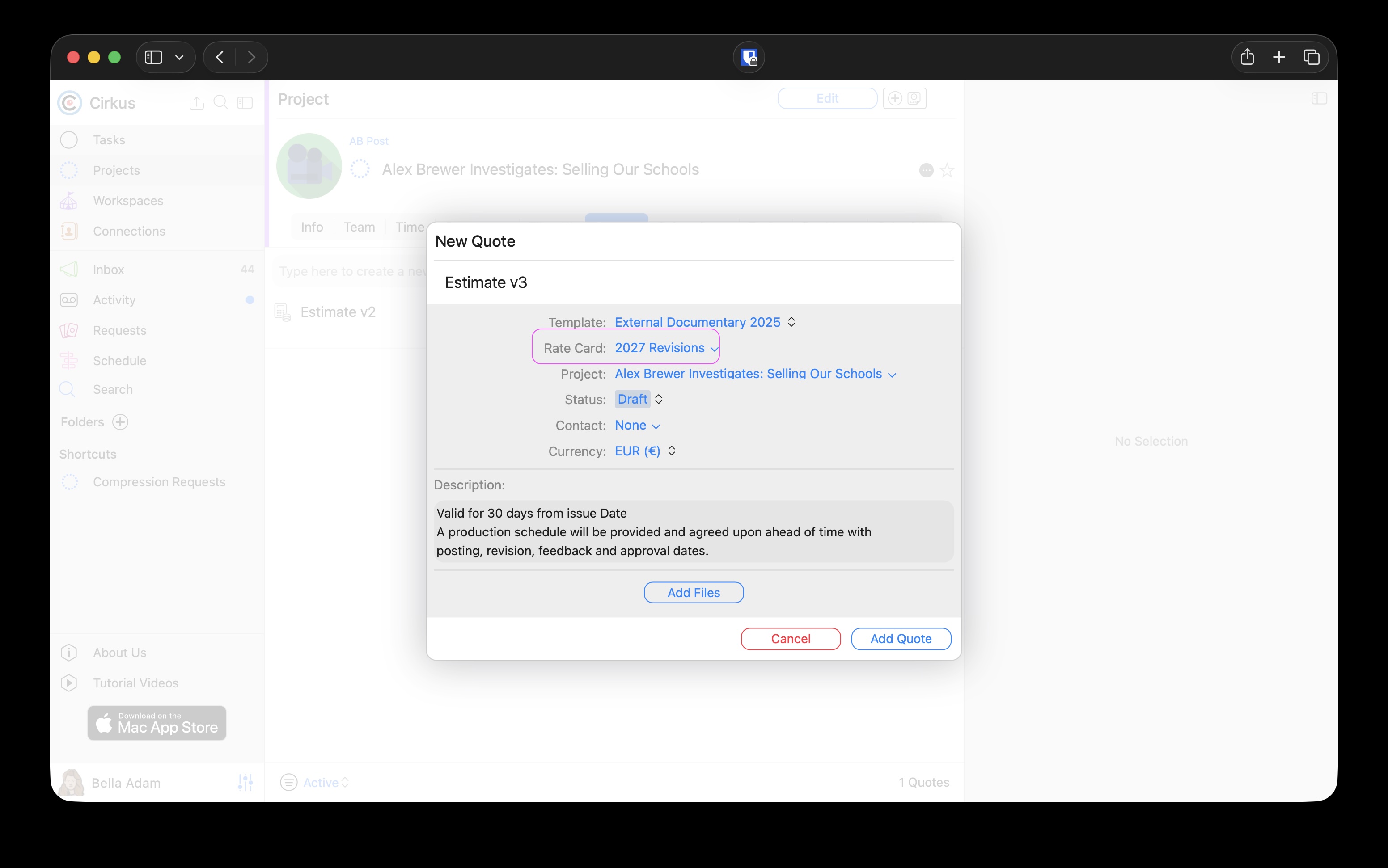
- If you do not select a Rate Card, the Rates set on the Workspace will be used for Quote Items
- If you select a Rate Card, the Rates set on the Rate Card will be used for any matching Quote Items, on Quote Creation or when the items are added later.
- If you select a Rate Card and a Quote Template, you can combine the structure of a Quote with a flexible pricing structure. See Using Rate Cards with Quote Templates
Using Rate Cards with Quote Templates
Quote Templates and Rate Cards are designed to work together.
Quote Templates focused on the work you perform and use Rate Cards to manage pricing. This makes both your templates and your pricing easier to maintain.
This allows you to standardise the structure of your Quotes while applying different pricing when required.
For example, you could create a Video Production Quote Template containing:
- Producer
- Camera Operator
- Editor
- Equipment Hire
You can then use different Rate Cards combining them with this same template, such as:
- Standard Rates
- Preferred Customer Rates
- International Rates
- 2027 Rates
When you create a Quote from the template and select a Rate Card, the Quote Items are added from the template and the corresponding rates are applied automatically.
This approach lets you maintain a single Quote Template while supporting multiple pricing structures.
Note: It is possible to Force the Template Rates to apply for some items, even when using a Rate Card
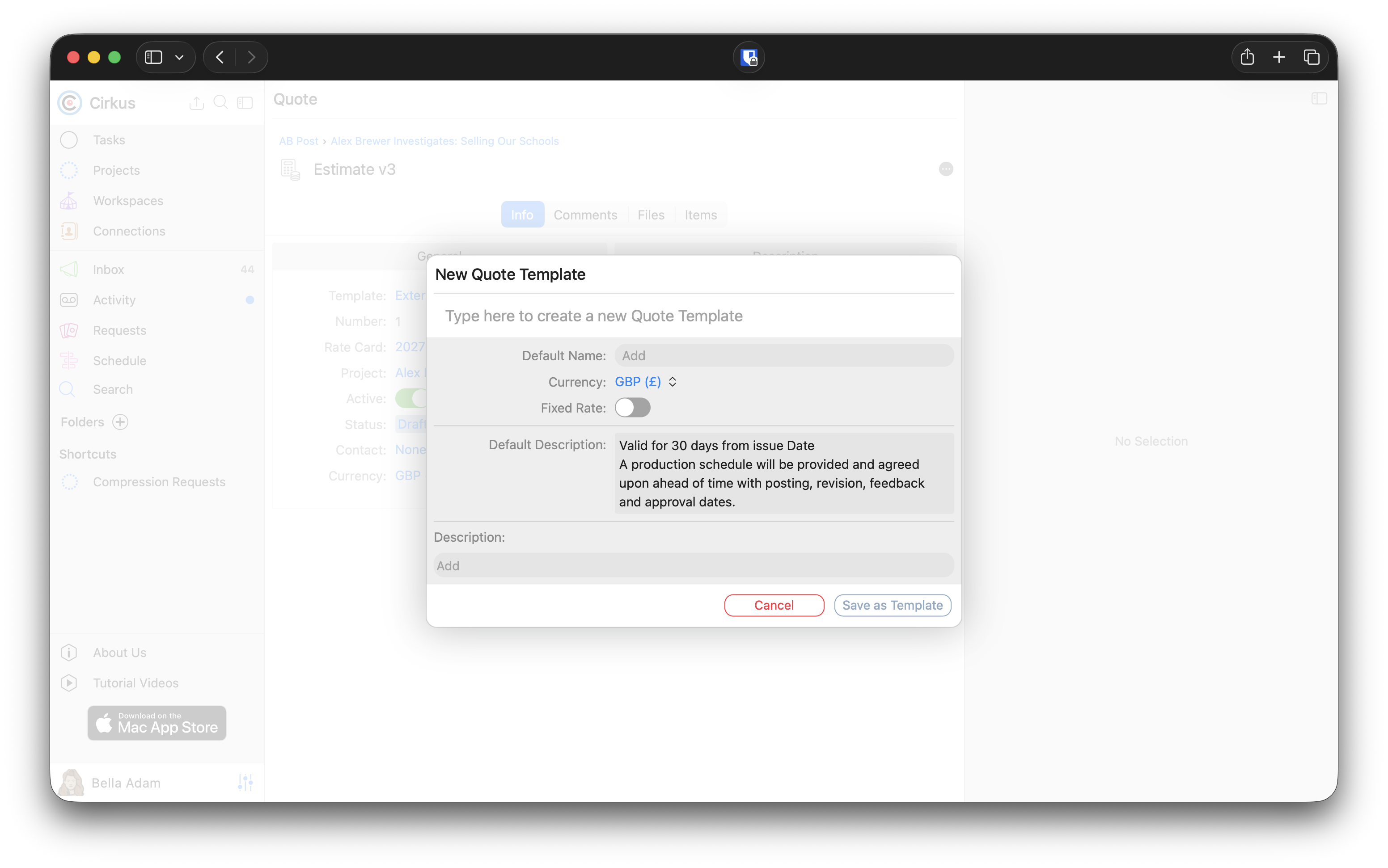
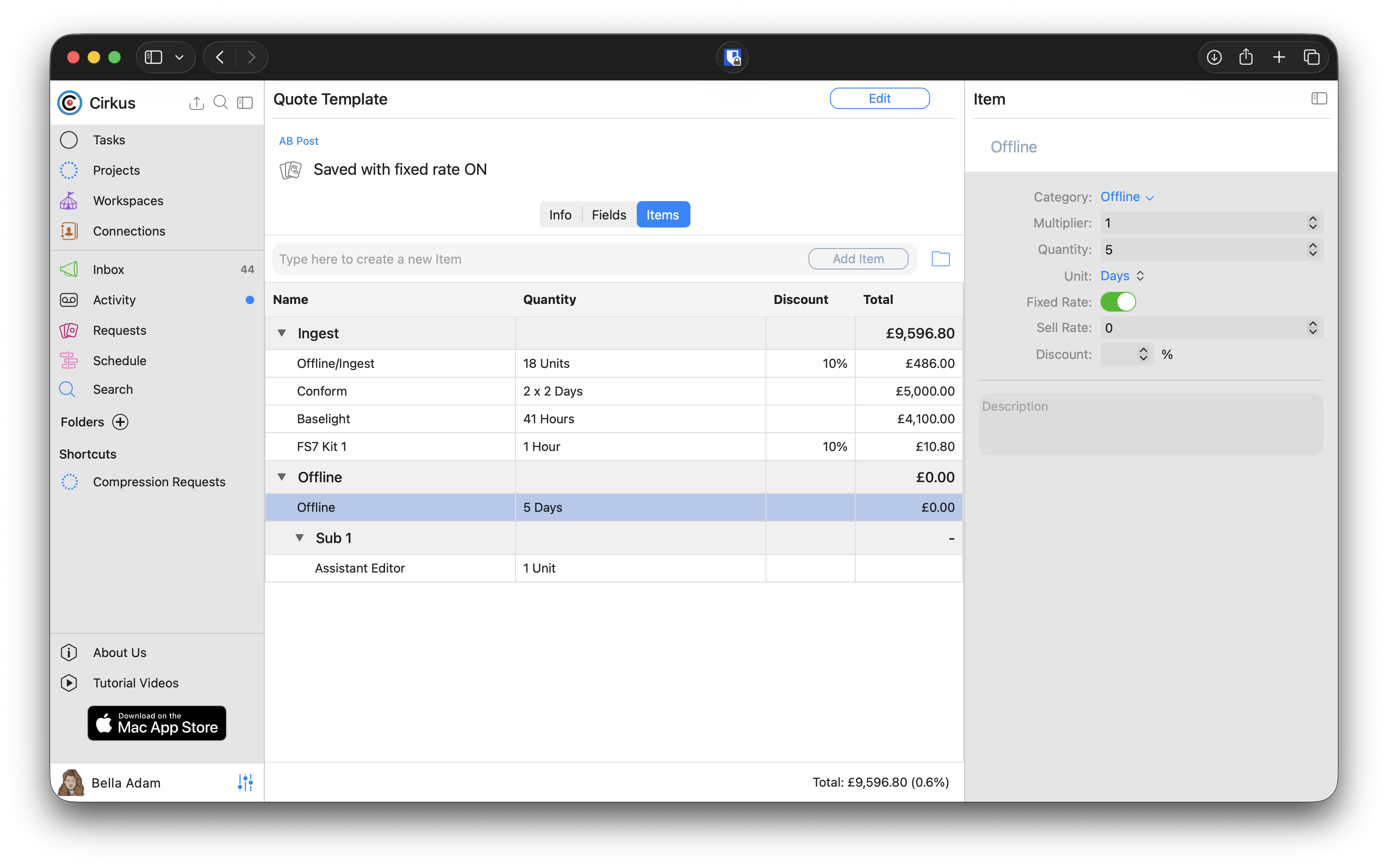
When Saving Quote as Quote Template, there is a checkbox when can be used to “Fix” the Rates in the Template, in that case those Rates will be used when the Template is used and not the Rate Card or Workspace ones.
When Fixed Rate is CHECKED on a Quote Template Item - this means this rate will be used when the template is applied to a Quote, not the Workspace or Rate Card rate if selected
When Fixed Rate is UNCHECKED on a Quote Template Item - This means the Workspace or Rate Card rate will be used when the template item is applied to a Quote.
Edit a Rate Card
To update pricing:
- Go to Workspace Settings > Rate Cards.
- Open the Rate Card you want to edit. (you can also export , edit and re-import)
- Update the required Rates.
- Click Save.
Changes are used for future Quotes and Quote Items
Existing Quote Items keep the rates that were applied when they were created.
You can force them to be updated by using the “Apply Rates From: Rate Card” option in the Quote options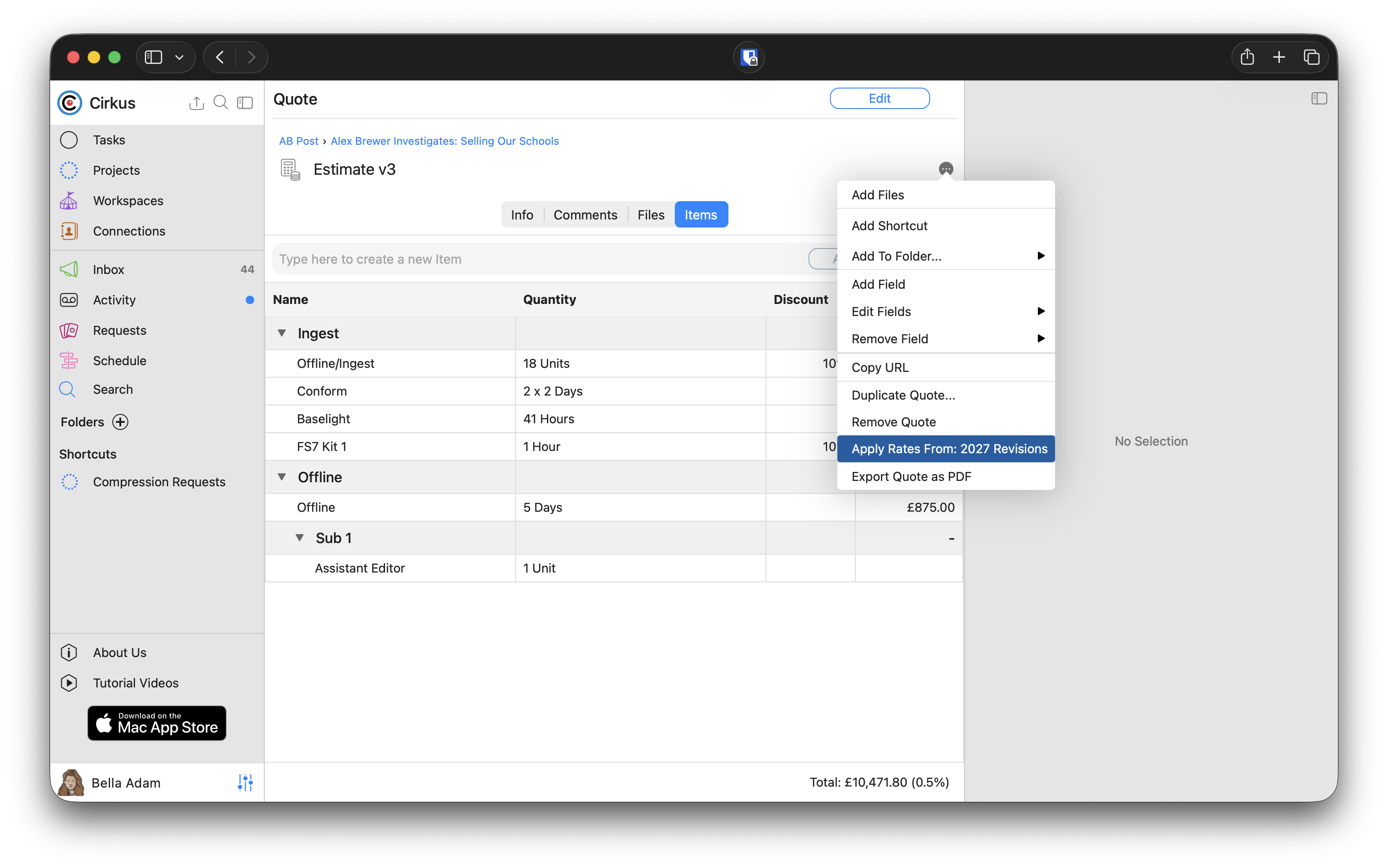
Active and inactive Rate Cards
Rate Cards can be marked as Active or Inactive.
- Active Rate Cards are available when creating new Quotes.
- Inactive Rate Cards are hidden from new Quotes but remain available for historical reference.
- Quotes already using an inactive Rate Card continue to display the applied rates.
Delete and restore a Rate Card
Deleting a Rate Card removes it from normal use without affecting existing Quotes that already reference it.
If required, a deleted Rate Card can be restored later.
Working with Rate Cards (Bulk Export / Import)
For Bulk updates or collaborations it can be convenient to take theRates offline to edit in a spreadsheet or share with a colleague.
- To export the Rate cards, click on the options menu and Export Rate Card Objects to CSV.
This operation will export both the Workspace Rates and Rate Card overrides into a csv file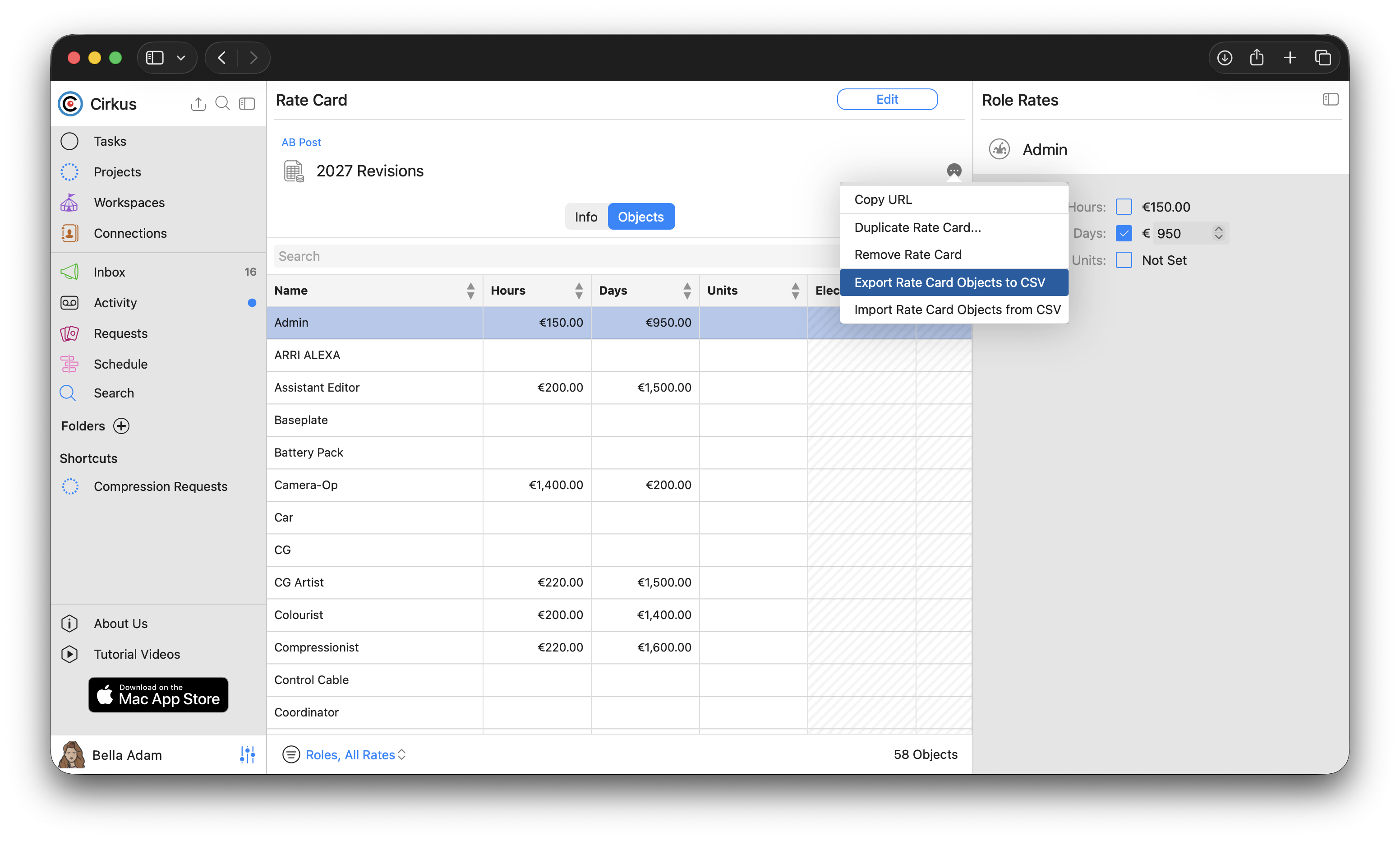
- Select the options for the export
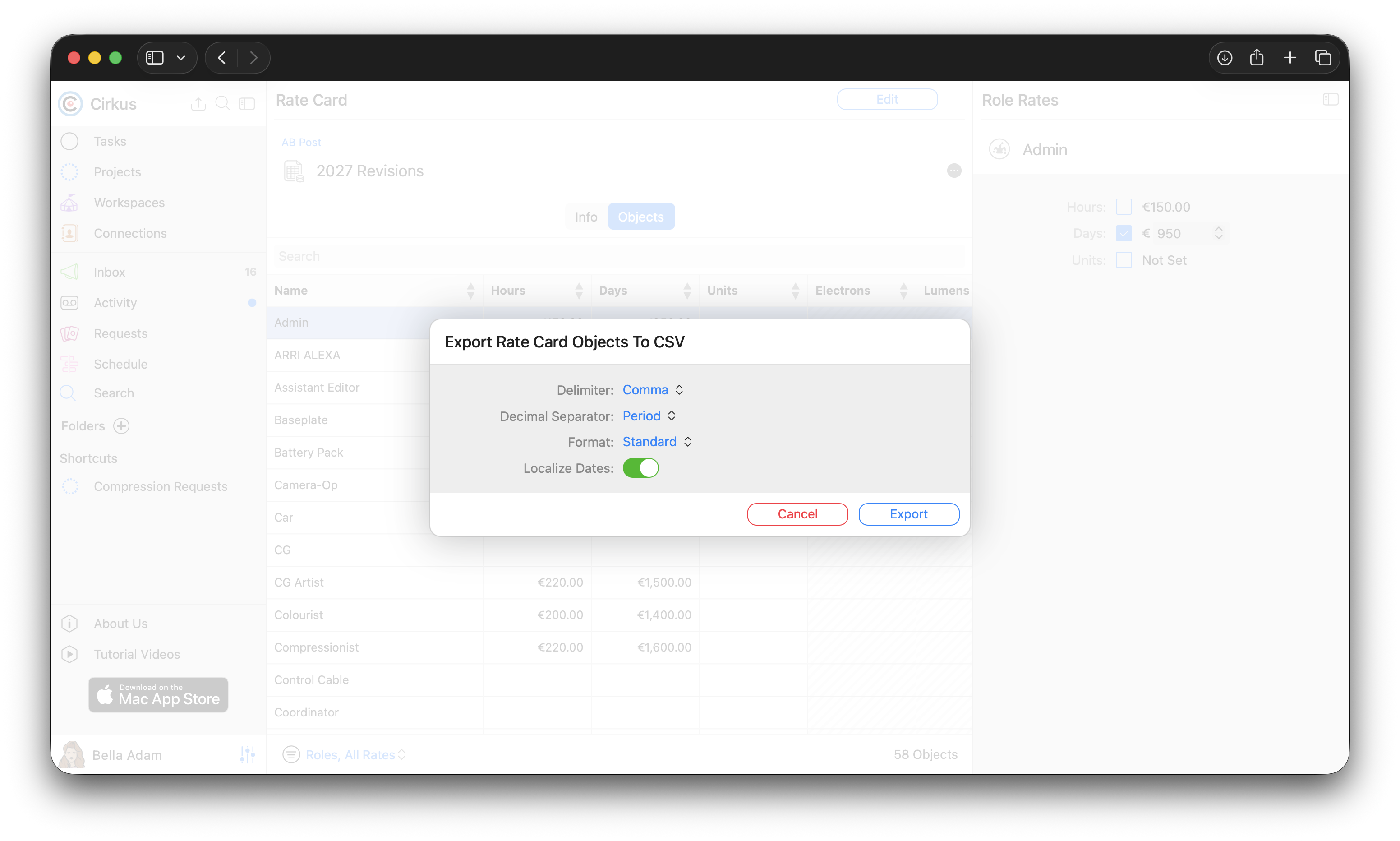
- Open the csv in your preferred application and make your edits.
* Note the ID column is an internal identifier in Cirkus, don’t edit this field or your imports may not map correctly to the workspace object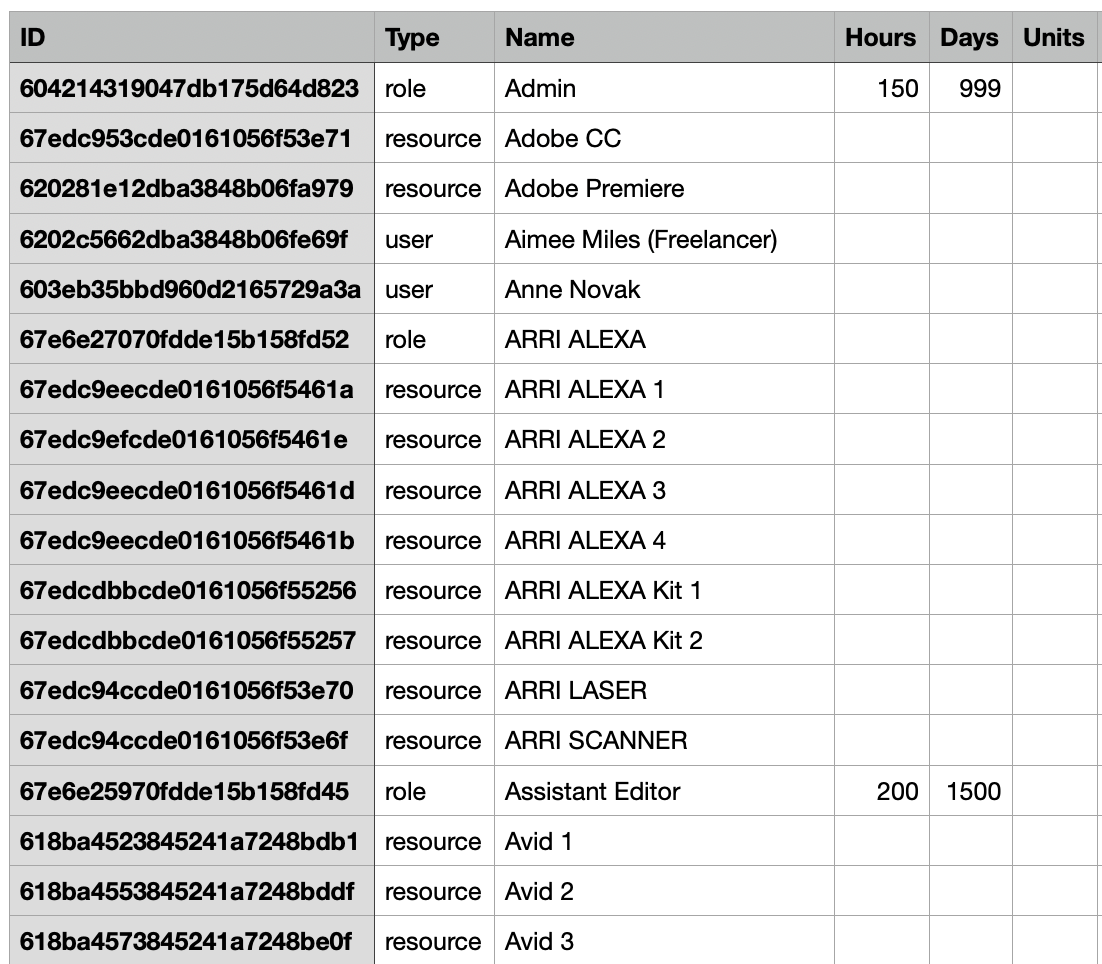
- Save the file as a csv
- In Cirkus select Import Rate Cards Objects from CSV
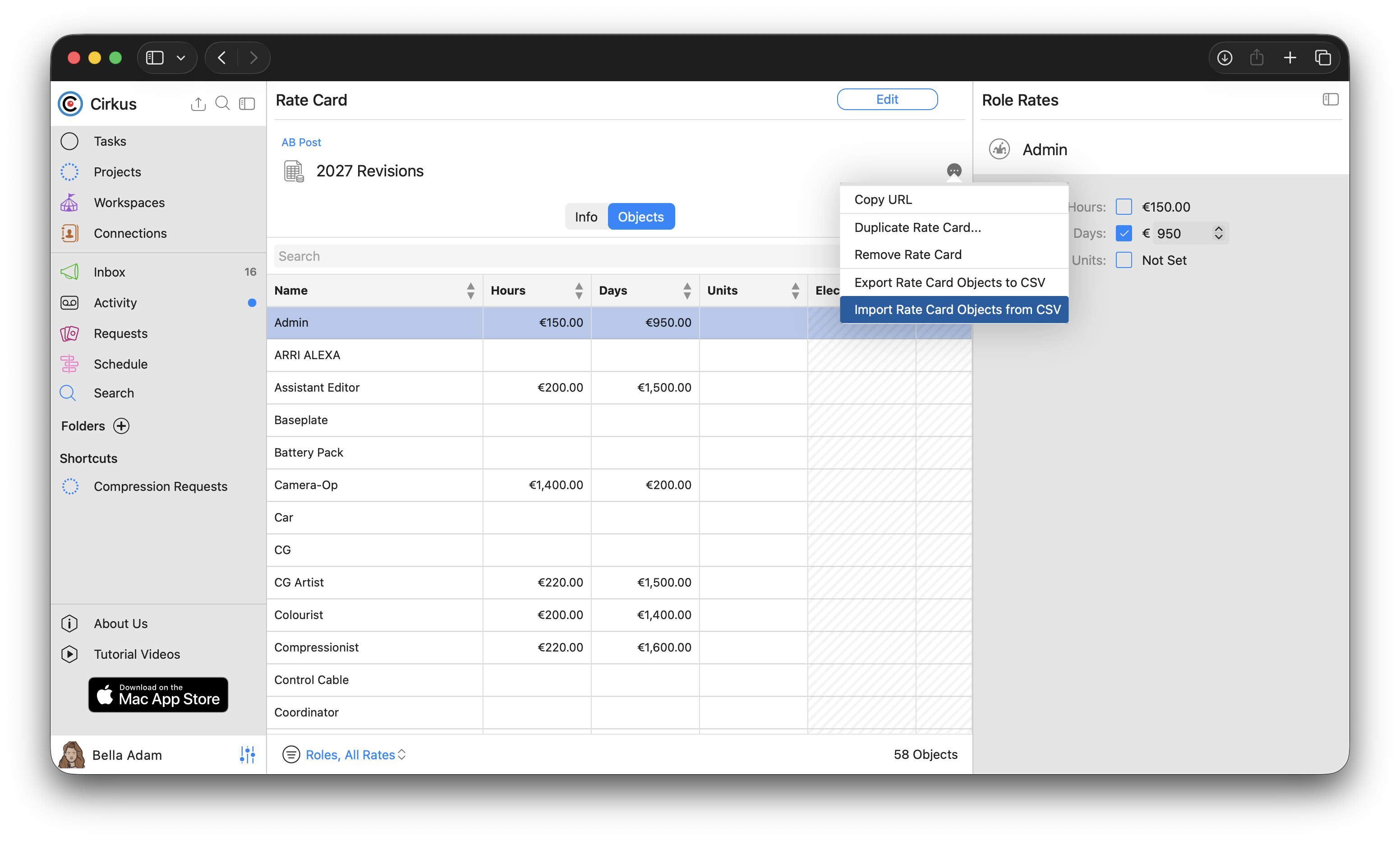
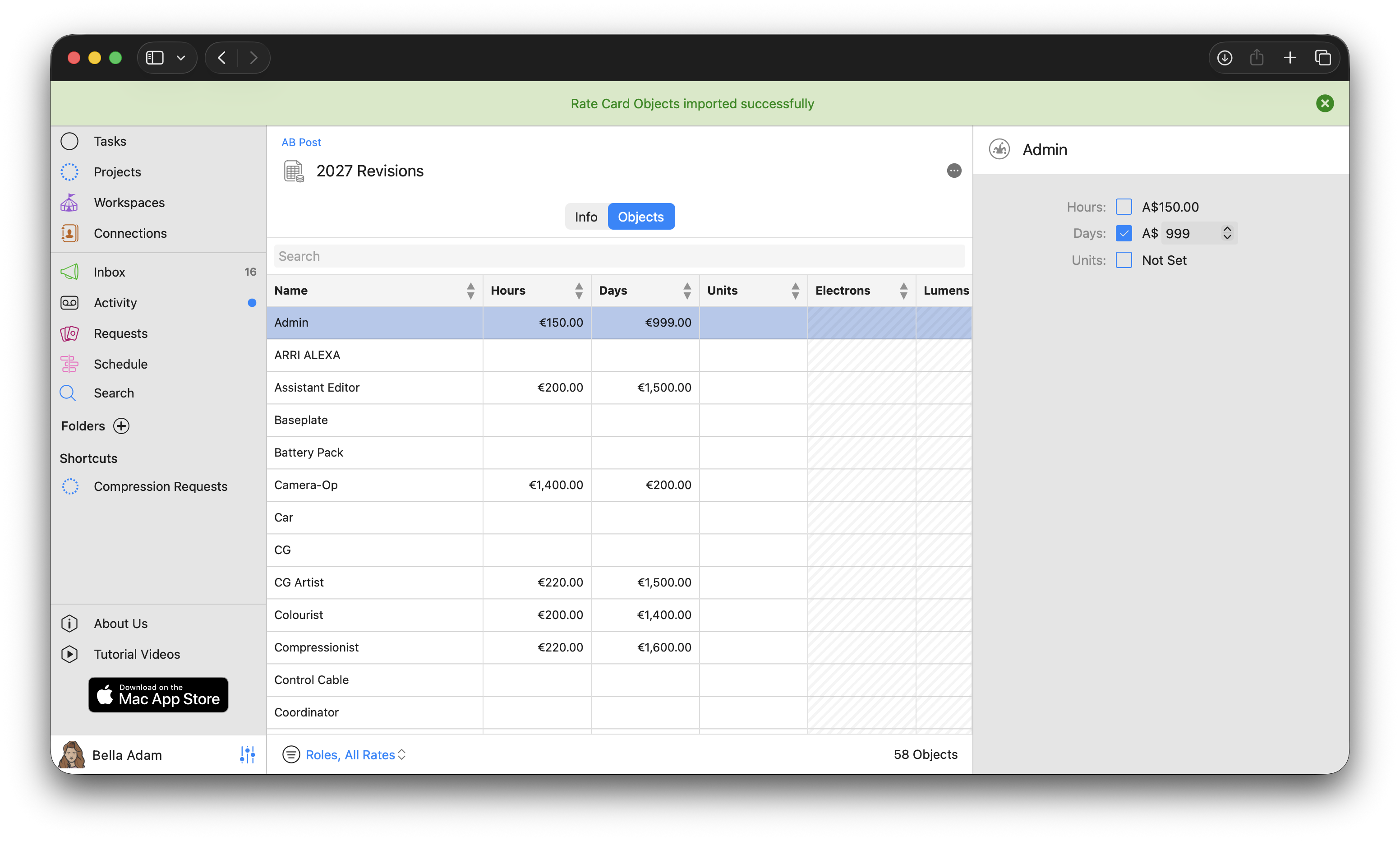
- If the import is successful a green status message will be shown , it can take a few moments to import if the file is large
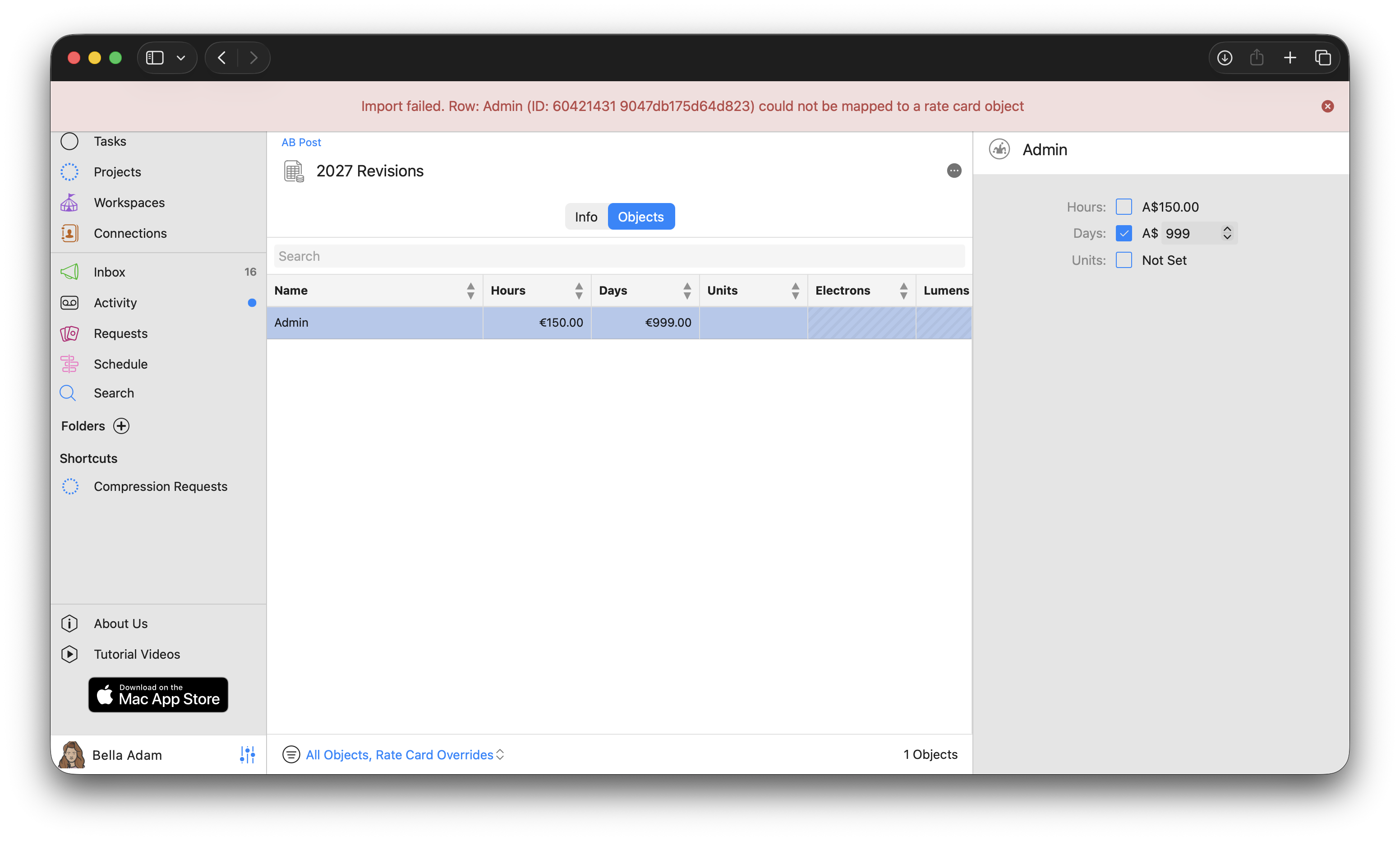
- If there are errors with the import the entire import will fail with an "Import Failed” and you will need to correct the error and import again.
Frequently asked questions
- Will updating a Rate Card change existing Quotes Items
No. Existing Items retain the rates that were applied when they were created. Changes to a Rate Card are only used for future Quotes Items.
However you can force apply the Rates to a Quote
- Can I use the same Quote Template with different pricing?
Yes. A single Quote Template can be used with any Rate Card, allowing you to reuse the same Quote structure while applying different pricing for different customers, regions, or pricing agreements.
- Why use Rate Cards instead of putting prices in Quote Templates?
Separating pricing from Quote Templates makes both easier to maintain. You can update your pricing without modifying your templates, and the same template can be reused with multiple Rate Cards.
Related articles
Was this article helpful?
That’s Great!
Thank you for your feedback
Sorry! We couldn't be helpful
Thank you for your feedback
Feedback sent
We appreciate your effort and will try to fix the article